
What is Whop?
Whop is a marketplace and commerce platform for selling access to communities, software, courses, and other digital products. Creators list memberships and products on Whop, and Whop handles checkout, billing, and access management for their customers.Connecting Whop
Whop requires manual API key and webhook setup. Connecting happens in two steps in Sequenzy: first you provide your Company ID and API key, then you set up a webhook and provide its signing secret.Step 1: Find Your Whop Company ID
- Go to your Whop Dashboard
- Your Company ID is visible in the dashboard URL (format:
biz_xxxxxxxxx) - Copy this ID for later
Step 2: Create a Whop API Key
- In the Whop Dashboard, go to the Developer tab
- Open Account API Keys
- Click Create
- Copy the API key
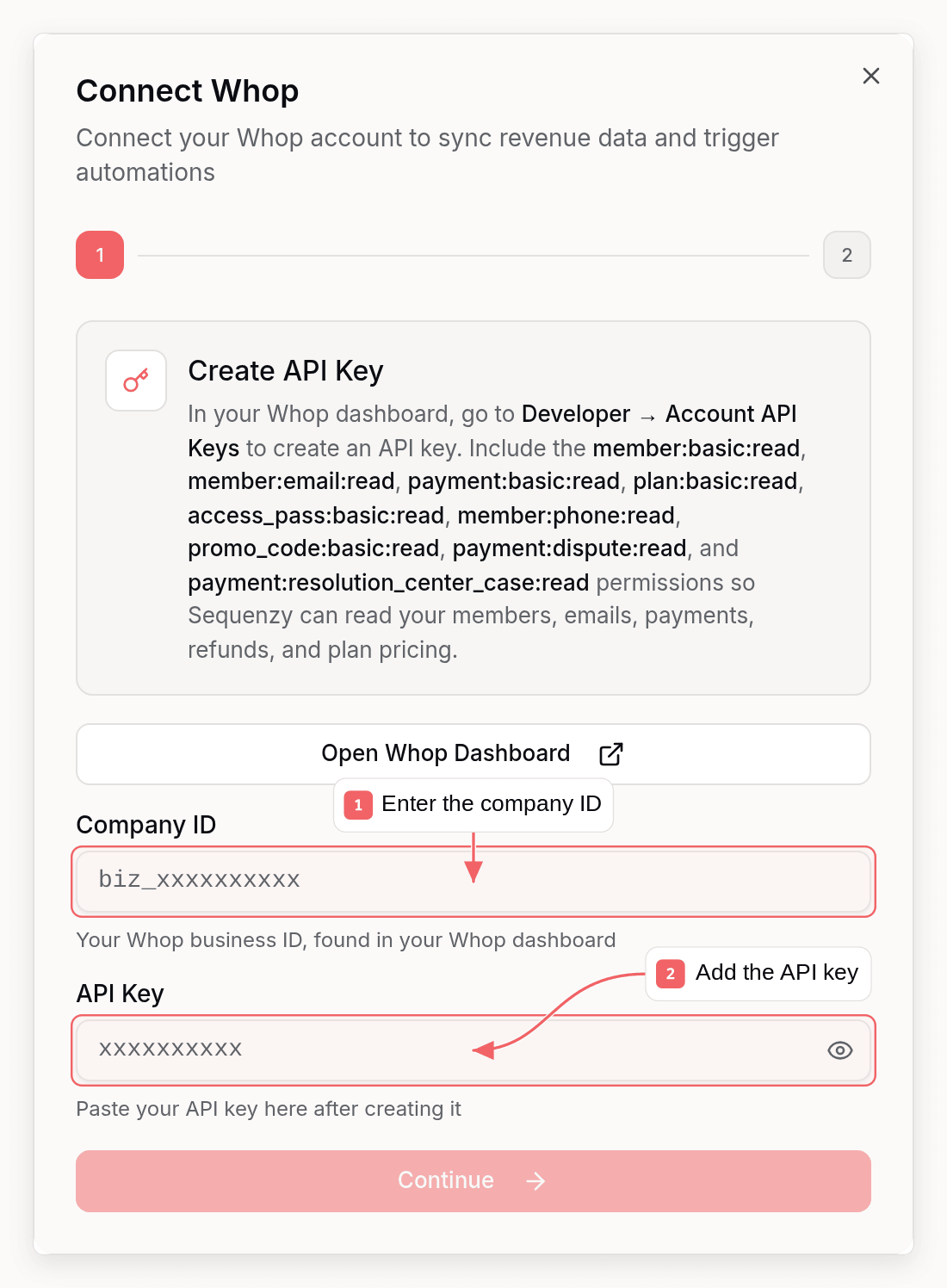
Step 3: Enter Your Company ID and API Key in Sequenzy
- Go to Settings → Integrations in Sequenzy
- Click Connect next to Whop
- Enter your:
- Company ID (from Step 1)
- API Key (from Step 2)
- Continue to the next step
Step 4: Set Up Webhooks in Whop
- In the Whop Dashboard, go to the Developer tab
- Click Create Webhook
- Enter your Sequenzy webhook URL:
This path uses your Sequenzy company ID, not the Whop
biz_...Company ID from Step 1. The connect modal shows the correct URL already filled in, with a copy button, so copy it from there instead of building it by hand. - Select these events to listen for:
payment.succeededpayment.failedmembership.activatedmembership.deactivatedrefund.createdrefund.updated
- Click Create to save the webhook
- Copy the Webhook Secret (format:
whsec_xxxxxxxxx) shown at creation
Step 5: Add the Webhook Secret in Sequenzy
- Back in the Sequenzy connect modal, paste the Webhook Secret (from Step 4)
- Click Connect Whop
Synced Attributes
When connected, Sequenzy adds these attributes to each subscriber matched by email:MRR Calculation
MRR is calculated from active, trialing, andpast_due memberships on renewal
plans:
- Monthly plans: Used as-is
- Yearly plans: Divided by 12
- All amounts are converted to USD
past_due memberships eligible for payment retries, so Sequenzy
continues counting their MRR and customer/interval tags until Whop ends access.
One-time plans and completed one-time memberships contribute to LTV, not MRR.
If a plan uses a currency for which Sequenzy has no reliable USD exchange rate,
that membership’s MRR is skipped without blocking the rest of the historical
sync. LTV still uses Whop’s USD valuation when Whop supplies one.
Tracked Events
When you connect Whop, these events are automatically tracked for use in automations:Historical Sync
Connecting Whop triggers an automatic backfill of your existing Whop customers and memberships, so your subscribers’mrr, ltv, and whopCustomerId attributes are populated right away rather than only updating as new events arrive.
To re-sync at any time:
- Go to Settings → Integrations
- Find your connected Whop account
- Click Sync Revenue
Using Revenue Data
Building Segments
With MRR and LTV synced as numeric attributes, you can create sophisticated segments: Revenue-based segments:mrr >= 100- High MRR customersltv > 1000- Lifetime high-value customersmrr >= 50 AND mrr < 200- Mid-tier customers
- Subscribers with a recent
saas.churnevent and highltv- win-back targets - Subscribers with a recent
saas.cancelledevent and highmrr- at-risk high-value customers
Automations
Trigger automations when revenue events or attributes change:- Send a thank-you email on
saas.purchase - Trigger a win-back sequence when a subscriber gets a
saas.churnevent - Notify your team when a high-value customer cancels
How Matching Works
Subscribers are matched by email address (case-insensitive). A Whop customer with emailUser@Example.com will match a subscriber with email user@example.com.
If a Whop customer doesn’t have an email in the webhook or doesn’t match any subscriber, the event is acknowledged but no action is taken.
Troubleshooting
Customer Emails Missing
If events are being acknowledged but subscribers aren’t being updated:- Confirm your API key has the
member:basic:read,member:email:read,payment:basic:read,plan:basic:read,access_pass:basic:read,member:phone:read,promo_code:basic:read,payment:dispute:read, andpayment:resolution_center_case:readpermissions enabled in Whop’s Developer tab - If a permission was missing when you first connected, create a new API key with all nine permissions, disconnect Whop in Sequenzy, and reconnect it with the new key
- Check that customers have valid email addresses in Whop
Webhooks Not Arriving
- Verify your webhook URL is correct in Whop and includes your Sequenzy company ID
- Confirm the webhook is enabled and subscribed to
payment.succeeded,payment.failed,membership.activated,membership.deactivated,refund.created, andrefund.updated - Check Whop’s webhook logs for failed delivery attempts
Invalid Webhook Signature
If webhooks are failing with signature errors:- Re-copy the
whsec_secret from Whop’s Developer tab, disconnect Whop in Sequenzy, and reconnect it with that secret - If you recreated the webhook in Whop, a new secret is generated - reconnect Sequenzy with the latest one
- Ensure you copied the complete secret, with no extra whitespace