
Connecting Stripe
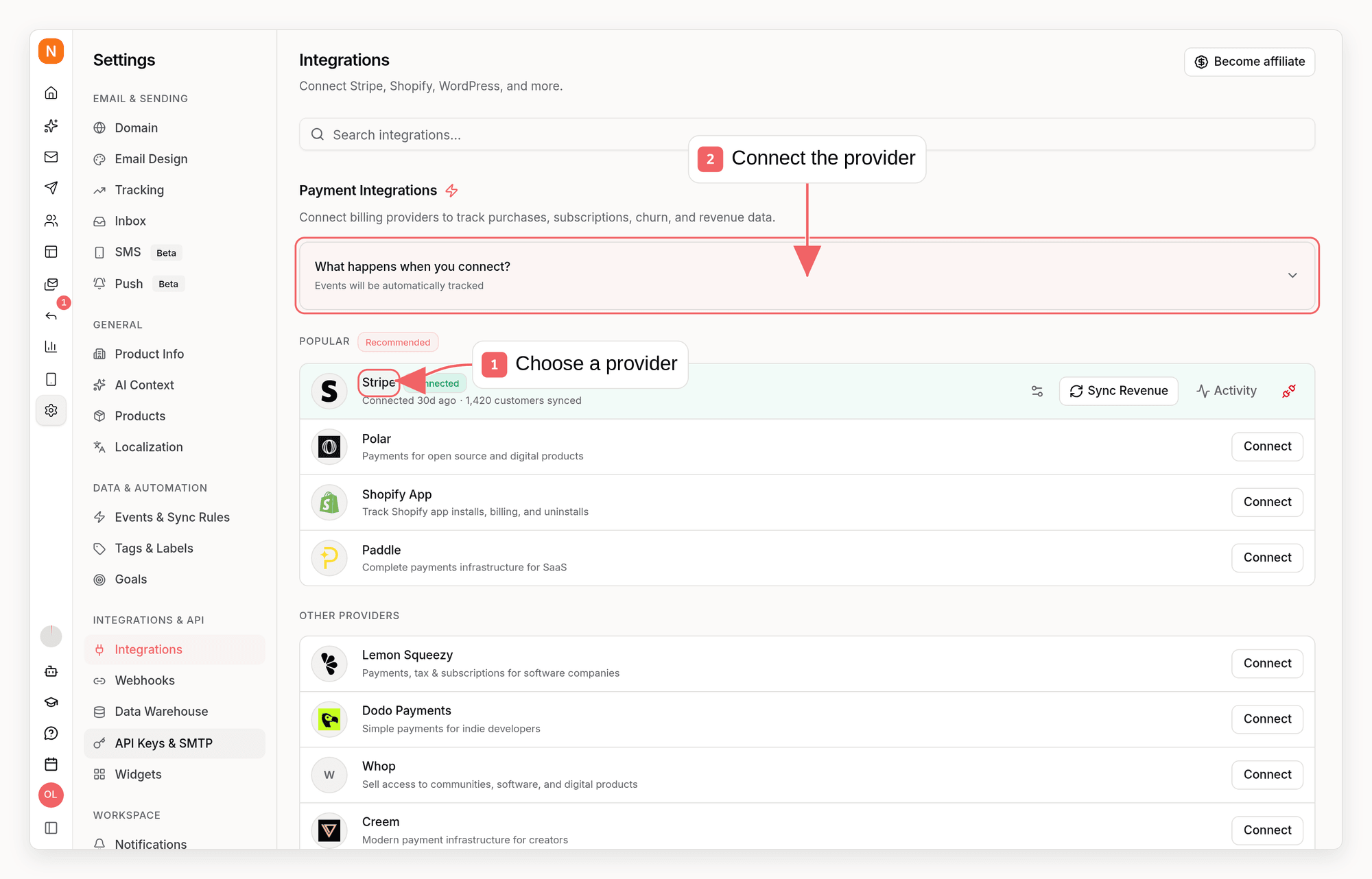
- Go to Settings → Integrations
- Click Connect next to Stripe
- Authorize Sequenzy to access your Stripe account
- Review the Stripe setup step and save your sync settings
Setup Options
Before the first sync starts, you can control how Stripe data should flow into Sequenzy:- Products to sync: You choose which Stripe products count as relevant. For paid customers, Sequenzy syncs people who made a payment in one of those products.
- Sync users without any payment ever: You can keep Stripe users with a real trial or subscription in sync before their first payment. Customers created from abandoned payment pages stay excluded. If you also selected products, those users still need to be tied to one of the selected products.
- Sync customers with no subscription or payment: You can also import Stripe customers that have never started a trial, subscription, or payment - for example free-tier users your app creates at signup. This is off by default, and it only appears while Sync users without any payment ever is on, because it widens that setting rather than replacing it. Enable it only if your app creates Stripe customers itself: abandoned Stripe Checkout payment pages can leave customer records behind, and those emails would be imported too. Product selections do not apply to these customers because they have no product to match. Customers whose only subscription is an abandoned incomplete checkout stay excluded. Unlike trial and paid customers, these customers have no Stripe webhook event that adds them, so they only arrive through the sync itself: it runs when you save these settings, and you can run it again with Sync Revenue in Settings → Integrations.
- Products to watch in webhooks: You can limit webhook-driven updates to a subset of the synced products. Products removed from sync are automatically disabled here too.
- Lists for new subscribers: You choose which lists new Stripe-synced subscribers should join. The default is your workspace Default Lists setting. Switch to Specific lists to target a curated set, or select nothing to keep Stripe-synced subscribers out of every list. Existing subscribers are never moved by this setting.
- Extra metadata to carry over: You can pick suggested metadata keys from sampled Stripe customer and subscription records, or add any custom keys you want to copy into subscriber attributes.
Discount Code Automations
Sequences can include dynamic discount steps that create Stripe coupons and subscriber-specific promotion codes when each subscriber reaches the step, before later emails send. These steps require write access to your Stripe account. If you connected Stripe before discount code support was added, reconnect Stripe from Settings → Integrations so Sequenzy can request the updated coupon and promotion-code permissions.Initial Sync
When you connect Stripe, Sequenzy performs a full sync of your entire customer base. This means:- Eligible customers are matched to subscribers by email based on your Stripe setup settings
- MRR and LTV are calculated for each matched subscriber
- Tags are applied based on current subscription status
- Historical data is available immediately: no waiting period
Synced Attributes
When connected, Sequenzy adds these attributes to each subscriber matched by email:MRR Calculation
MRR is normalized from any billing interval:- Monthly: Used as-is
- Yearly: Divided by 12
- Weekly: Multiplied by 52, then divided by 12
- Daily: Multiplied by 365, then divided by 12
active and trialing subscriptions count toward MRR.
LTV Calculation
LTV sums all successful charges for a customer, minus any refunds. This gives you the true lifetime value accounting for partial refunds. One-time purchases made through Stripe Checkout or Payment Links are included when the Checkout Session is attached to a Stripe Customer. Guest Checkout Sessions without a Stripe Customer are not part of the customer-scoped revenue sync.Automatic Tags
Sequenzy automatically applies tags to subscribers based on their Stripe subscription status:
These tags update automatically whenever subscription status changes via webhooks.
Using Revenue Data
Complex Segments
With MRR and LTV synced as numeric attributes, you can create sophisticated segments: Revenue-based segments:mrr >= 100: High MRR customersltv > 1000: Lifetime high-value customersmrr >= 50 AND mrr < 200: Mid-tier customers
tag = churned AND ltv > 500: High-value churned customers (win-back targets)tag = past-due AND mrr >= 100: At-risk high-value customers needing attentiontag = trial AND mrr = 0: Trial users who haven’t converted yettag = saas.yearly AND mrr >= 100: Yearly enterprise customers
mrr >= 50 AND opened_emails_last_30_days = 0: Paying but disengaged customersltv > 500 AND clicked_emails_last_30_days > 0: Engaged high-value customers
Automations
Trigger automations when revenue attributes change:- Send a thank-you email when
ltvexceeds a threshold - Trigger a win-back sequence when a subscriber gets the
churnedtag - Notify your team when a high-value customer’s payment fails (
past-duetag)
saas.trial_will_end comes from Stripe’s
customer.subscription.trial_will_end webhook, normally about 3 days before a
trial ends. Stripe also triggers it for trials shorter than 3 days, so do not
assume every event arrives exactly 72 hours before the end. To email users
whose trial ended without a purchase, trigger a sequence on
saas.trial_will_end, delay for the remaining trial duration used by your
Stripe setup, and set the sequence’s stop condition to event_received with
value saas.purchase (or add a condition step that checks the customer tag)
so converts never receive the recovery email. A fixed 3-day delay is
appropriate only when the event arrives 3 days before the end.
saas.trial_ended fires when a trial converts to paid, not when it expires.Failed Payment Recovery
saas.payment_failed events and the saas.purchase event sent when a
subscription invoice is paid include the Stripe invoice they belong to:
saas.payment_failed also carries what a recovery email needs:
For example, write
Your {{event.amountDueFormatted}} payment didn't go through
and link the button to {{event.hostedInvoiceUrl}}, or add a condition on
willRetry to send a last-chance email once Stripe stops retrying.
A property is left out when Stripe does not send it. Purchases that do not come
from a paid invoice, such as one-time Checkout payments, have no invoiceId.
Events received before these properties were added do not have them either.
saas.purchase is sent only for subscription invoices (billingReason
subscription_create, subscription_cycle or subscription_update), while
saas.payment_failed is sent for any failed invoice. To run one recovery sequence per
failed subscription invoice, use this setup:
- Trigger on
saas.payment_failedwith two property filters:attemptCountequals1, so automatic retries of the same invoice never start another run, andbillingReasonis one of the three subscription values above, so every run can be stopped by a payment. - Set the enrollment mode to
matching_fieldwith the field pathinvoiceId, so two invoices that fail at the same time each get their own run. - Set the stop condition to
event_receivedsaas.purchase, matchinginvoiceIdon the enrolling event toinvoiceIdon the purchase.
saas.payment_failed and Stripe is
your only connected payment provider sending that event, the trigger panel
shows a One run per failed invoice switch. It starts off. Turning it on
fills in all three settings as unsaved changes, and turning it off clears them;
nothing is stored until you save. From the CLI, API or MCP, send the settings
explicitly:
The stop condition is checked when a run reaches its next step, so a payment
ends the run before its next email rather than the moment it arrives. It only
counts payments received after the run started. Stripe counts only the first
attempt and its automatic retries, so if the customer retries by hand after a
run has finished and before Stripe retried automatically, that failure still
has
attemptCount 1 and starts a new run for the invoice. An invoice that
is voided, marked uncollectible, or ends with a cancelled subscription never
sends saas.purchase; add a condition step before each email, for example one
that ends the run when the contact has the churned tag, if those runs should
end early. With the attemptCount filter, an invoice whose first failure
arrived before Stripe was connected does not start a run.Revenue Attribution
Sequenzy creditssaas.purchase revenue to the most recent qualifying email
touch inside your attribution window. First payments count,
including the first paid charge when a trial converts. Renewals from contacts
who are already paying customers do not. See
which subscription payments count.
Manual Sync
To re-sync revenue data at any time:- Go to Settings → Integrations
- Find your connected Stripe account
- Click Sync Revenue
How Matching Works
Subscribers are matched by email address (case-insensitive). A Stripe customer with emailUser@Example.com will match a subscriber with email user@example.com.
If a Stripe customer doesn’t have an email or doesn’t match any subscriber, they’re skipped during sync.
Default Segments
When you connect Stripe, Sequenzy automatically creates three segments to help you get started:- Customers (Low MRR): Subscribers with
mrr < 50who have thecustomertag - High Spenders: Subscribers with
ltv > 500 - Churned High Spenders: Subscribers with the
churnedtag andltv > 500