
Domain Verification
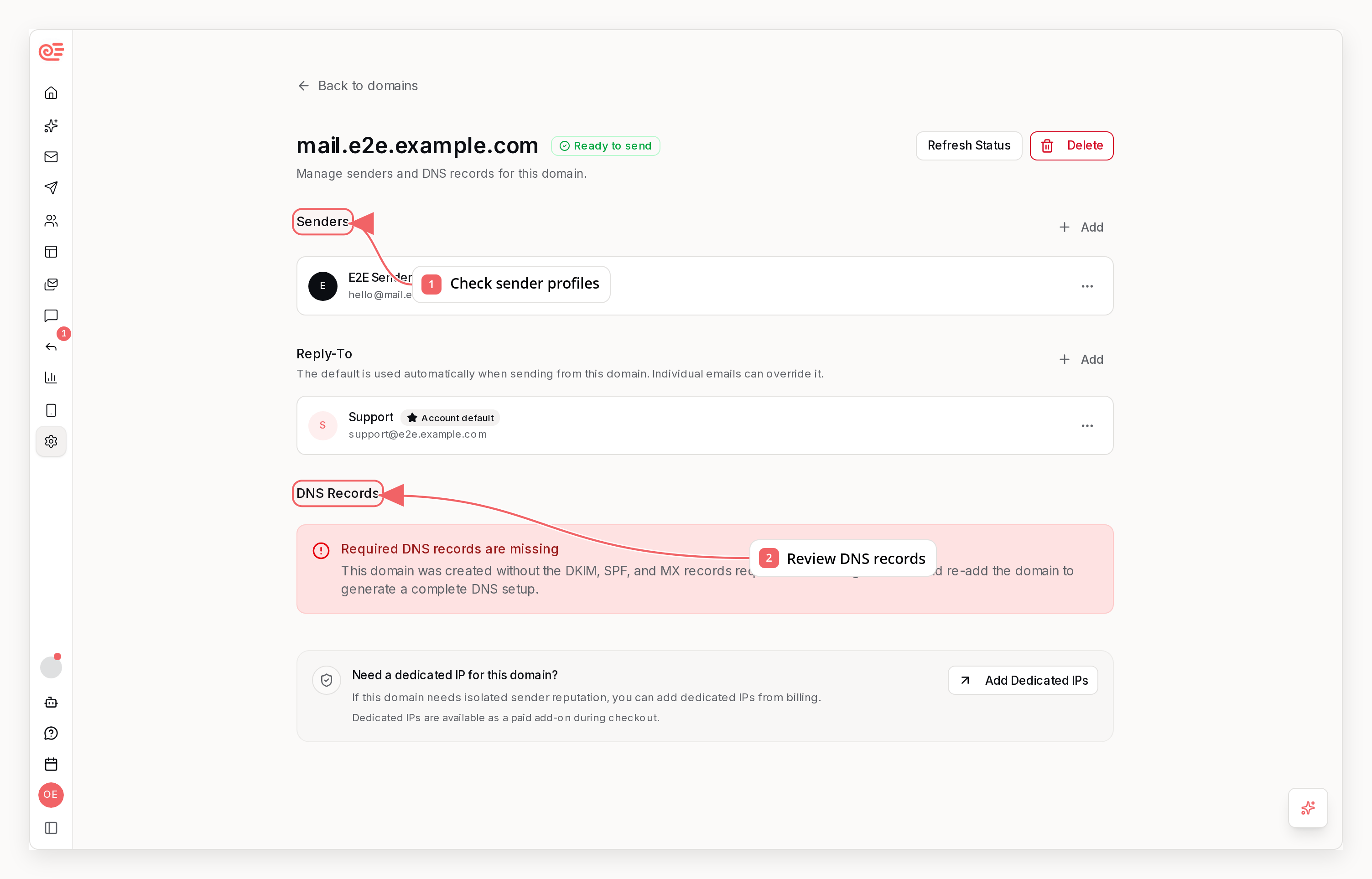
You can start sending emails immediately using the built-in
sequenzymail.com
domain without any DNS setup. However, this shared domain has shared
reputation across all users, so emails may land in spam. For best
deliverability, set up a custom domain.Why Domain Verification Matters
When you send an email, receiving mail servers (Gmail, Outlook, etc.) check if the email is legitimate. Without a verified custom domain, your emails may:- Land in spam folders
- Be rejected entirely
- Damage your sending reputation
- You own the domain - Only someone with DNS access can add the required records
- You authorize Sequenzy to send on your behalf - The records authorize Sequenzy’s sending infrastructure or, for a legacy domain, Amazon SES
send.yourdomain.com, and inbound.yourdomain.com records do not replace the
normal MX records that receive mail for yourdomain.com, so a mailbox hosted by
Hostinger, Google Workspace, or another provider can keep receiving mail.
After verification, an address or alias on the domain can be the visible From
address. Any valid external mailbox can also be Reply-To. Sequenzy still
performs outbound delivery through SES or Sequenzy’s MTA; customer-managed
SMTP relays are not supported.
How Email Authentication Works
Email authentication uses multiple protocols working together. When a receiving server gets your email:- SPF Check - “Is this server allowed to send for this domain?” → Looks up TXT record on bounce subdomain
- DKIM Check - “Was this email modified in transit?” → Verifies cryptographic signature using public key from TXT record
DMARC is an additional layer that tells receiving servers what to do when
authentication fails. It is required for domains created with the unified
record set and remains advisory for existing legacy domains.
Required DNS Records
Sequenzy shows the required DNS records for your domain during setup. The values in the dashboard and API are authoritative; the examples below explain the two supported record shapes.DKIM Record (1 TXT record)
DKIM adds a digital signature to every email. Sequenzy generates a unique key pair for your domain — outgoing emails are signed with the private key, and receiving servers verify using the public key published in this record.Unified Record Set for New Domains
Unified domains keep the same customer DNS when Sequenzy changes the domain’s underlying sending transport:
The DMARC record may already exist at your organizational domain. Do not create
a second DMARC record: publish or keep one valid
v=DMARC1 record. Sequenzy
checks the sending domain first and then its organizational domain.
A unified domain may initially send through Amazon SES with DKIM alignment
while its
send. SPF and MX records remain ready for Sequenzy’s MTA. This is
intentional; no customer DNS change is needed when an operator attaches or
detaches the domain from an MTA route.Legacy SES Record Set
Existing domains are not migrated automatically. Their dashboard may continue to show:
The inbound MX routes branded replies. Region-specific Amazon endpoints can
differ from these examples, so always use the stored value Sequenzy returns.
DMARC Requirement
DMARC is required for the unified record cohort and advisory for legacy SES domains. Any single valid DMARC policy passes the unified-domain gate; Sequenzy suggestsv=DMARC1; p=none; as a safe starting point but does not
force a particular p= policy.
Implementing DMARC
Learn how to set up DMARC for your domain with step-by-step instructions
Verification Methods
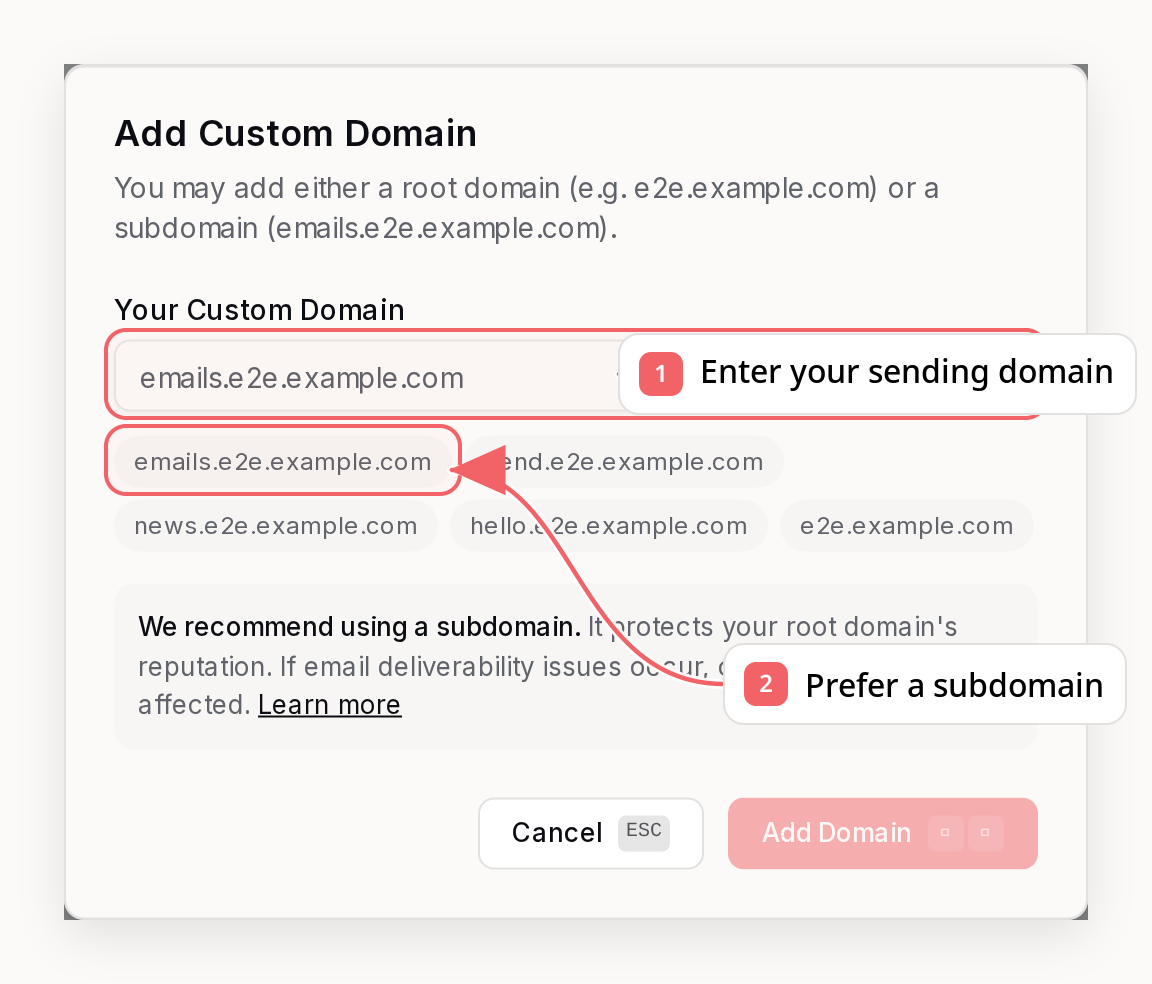
Option 1: Automatic Setup with Domain Connect
If your DNS provider supports Domain Connect, you can set up supported record sets from Sequenzy without copying values into your DNS dashboard manually. Unified domains currently use manual setup or Cloudflare direct setup so the required DMARC and Sequenzy MX/SPF values cannot be omitted by an older Domain Connect template. Step 1: Start automatic setup- Go to Settings → Domains and click your domain
- Click Auto Configure DNS
- Sign in to your DNS provider if prompted
- Review and approve the DNS changes
_domainconnect record and support Sequenzy’s template.
Step 2: Return to Sequenzy
After your DNS provider applies the records, it redirects you back to Sequenzy.
Verification starts automatically and can still take a few minutes while DNS
and the configured sending provider finish processing the changes.
Domain Connect does not give Sequenzy permanent access to your DNS account.
The provider approval page applies only the records shown for this setup.
Custom Tracking Domains
Custom tracking domains use one additional CNAME record so tracked clicks and open pixels use your branded host, for examplelinks.yourdomain.com.
If your DNS provider supports Domain Connect and the Sequenzy click-tracking
template, Settings -> Email Tracking shows an automatic setup button for this
CNAME. Otherwise, copy the CNAME from the manual setup table.
Branded Reply Domains
Branded reply routing uses one MX record so trackable reply-to addresses can use your domain, for examplereply+id@inbound.yourdomain.com.
New sending-domain automatic setup includes this record. If you enable branded
replies later and the record is missing, Settings -> Email Tracking shows a
separate automatic setup button when your DNS provider supports the Sequenzy
inbound-replies template.
Landing Page Domains
Landing page custom domains use a CNAME record so published landing pages can serve from your branded host, for examplepages.yourdomain.com.
If your DNS provider supports Domain Connect and the Sequenzy landing-page
template, the Landing Pages workspace shows an automatic setup button for this
CNAME. If Vercel requires an ownership verification TXT record, Sequenzy uses a
second Domain Connect template that includes both records.
Option 2: Manual DNS Setup
- Go to Settings → Domains and click your domain
- Copy each DNS record from the verification table
- Add them in your DNS provider’s control panel
- Return to Sequenzy and click I’ve added the records
Verification Process
Once you’ve confirmed the DNS records were added, Sequenzy monitors their status:- DNS Lookup - Checks if records exist and point to correct values
- Home Transport Activation - Sequenzy confirms the selected SES region or MTA route can accept mail
- DMARC Check - Required for unified domains and advisory for legacy domains
- Inbound Routing - When an inbound reply MX is present, Sequenzy connects the receipt rule for branded reply tracking
- Status Update - DNS and sending readiness update independently
Verification Statuses
The dashboard exposes three related states:- DNS - Not started, pending, verified, misconfigured, or failed.
- Sending - Activating or ready to send. Ready requires verified DNS plus the selected home transport.
- SES region - the selected AWS region whose identity must be ready.
Troubleshooting
Records Not Detected
- Wait for propagation - DNS changes can take up to 48 hours
- Check for typos - Ensure record names and values match exactly
- Check proxy settings - For Cloudflare, DKIM records must have proxy disabled (DNS only)
Records Saved but Never Detected (Wrong DNS Editor)
If you added the records, they show in your provider’s dashboard, but verification keeps reporting them as missing even after hours, you are probably editing a DNS zone that your domain does not actually use. Some providers keep two separate copies of your DNS: one attached to the domain registration and one attached to the hosting account. Only the copy served by your domain’s active nameservers is live - changes to the other copy are saved but never published. How to check which zone is live:- Find your domain’s nameservers (in your provider’s dashboard, or run
dig NS yourdomain.com) - Make sure the DNS editor you are using belongs to the account or product those nameservers point to
- After saving a record, verify it resolves publicly:
- If your domain uses hosting nameservers such as
ns8153.hostgator.com(the default when you have a HostGator hosting plan), DNS is served from your hosting account. Add records via Hosting → Launch cPanel → Zone Editor → Manage next to your domain. TXT records are added from the Add Record dropdown on the Manage page. - The Domains → your domain → DNS tab in the HostGator customer portal edits a registrar-side zone. When the domain points at hosting nameservers, records saved there are never published, even though the dashboard shows them as saved.
Only 1 "CNAME" record may exist per name for a record you did not touch (often cpanel.yourdomain.com or webmail.yourdomain.com), the zone contains pre-existing duplicate records that block all changes. Filter the record list for that name, delete the duplicate CNAME row, then save your new records again.
Verification Is Stuck
If verification stays pending or misconfigured:- Delete the domain in Sequenzy
- Re-add it to get a fresh DKIM key
- Update your DNS records with the new values
Branded Replies Not Active
Ifreply+{emailId}@inbound.yourdomain.com is not active yet:
- Confirm the inbound MX record points to the region-specific
inbound-smtpendpoint shown in Sequenzy - Return to Settings -> Email Tracking and refresh the Reply-to Domain status
- Leave the Reply-to Domain setting on Sequenzy until inbound routing shows as active if you want to avoid fallback behavior
Cloudflare Token Errors
Using Subdomains
We strongly recommend sending from a subdomain (e.g.,mail.example.com) rather than your root domain. This protects your domain reputation and isolates any deliverability issues.
Why Use Subdomains?
Learn about reputation isolation, risk prevention, and best practices for
subdomain email sending
Best Practices
- Use a subdomain - Protect your root domain’s reputation with
mail.yourdomain.com - Keep one valid DMARC record - It is required for unified domains and protects legacy domains against spoofing
- Keep tokens secure - Never share your Cloudflare API token publicly
- Verify inbound replies before switching - Keep the Reply-to Domain setting on Sequenzy until the inbound MX record and routing status are active
Related
Using Subdomains
Protect your domain reputation
Implementing DMARC
Set up DMARC for your domain
Quick Start
Get started sending emails
Transactional Emails
Send triggered emails via API