
How It Works
Email clients strip JavaScript and have unreliable CSS animation support, so a real countdown cannot run with code inside the email. Instead, the countdown block renders as a server-generated animated GIF. When a recipient opens your email, their client requests the timer image and Sequenzy calculates the time remaining at that moment, then returns a GIF that ticks down. This is the only countdown technique that renders reliably in Gmail, Apple Mail, and Outlook.Adding a Timer
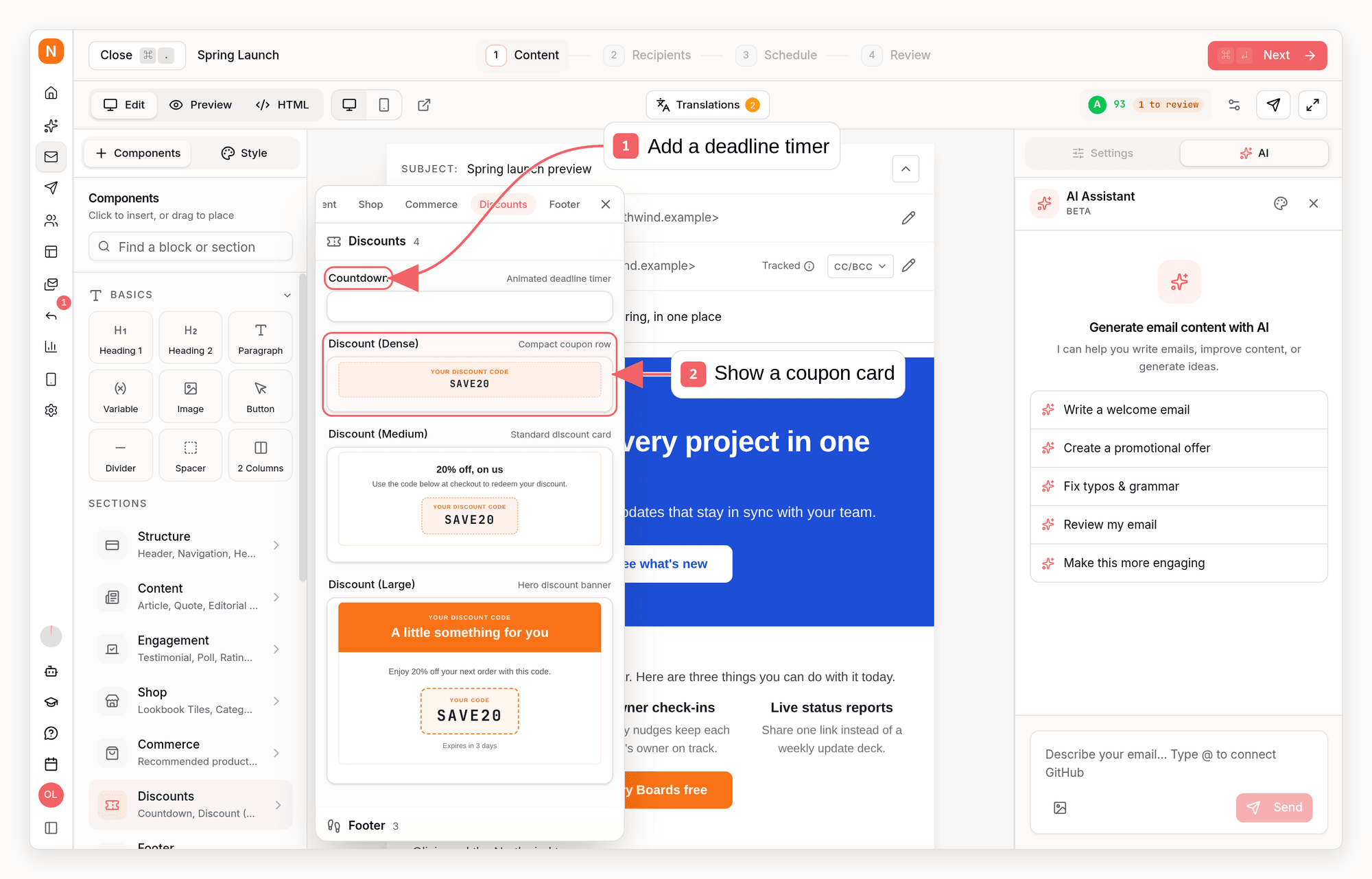
- While editing a campaign or automation email, open the block menu or type
/countdown - Insert the Countdown Timer block
- Open its settings to configure the timer
Settings
- Style: choose Boxed, Minimal, Bold, Outlined, Circle, or Circle Solid. The Circle styles render each unit as a round dial with a sweeping progress ring that empties as time runs out (outlined, or a solid accent disc). Every style uses your brand primary color automatically.
- Deadline: set the date and time the timer counts down to. You pick it in your local time, and every recipient counts down to that same absolute moment. Quick-pick presets (Tonight, Tomorrow, Next Monday, End of month, and more) set common deadlines in one click.
- Show labels: toggle the unit labels under each number. When off, the timer shows numbers only and shrinks to fit.
- When expired: choose what the timer shows after the deadline passes. Show zeros freezes on 00:00:00, or Show message replaces the digits with custom copy such as “Offer expired”. A live preview in the settings shows exactly how the expired state will look.
- Accent color: override the brand primary color for this timer.
- Link URL: optionally make the whole timer clickable, for example linking to your sale page.
Localized Labels
The unit labels are automatically translated to your company’s email language. If you send in Ukrainian, the timer shows ДНІ / ГОД / ХВ / СЕК; in German, TAGE / STD / MIN / SEK; and so on. The label text is baked into the image, so it renders correctly in every email client. English is used for any language without a built-in translation.Good To Know
- The timer counts down from the moment each recipient opens the email and keeps ticking for one minute. Re-opening the email fetches a fresh, up-to-date timer.
- Some clients cache images. Gmail’s image proxy in particular may briefly serve a slightly stale timer on a quick re-open, but the first open is always accurate.
- The deadline is the same for everyone. Keep deadlines real: recipients quickly learn to ignore fake urgency.
Best Practices
- Place the timer near your call-to-action button so the urgency connects directly to the action you want.
- Use timers for genuinely time-limited moments: flash sales, registration deadlines, early-bird pricing, or trial expirations.
- Send a test email and confirm the timer renders the way you expect before publishing.