
Attach A Deliverable
Open Settings → Products after connecting Stripe. Find the synced product and select Attach deliverable file.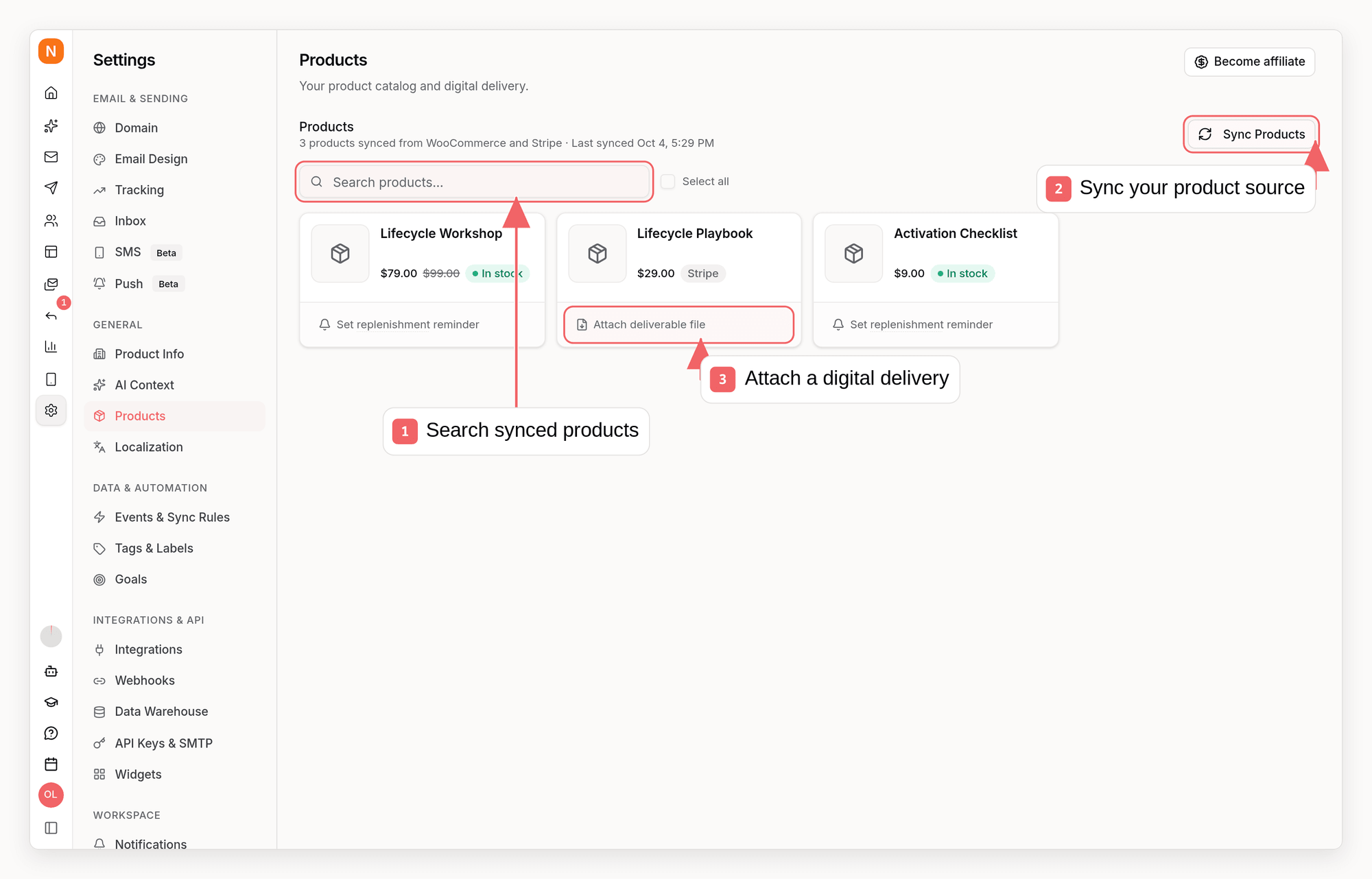
Configure Delivery
Choose whether to upload the file to Sequenzy or use an externally hosted file.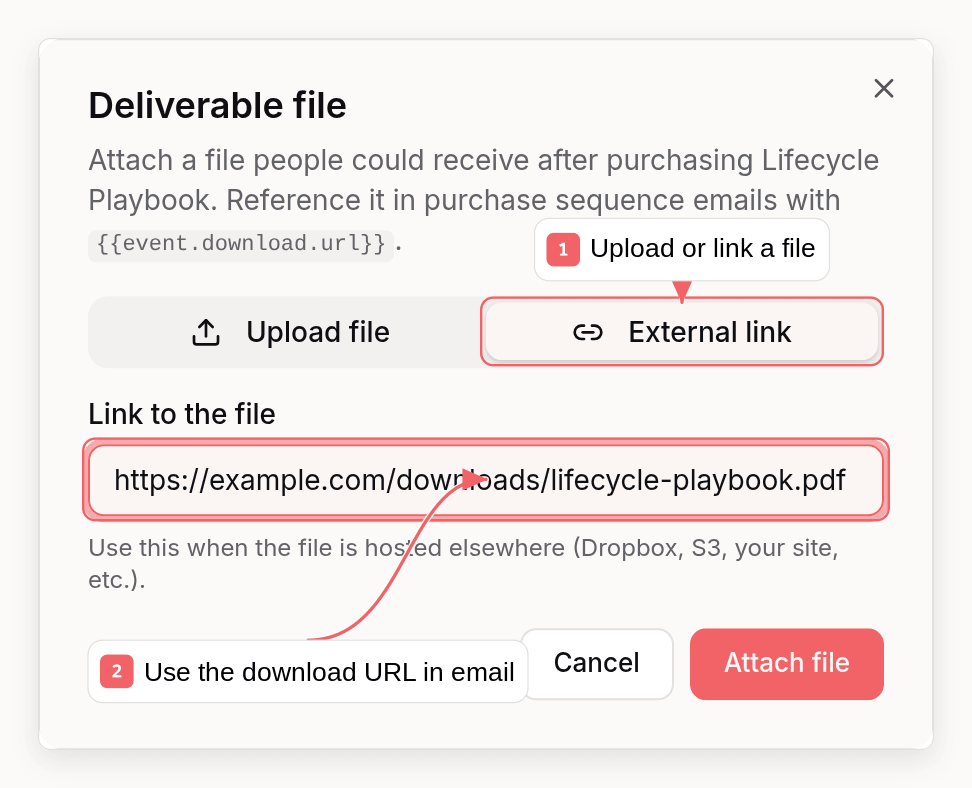
How it works
- Connect Stripe in Settings → Integrations. Sequenzy syncs your Stripe product catalog into Settings → Products.
- Attach a deliverable file to a product. Upload the file to Sequenzy (PDF, ePub, ZIP, images, audio, video - up to 100MB) or link to a file hosted elsewhere.
- Sell with any Stripe checkout - payment links, Stripe Checkout, or your own integration. No special setup is needed on the checkout side.
- The purchase event delivers the file. When the buyer completes checkout, Sequenzy receives the Stripe webhook, matches the purchased products against your catalog, and attaches the file info to the
saas.purchaseevent.
Sending the file in a sequence
Create a sequence with the Event received trigger and thesaas.purchase event. If you sell multiple products, use the Only for products picker to start the sequence for one specific product, or add property filters manually (for example productIds equals prod_XXX).
In the sequence email, reference the file with merge tags:
{{event.download.url}}- the file URL for the first purchased product with a deliverable{{event.download.name}}- the file name (or product title when the file has no name){{event.downloads}}- all deliverables when an order contains multiple products
{{event.download.url}}. For files up to 15MB, you can instead open the email step’s settings, choose From trigger, set the URL to {{event.download.url}}, and set the filename to {{event.download.name}}. Sequenzy then attaches the purchased file separately for every enrollment. Keep larger files as download links for deliverability and message-size safety.
Keeping products in sync
- The product catalog syncs automatically when you connect Stripe, and you can re-sync anytime from Settings → Products
- Every active Stripe price of a product is synced as a variant (the variant ID is the Stripe price ID), so a purchase path can target an exact price even when it is not the product’s default. The product’s listed price follows its default price while that price stays active, and falls back to the newest active price when the default has been archived
- Products archived in Stripe stay in Sequenzy (so attached files are kept) and are marked as archived
- Attached files survive re-syncs - product names, prices, and images update without touching your delivery settings
API, CLI, and MCP
Everything above is also available programmatically:- API - List Products, Attach Delivery File, Create Upload URL, Sync Stripe Products
- CLI -
sequenzy products list,sequenzy products upsert my-ebook --title "The Ebook" --file ./ebook.pdf,sequenzy products attach-file prod_abc --file ./guide.pdf,sequenzy products detach-file prod_abc,sequenzy products sync(see CLI docs) - MCP -
list_products,upsert_products,delete_product,attach_product_file(withurlor localfilePath),remove_product_file,sync_productstools (see MCP docs)
propertyFilters to Create Sequence (or the create_sequence MCP tool, or sequenzy sequences create --property-filters-json ...), for example [{"path": "productIds", "operator": "equals", "value": "prod_XXX"}].
Notes
- Uploaded files are stored under unguessable URLs, so links shared in email cannot be enumerated
- Buyers are created as subscribers automatically when the purchase webhook arrives, so delivery works even for brand-new customers
- Subscriptions work too: renewal payments (
invoice.paid) carry the same download properties, which is useful for re-delivering access links