
- Replies to your campaigns, sequences, and transactional emails
- Anything sent to your inbox address or to any address on your receiving domains, from people, services, or other AI agents
Turning on the Inbox
Navigate to Settings → Inbox and add a receiving domain. Once Sequenzy finds its DNS records, Receive emails in Inbox turns on by itself: all outbound emails use a trackable reply address that routes responses back to Sequenzy, and your inbox address starts accepting mail. Workspaces that used the Inbox before can turn Receive emails in Inbox back on without a receiving domain, and keep receiving at their Sequenzy address. For other workspaces, turning it on through the API (replyTrackingEnabled: true on Update Company) fails with receiving_domain_required until a receiving domain is verified.
Your Inbox Address
Every workspace has an inbox address:sequenzy inbox address, and MCP get_inbox_address.
Use your own domain
To receive mail on your own domain, add a receiving domain in Settings → Inbox. A receiving domain is a domain or subdomain whose mail comes to Sequenzy, such assupport.acme.com or acme.com. A workspace has one, and like your tracking domain it serves every sending domain: replies to emails from any of your sending domains come back to it. To use a different one, remove the current one first.
After you add a domain, publish the records Sequenzy shows: an MX record pointing at inbound-smtp.us-east-1.amazonaws.com with priority 10, and a TXT record at _amazonses.<domain> when Amazon SES needs proof that you own the name. It is listed only when no verified Amazon SES identity on the name or a parent domain covers it already. Sequenzy checks the records automatically, every few minutes at first, and you can check right away. A receiving domain has one of three statuses:
- Verified: mail arrives, and replies to your emails come back to the domain (see Reply-to Domains). The first verification of a domain you add turns the Inbox on.
- Pending: waiting for the DNS records. A new name is reserved for your workspace for 7 days. If the records are not found by then, another workspace may add it.
- Failed: the domain was set up and something broke, for example its MX record was removed, or its 7-day reservation ran out before the records were found. Mail that still arrives is kept, but new emails use Sequenzy’s reply domain until you fix it. Sequenzy says what to change.
admin@support.acme.com, billing@support.acme.com and any other address arrive, and each conversation shows the address it was sent to. To give people one address to use, set a branded inbox address such as support@support.acme.com. It is active once its receiving domain is verified. Until then, and always, inbox+{companyId}@inbound.sequenzy.com keeps working.
Removing a receiving domain stops all mail to it, including replies to emails you already sent with reply addresses on it, and clears a branded inbox address on it. Remove Sequenzy’s MX record from your DNS afterwards.
If your workspace received replies on your own domains before receiving domains existed, such as on inbound.acme.com, that setup was moved to receiving domains for you. They keep working with no DNS change, even when there are several, and they are never released to another workspace.
The same workflow is available through the Receiving Domains API, sequenzy receiving-domains list | add | get | verify | remove, and MCP list_receiving_domains, add_receiving_domain, get_receiving_domain, verify_receiving_domain and remove_receiving_domain. Set the branded address with Update Inbox Address, sequenzy inbox address --local-part support --domain support.acme.com, or MCP update_inbox_address.
Email sent to the inbox address or to any address on a receiving domain:
- Opens a new conversation, or joins an existing one when its
In-Reply-ToorReferencesheaders point at a message in that conversation - Links to a subscriber when the sender’s address matches one; senders are not added as subscribers
- Does not fire
email.repliedwebhooks or automations, is not counted in reply analytics, and is not auto-forwarded. It fires theemail.receivedwebhook instead - Goes to the Spam folder when the inbound spam or virus scan flags it. Spam fires no webhook, is not linked to a subscriber, never joins an existing conversation, and keeps only the names of attachments the virus scan flags
- Is not linked to a subscriber or threaded when its DMARC check fails
email.replied webhooks, automations and auto-forwarding.
You can also forward mail from another mailbox or mail service to your inbox address, for example with a forwarding rule for support@yourdomain.com, to collect it in Sequenzy without changing where your domain receives mail.
Configuration Options
Reply-to Domains
Until your receiving domain is verified, Sequenzy usesreply+{emailSendId}@inbound.sequenzy.com for trackable reply addresses.
Once it is verified, replies to emails from all your sending domains use it instead, like reply+{emailSendId}@support.acme.com for an email sent from news@acme.com or hello@otherbrand.com.
If your workspace has several receiving domains from an older setup, Sequenzy picks the one that matches the sender’s domain exactly, then the root domain, then the shortest other receiving domain on the same root. Senders on another domain use the oldest verified receiving domain.
Adding your first receiving domain turns this on. Through the API, replyTrackingDomainMode is custom while it is on; set it to sequenzy to always use inbound.sequenzy.com.
Replies keep arriving on a receiving domain whose setup breaks later, as long as its MX record still points to Sequenzy, so replies to emails you already sent are not lost. New emails use inbound.sequenzy.com until the domain is verified again. Changing these settings does not change addresses in emails you have already sent.
How Reply Tracking Works
- Outbound emails include a unique reply address in the format
reply+{emailSendId}@inbound.sequenzy.comorreply+{emailSendId}@support.yourdomain.comon one of your receiving domains - When a subscriber hits reply, their email is routed to Sequenzy
- The reply is parsed to extract the new content (quoted text is stripped)
- A conversation is created or updated with the new message. Replies to your team’s replies stay in the same conversation
- The conversation is marked unread in the Inbox and you can respond directly
Viewing Conversations
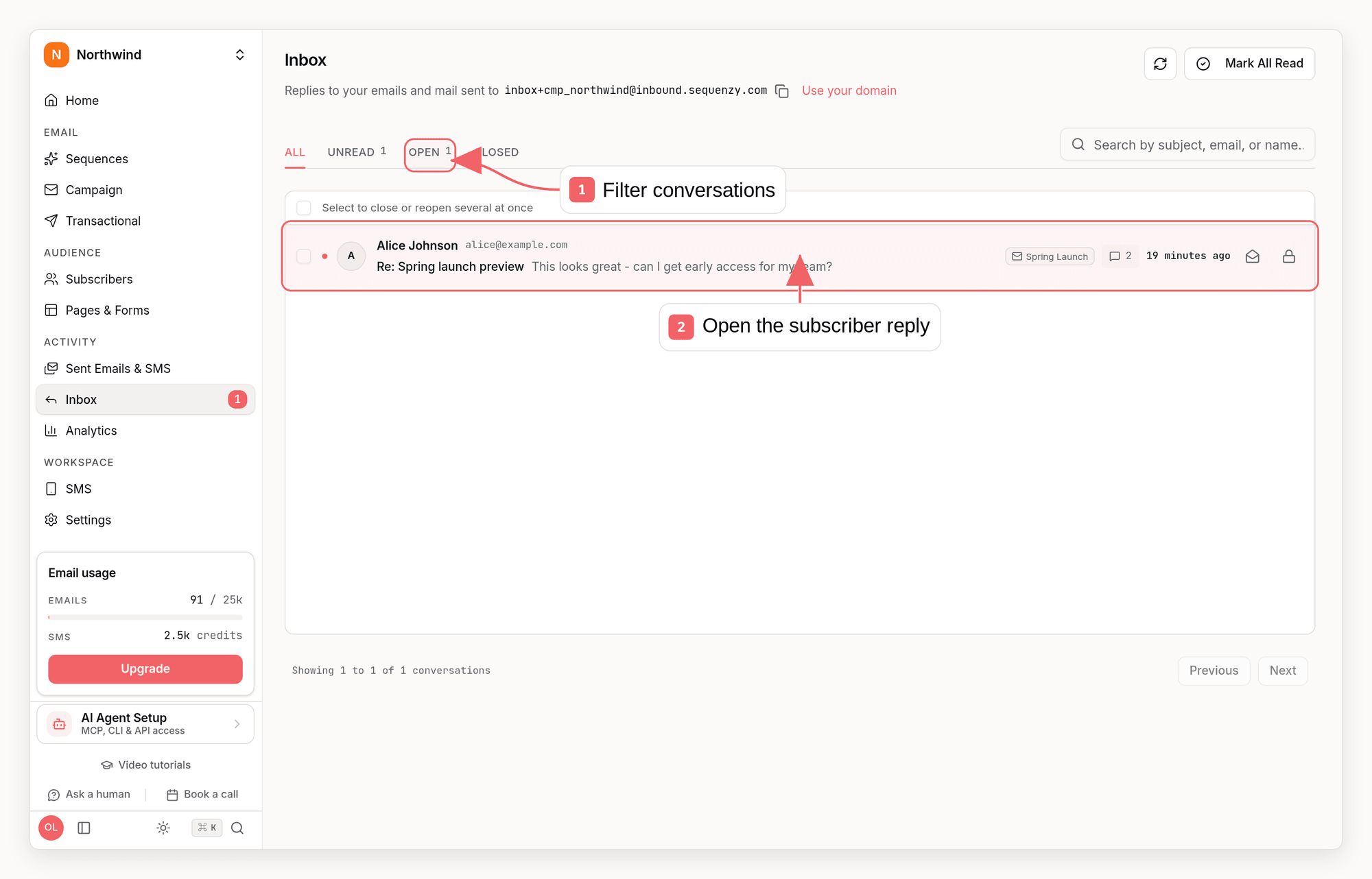
Access your conversations from the Inbox in the left navigation. The tabs show:- All: Every conversation
- Unread: Conversations with new messages
- Open: Conversations awaiting your response
- Closed: Resolved threads
- Spam: Mail the spam or virus scan flagged, and conversations you moved there. Other tabs and counts leave it out
sequenzy inbox spam and sequenzy inbox not-spam, and MCP bulk_update_conversation_spam.
Conversation Details
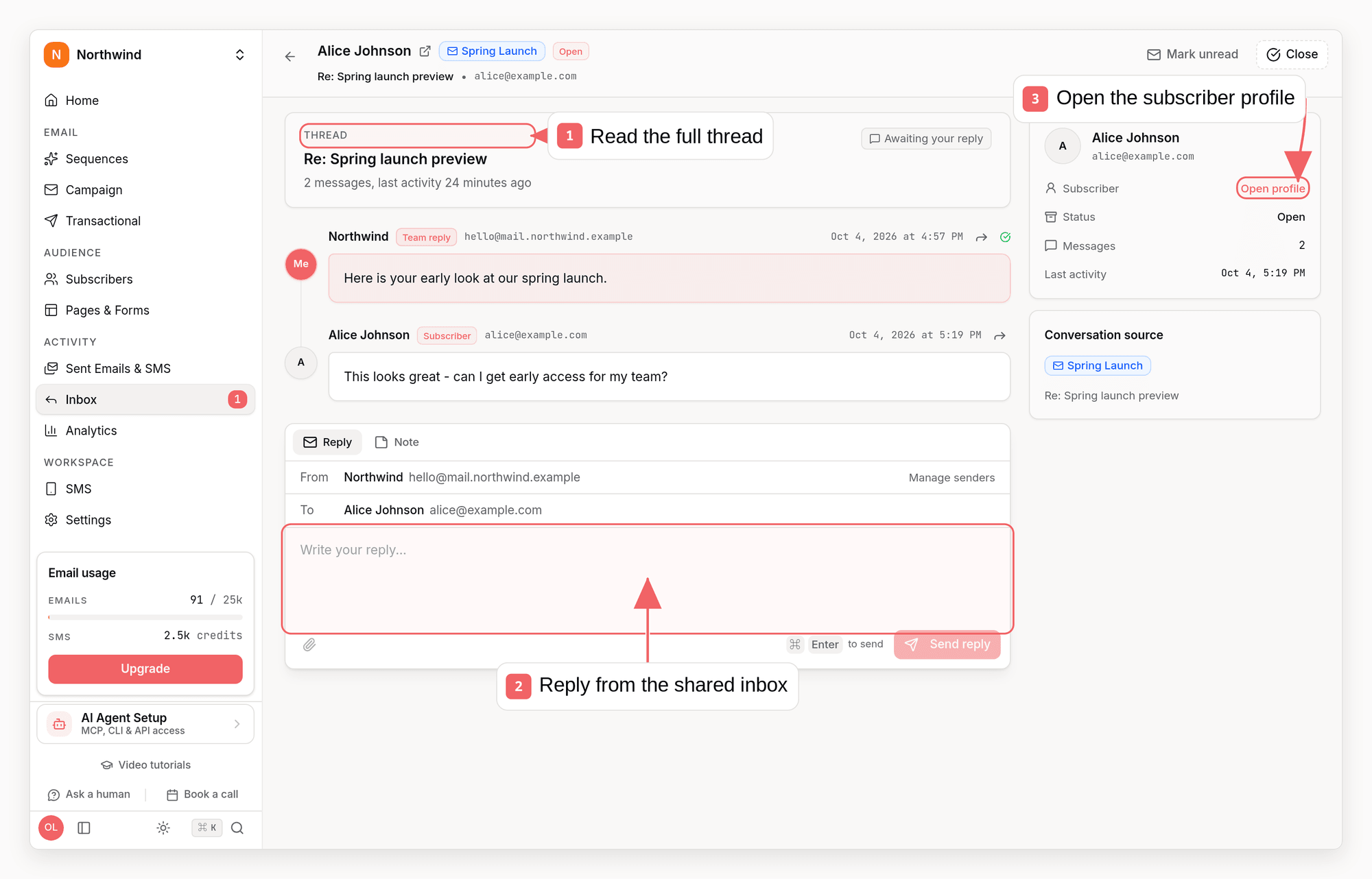
- Full message thread with timestamps and attachments
- Subscriber profile and engagement history
- Original email that started the conversation, or Inbox address for mail sent there
- Reply, forward, mark unread, and close actions
Replying to Subscribers
You can reply directly from Sequenzy:- Open a conversation from the Inbox
- Check the From address and pick another sender profile if needed
- Type your response in the composer
- Click Send reply, or press
Cmd+Enter(Ctrl+Enteron Windows)
senderProfileId (--sender-profile-id in the CLI) to choose the sender.
Your reply is sent from your verified sending domain and appears in the subscriber’s email client as a normal reply. The conversation thread is maintained with proper email headers, so it displays correctly in Gmail, Outlook, and other email clients.
Attachments
Attachments on received email are stored privately and can be downloaded from the conversation. The API returns a signeddownloadUrl for each stored file, valid for one hour. You can attach files to replies with the paperclip in the composer, attachments in the API, --attach in the CLI, or attachments in MCP reply_to_conversation: up to 10 files and 15 MB per reply.
A received file keeps its name but cannot be downloaded when it failed the virus scan, is larger than 25 MB, is beyond the first 20 files of a message, could not be stored, or has passed the retention period. A reply fails, rather than going out without it, when a file you attached cannot be sent. Attachment storage must be configured on the server; attachmentsAvailable from Get Inbox Address tells you whether it is.
Forwarding a Message
Forward any received or sent message, with its attachments, to another address with the forward button on the message, Forward Conversation Message,sequenzy inbox forward, or MCP forward_conversation_message. The forward appears in the thread with its delivery status and does not change the conversation’s status or unread state. Notes cannot be forwarded. Files that are not stored, cannot be read, or do not fit the 15 MB email limit are left out, and the forwarded email lists them. A forward counts as a sent email and triggers the email.sent webhook, and replies to it are not added to the conversation.
Reply Forwarding
If you prefer to handle replies in your regular email client, enable Auto-forward replies in Settings → Inbox. When enabled:- Replies are forwarded to the
replyToaddress from the original email - The forwarded email includes the subscriber’s message and context
- You can reply directly from your email client
Reply-To
header is used. Recipients see a unique trackable reply address, while Sequenzy
stores the original destination for forwarding:
- Template sends forward to the API
replyTovalue when provided, otherwise to the transactional template’s reply profile - Direct-content sends forward to the API
replyTovalue when provided - Direct-content sends that omit
replyToforward to the company’s default reply profile, or the first reply profile in the company if no default is set - If no forwarding destination is available, replies are still captured in the Sequenzy inbox but are not forwarded to an external inbox
Even with forwarding enabled, replies are still captured in Sequenzy for
analytics and record-keeping.
Reply Analytics
Reply metrics are available alongside opens and clicks:- Reply rate: Percentage of delivered emails that received a reply
- Total replies: Count of inbound messages
- Per-campaign metrics: See which campaigns generate the most engagement
- Campaign analytics (after sending)
- Sequence node performance
- Overall metrics dashboard
API Access
The inbox is available through the REST API, CLI, and MCP server, so an AI agent can work it the same way your team does. Outbound replies are queued asynchronously; a successful create response initially reportsdeliveryStatus: "pending".
List Conversations
Get Conversation
Reply to Conversation
Configure Reply Tracking
Use the company endpoint to read or update the same settings exposed in the dashboard:sequenzy companies update flags, and MCP exposes
them on get_company and update_company. Company reads also return the
read-only replyRetentionDays value.
Read Reply Metrics
The account, campaign, and sequence metrics endpoints returnreplies and
replyRate; sequence responses include the same fields for every email step.
The CLI stats command renders both fields, and the MCP get_stats,
get_campaign_stats, and get_sequence_stats tools return them unchanged.
Data Retention
Received emails and their stored attachments are kept for the company’s retention period, at least 90 days, and then deleted. Conversations and their message text stay in the inbox; attachments of deleted emails remain listed by name but can no longer be downloaded. Read the current value throughreplyRetentionDays on the company or retentionDays from Get Inbox Address;
it is not editable through the public API, CLI, or MCP server.
Limitations
- Reply tracking requires inbound email routing: new workspaces turn the Inbox on by verifying a receiving domain. Until it is verified, replies use Sequenzy’s shared inbound domain.
- Attachments: Stored for the retention period when attachment storage is configured. Without it, only file names and sizes are kept
- One inbox per workspace: The inbox address is per company, not per agent
- Rate limits: High-volume reply handling may be subject to processing delays
Troubleshooting
Replies not appearing
- Verify Receive emails in Inbox is on in Settings → Inbox
- If you use your own domain, check that its receiving domain is verified. An error on it says what to fix, such as other MX records splitting its mail or a missing TXT record
- Confirm the reply was sent to the correct address (check email headers)
Forwarding not working
- Ensure Auto-forward replies is enabled
- Verify the original email had a valid forwarding destination. For direct
transactional API sends, provide
replyToor configure a company default reply profile. - Check the forward status in the reply details
Missing conversation context
If replies appear without conversation context:- The original email may have been deleted
- The
emailSendIdin the reply address may be invalid - Check the subscriber exists in your account