
poll.answered event, so the feedback feeds straight into your segments, sync rules, and automated sequences.
How It Works
Each answer in the block is a regular link, so polls work in every email client with no JavaScript or forms. When a recipient clicks an answer:- Sequenzy records the answer on their subscriber profile, in the attribute you chose (for example
email_feedbackornps_score). - A
poll.answeredevent is recorded with the question, the answer, and the email that asked it. - The recipient lands on a hosted thank-you page (or a page of your choosing).
Multiple answers
Turn on Multiple answers to let recipients pick several options in one go (interest surveys, topic requests, “select all that apply” questions). Answer links then open a hosted selection page instead of recording immediately: the clicked option arrives pre-checked alongside any previously saved choices, the recipient checks as many options as they like, and one Save my choices submit records the whole set. The attribute then stores the list of selected values, and saving again later replaces the previous list (saving with nothing checked clears it, which also removes the subscriber from that poll’s results). Because the page records nothing until the submit, link-scanning bots cannot fabricate or destroy selections.Adding a Poll
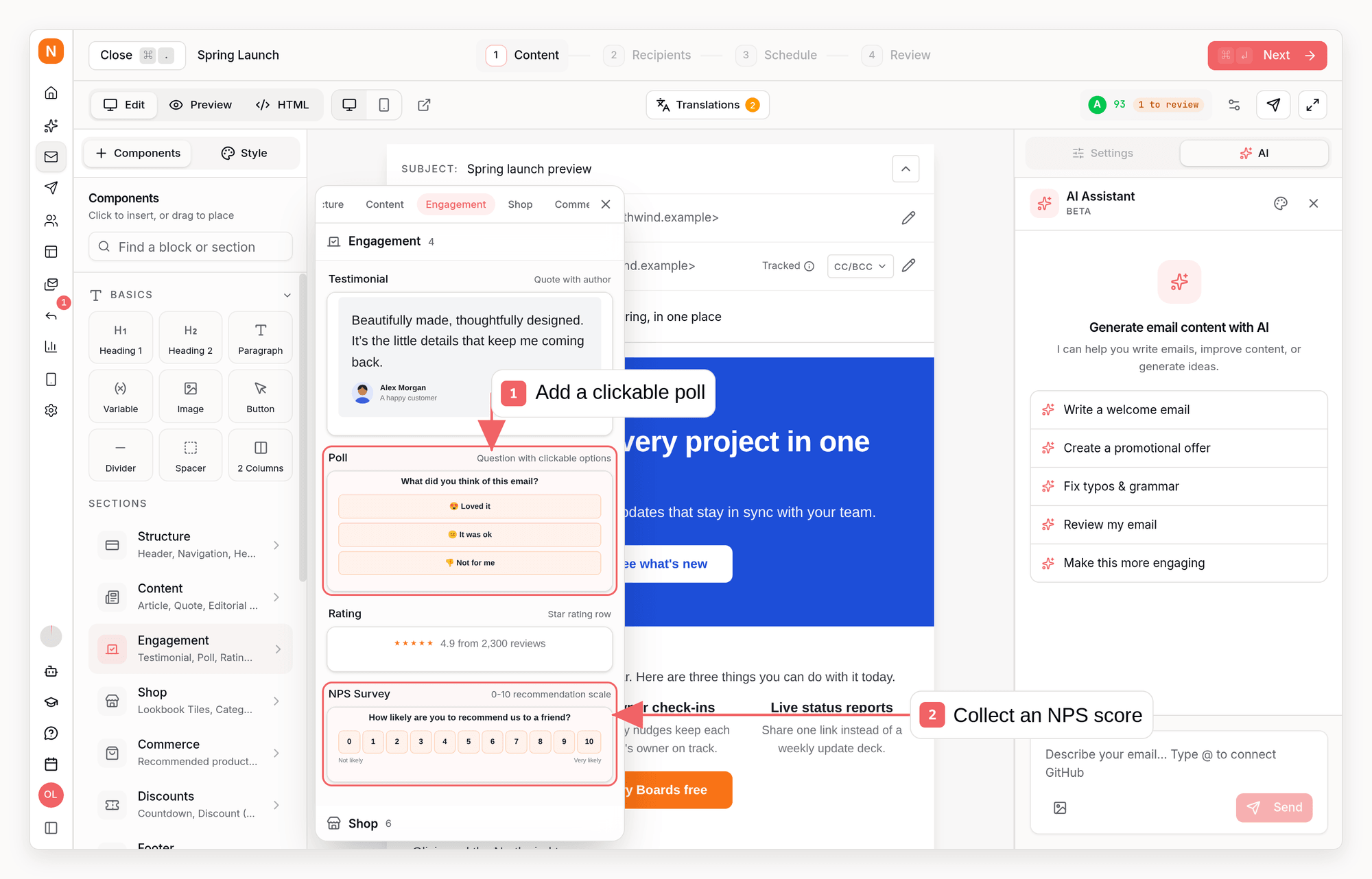
- While editing a campaign or automation email, open the block menu or type
/poll(or/nps) - Insert the Poll block for answer buttons, or the NPS Survey block for a 0-10 scale
- Click the question or any answer to edit the copy inline, and open the block settings for everything else
Settings
- Type: Answers shows one button per option; NPS 0-10 shows a numeric scale with captions under each end.
- Question: the prompt shown above the answers.
- Answers: add up to 8 options (2 minimum), drag to reorder. Emoji work well, for example ”😍 Loved it”. Under Stored values you can give each answer a stable stored value (for example
loved) so segments keep working when you reword a label. - Multiple answers: let recipients check several text options on a hosted selection page and save them with one submit. The attribute stores the list of selected values instead of a single value, so segments filter it with contains. Available for answer polls only, not NPS or image-answer polls. Keep the question, redirect, confirmation, labels, and stored values concise enough to fit safely in signed email links; the editor reports configurations that are too long.
- Language: the hosted thank-you page follows your company’s email language automatically.
- Save answer to attribute: the subscriber attribute that stores the latest answer. NPS scores are stored as numbers, so segments can filter with ranges like
nps_score ≤ 6. Reuse the same attribute across sends when you want one always-current value, or use a different attribute per campaign to keep answers separate. - After voting: customize the thank-you message on the hosted confirmation page, or redirect respondents to your own URL instead. The settings panel shows a live preview of the hosted page as you type.
- Style: pick how the answers look. Soft (lightly tinted, the default), Pill (borderless rounded chips), Outline (white with an accent border), and Filled (solid accent color) are button styles; Pop adds a bold ink border with a hard accent shadow, Brutal goes full poster - square corners, heavy ink border and shadow, uppercase answers - Quiz puts an A/B/C letter badge in front of each left-aligned answer, and Minimal drops the boxes entirely for a ruled list with an accent arrow (NPS scores sit on an accent underline). The style picker previews each option in your accent color.
- Accent color: override the brand primary color for the answer buttons. Every style follows it, including Brutal, which stays monochrome only while no accent is set.
- Answer corners: set the answer buttons’ corner radius in pixels -
0gives square corners on any style and squares image-choice thumbnails. Leave it empty to keep the style’s own shape. This is separate from the block’s Corner radius under Style, which only rounds the block container. - Question color: recolor the question line on its own. Leave it empty to follow the theme heading color, or use the block’s Text color when the question and the answer labels should share one color.
- Typography: set the poll’s font, plus the size, weight, tracking, and casing of the answer labels and the question separately. Leave a field empty to keep the built-in value (16px semibold question, 14px semibold answers) or the style’s own - only Brutal uppercases and tracks its answers, and setting the answers’ casing to As typed turns that off while keeping its square slabs. The font defaults to your email’s font. Alignment lives under Style as Text align and moves the question and answers together.
Results
Once responses arrive, the campaign’s stats view shows a Poll Results card: the answer distribution for each poll, and for NPS surveys the score itself (% promoters - % detractors) with the promoter / passive / detractor split and the full 0-10 distribution. Each subscriber counts once per poll, using their latest answer. Multiple-answer polls count each subscriber once per selected option, so percentages are shares of respondents and can add up past 100%; the header shows the respondent count. To see who is behind a count, click an answer row - or the promoter / passive / detractor counts on an NPS survey. This opens the subscribers page pre-filtered by the exact historical response for that campaign and poll block, so it remains accurate even if a later poll overwrites the subscriber’s current attribute. From there you can browse the respondents, save them as a segment, or start a targeted campaign. The same summary is returned by the campaign metrics API (GET /api/v1/metrics/campaigns/{id}) as a polls array, and by the get_campaign_stats MCP tool and sequenzy stats --campaign. Each summary includes the poll blockId, the attributeKey where the current/latest response is stored, and each option’s stable value. For an exact historical drill-down, create a segment with field pollResponse, operator is, and a campaign-and-block-scoped JSON value. The older GET /api/v1/campaigns/{id}/stats route remains a compatibility alias.
To read the individual responses rather than the distribution, use GET /api/v1/metrics/campaigns/{id}/poll-responses, the list_poll_responses MCP tool, or sequenzy poll-responses --campaign <id>. Each row is one respondent’s latest answer to one poll block, with their email, the answer and its stored value, the attributeKey it was saved to, and the respondedAt response time. Scope to a single block with blockId, and pass a sequence email step’s automation node ID to read a step’s responses. This is the only place the response time is available: the subscriber attribute holds the latest answer to any email and carries no timestamp, so do not reconstruct respondents by scanning subscribers for it.
API, CLI, and MCP
Polls are native email blocks, so the same block JSON works in campaigns, templates, A/B variants, transactional templates, and sequence email steps. An answer-button poll looks like this: Transactional poll sends must resolve to exactly one effective recipient after suppression filtering and recipient deduplication, and that recipient must already exist as a subscriber. Sequenzy rejects the send otherwise because each answer link must be attributable to one subscriber."allowMultiple": true on a text-only options poll to let recipients pick several answers from the hosted selection page. Multi-select polls cannot use option images or configurations whose encoded signed links exceed the delivery-safe size limit. The attribute then stores the list of selected values, the poll.answered event and webhook carry parallel values and answers arrays, and the polls summaries set allowMultiple: true with totalResponses reporting respondents.
The optional appearance field picks the answer style: "soft" (default), "pill", "outline", "filled", "pop", "brutal", "quiz", or "minimal".
Optional fields let a poll match a hand-designed brand email without changing style:
accentColorrecolors the answer buttons for every appearance,"brutal"included.optionRadiussets the answer-button corner radius in pixels and overrides the appearance’s own shape - use0for square corners. (styles.borderRadiusonly rounds the block container.)questionColorrecolors the question line only, whilestyles.textColorrecolors the question and the answer labels together.fontFamilysets the font for the whole poll and defaults to your email’s font.optionFontSize,optionFontWeight,optionLetterSpacing, andoptionTextTransformcontrol the answer labels; the matchingquestionFontSize,questionFontWeight,questionLetterSpacing, andquestionTextTransformcontrol the question. Sizes and tracking are in pixels, weight is100-900, andtextTransformis"none"or"uppercase".styles.textAlignsets the alignment of the question and the answer labels together. The"quiz"and"minimal"appearances always keep their answers start-aligned.
"brutal" uppercases and tracks its answers; optionTextTransform: "none" turns that off without giving up its square slabs.
variant: "nps"; the scale is always 0-10 and options is empty:
blocks to tools such as create_campaign, update_campaign, create_template, or a sequence email step. Read response distributions with get_campaign_stats; its top-level polls array includes NPS score, average, and promoter/passive/detractor counts when applicable. Read the respondents themselves - with their answers and response times - with list_poll_responses. To create a segment containing the exact respondents behind a count, use a pollResponse value with the campaign ID and the summary’s blockId.
For an options answer:
promoters, passives, or detractors.
Using the Responses
- Segments: filter on the poll attribute when you want the subscriber’s current/latest answer, for example
nps_scoreless than or equal to 6. For multiple-answer polls the attribute holds a list, so filter with contains (for exampleinterestscontainsyoga). Use the campaign-and-block-scopedpollResponsefilter above when you need the exact historical respondents to one poll; it matches multiple-answer selections too. - Sequences: use the Event Received trigger with the
poll.answeredevent to follow up automatically, for example asking detractors what went wrong or inviting promoters to leave a review. - Sync rules: map
poll.answeredevents to tags to keep long-lived labels likenps-promoterin sync. - Webhooks: subscribe an outbound webhook to
poll.answeredto push each answer into your own systems. - Subscriber profile: each response also appears in the subscriber’s activity feed.
Good To Know
- Polls need a delivered Sequenzy email to record answers - clicks in the editor preview open an explanatory page instead, and test-email votes show the thank-you page without recording anything.
- One question per email works best. If you need multiple questions, link out to a full survey instead.
- The block looks identical in the editor, the preview, and the sent email.