
What is Paddle?
Paddle is a complete payments infrastructure for SaaS companies. It handles payments, subscriptions, tax compliance, and more as a Merchant of Record, so you don’t have to worry about sales tax, VAT, or payment processing complexities.Connecting Paddle
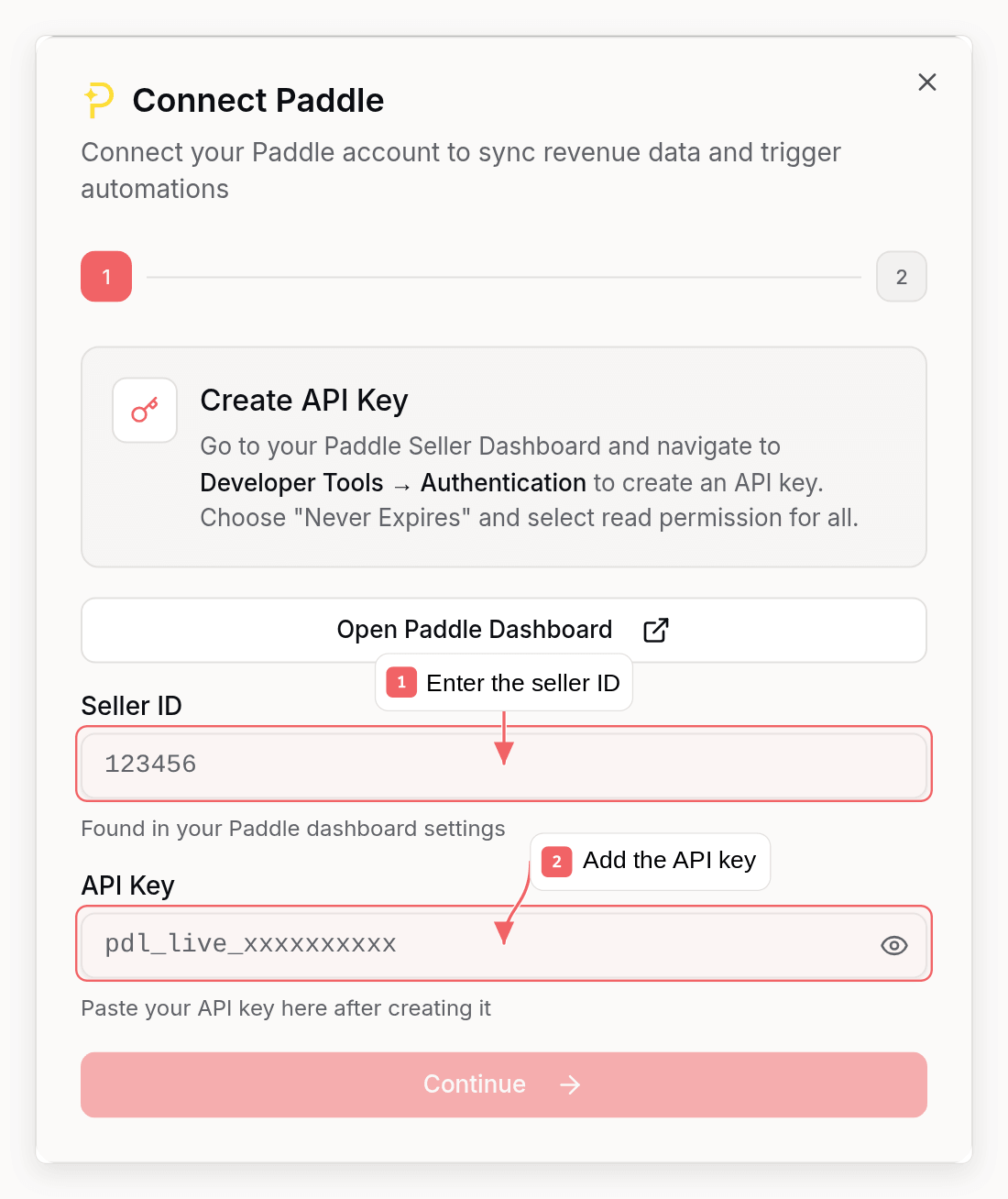
Paddle requires manual API key and webhook setup. Here’s how to connect:Step 1: Get Your Paddle API Key
- Go to your Paddle Dashboard
- Navigate to Developer Tools → Authentication
- Create a new API Key
- Copy the API key (format:
pdl_live_xxxxxxxxxorpdl_test_xxxxxxxxx)
Step 2: Find Your Seller ID
- In the Paddle Dashboard, go to Settings
- Your Seller ID is displayed at the top (a numeric ID like
123456) - Copy this ID for later
Step 3: Set Up Webhooks in Paddle
- In Paddle, go to Developer Tools → Notifications
- Click Create destination
- Select Webhook as the destination type
- Enter your Sequenzy webhook URL:
You can find this URL in Sequenzy when connecting Paddle. It’s automatically shown in the connection modal.
- Select these events to listen for:
subscription.createdsubscription.updatedsubscription.canceledsubscription.pausedsubscription.resumedsubscription.activatedsubscription.trialingsubscription.past_duetransaction.completedtransaction.payment_failedadjustment.created
- Click Save to create the notification destination
- Copy the Secret Key from the notification destination settings
Step 4: Connect in Sequenzy
- Go to Settings → Integrations in Sequenzy
- Click Connect next to Paddle
- Enter your:
- Seller ID (from Step 2)
- API Key (from Step 1)
- Webhook Secret Key (from Step 3)
- Click Connect Paddle
/webhooks/paddle/{your-company-id} remain supported.
Sequenzy verifies each notification’s signature and returns HTTP 200 once the
notification is queued. Subscriber updates and saas.* events run in the background.
Synced Attributes
When connected, Sequenzy adds these attributes to each subscriber matched by email:MRR Calculation
MRR is normalized from any billing interval:- Monthly: Used as-is
- Yearly: Divided by 12
- Weekly: Multiplied by 52, then divided by 12
- Daily: Multiplied by 365, then divided by 12
active subscriptions count toward MRR.
Automatic Tags
Sequenzy automatically applies tags to subscribers based on their Paddle subscription status:
These tags update automatically whenever subscription status changes via webhooks.
Tracked Events
When you connect Paddle, these events are automatically tracked for use in automations:Using Revenue Data
Building Segments
With MRR and LTV synced as numeric attributes, you can create sophisticated segments: Revenue-based segments:mrr >= 100: High MRR customersltv > 1000: Lifetime high-value customersmrr >= 50 AND mrr < 200: Mid-tier customers
tag = churned AND ltv > 500: High-value churned customers (win-back targets)tag = cancelled AND mrr >= 100: At-risk high-value customers needing attentiontag = saas.yearly AND mrr >= 100: Yearly enterprise customers
Automations
Trigger automations when revenue attributes change:- Send a thank-you email when
ltvexceeds a threshold - Trigger a win-back sequence when a subscriber gets the
churnedtag - Notify your team when a high-value customer cancels
How Matching Works
Subscribers are matched by email address (case-insensitive). A Paddle customer with emailUser@Example.com will match a subscriber with email user@example.com.
If the webhook only contains a customer ID, Sequenzy uses your Paddle API key to
look up the email during background processing. Supported events can create a
subscriber when no existing subscriber matches. If no email can be found, no
subscriber event is emitted. Temporary Paddle API failures are retried in the
background.
Troubleshooting
Webhooks Not Arriving
- Verify your webhook URL is correct in Paddle notification settings
- Check that you’ve selected the correct events
- Check Paddle’s notification logs for failed delivery attempts
- Ensure your Sequenzy webhook endpoint is accessible
NOT_FOUND, check that the destination
uses https://api.sequenzy.com/api/webhooks/paddle/{your-company-id} (the older
/webhooks/paddle/{your-company-id} URL also works). Reconnecting alone does not
replay failed notifications. Once delivery works again, you can
replay failed notifications in Paddle.
Replays retain the original event ID so repeated deliveries do not duplicate
the same saas.* event.
Invalid Webhook Signature
If webhooks are failing with signature errors:- Verify you copied the complete webhook secret from Paddle
- Re-create the notification destination in Paddle and update the secret in Sequenzy
- Ensure you’re using the correct secret (each destination has its own secret)
Customer Email Not Found
Paddle webhooks may include only a customer ID. If events are being acknowledged but subscribers aren’t being updated:- Ensure the customer email in Paddle matches a subscriber in Sequenzy
- Check that customers have valid email addresses in Paddle
- Ensure your Paddle API key can read customers in the same sandbox or live account as the notification destination