
Quick Start
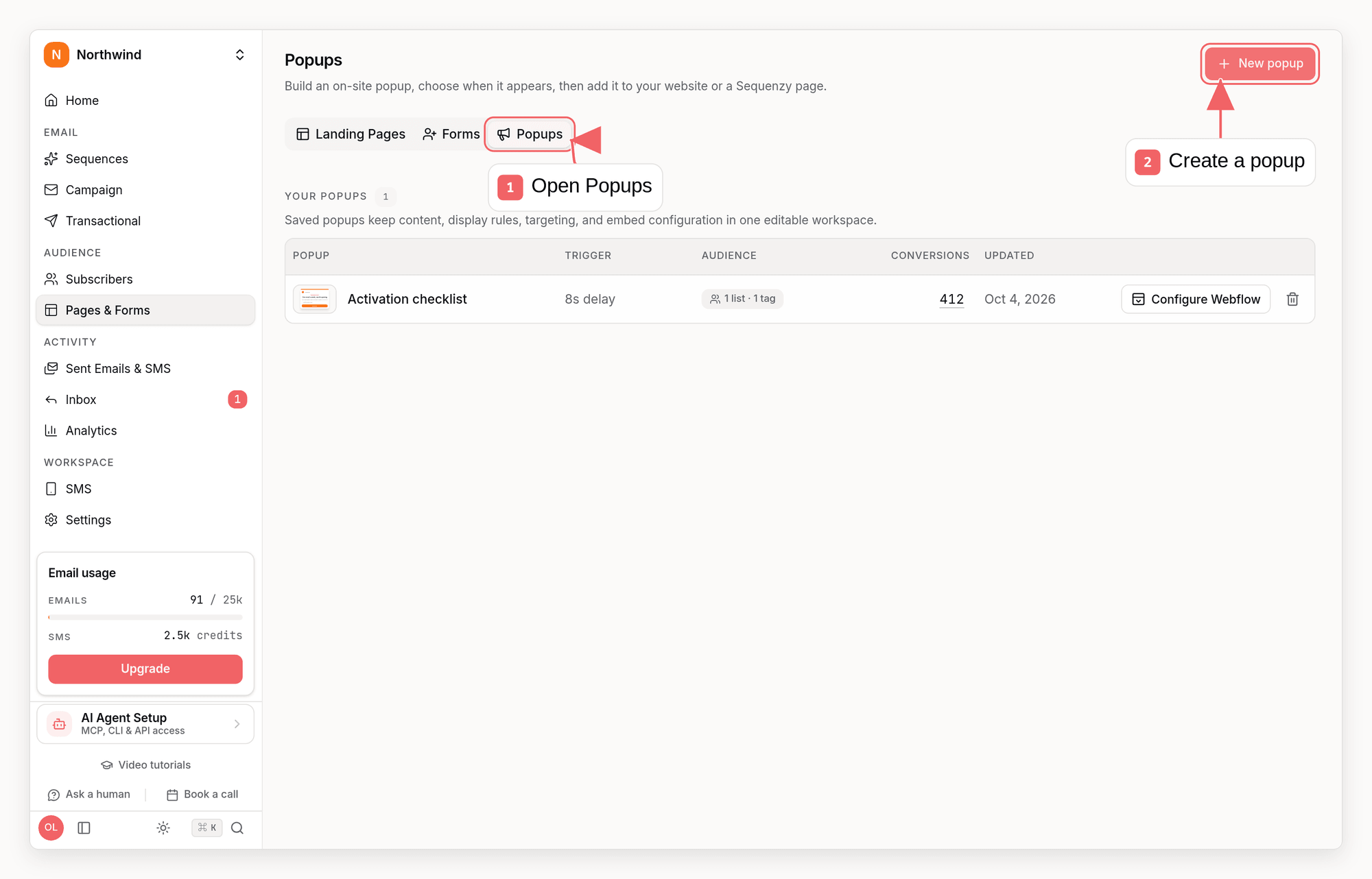
- Open Pages & Forms → Popups in your Sequenzy dashboard.
- Create a popup or open an existing one.
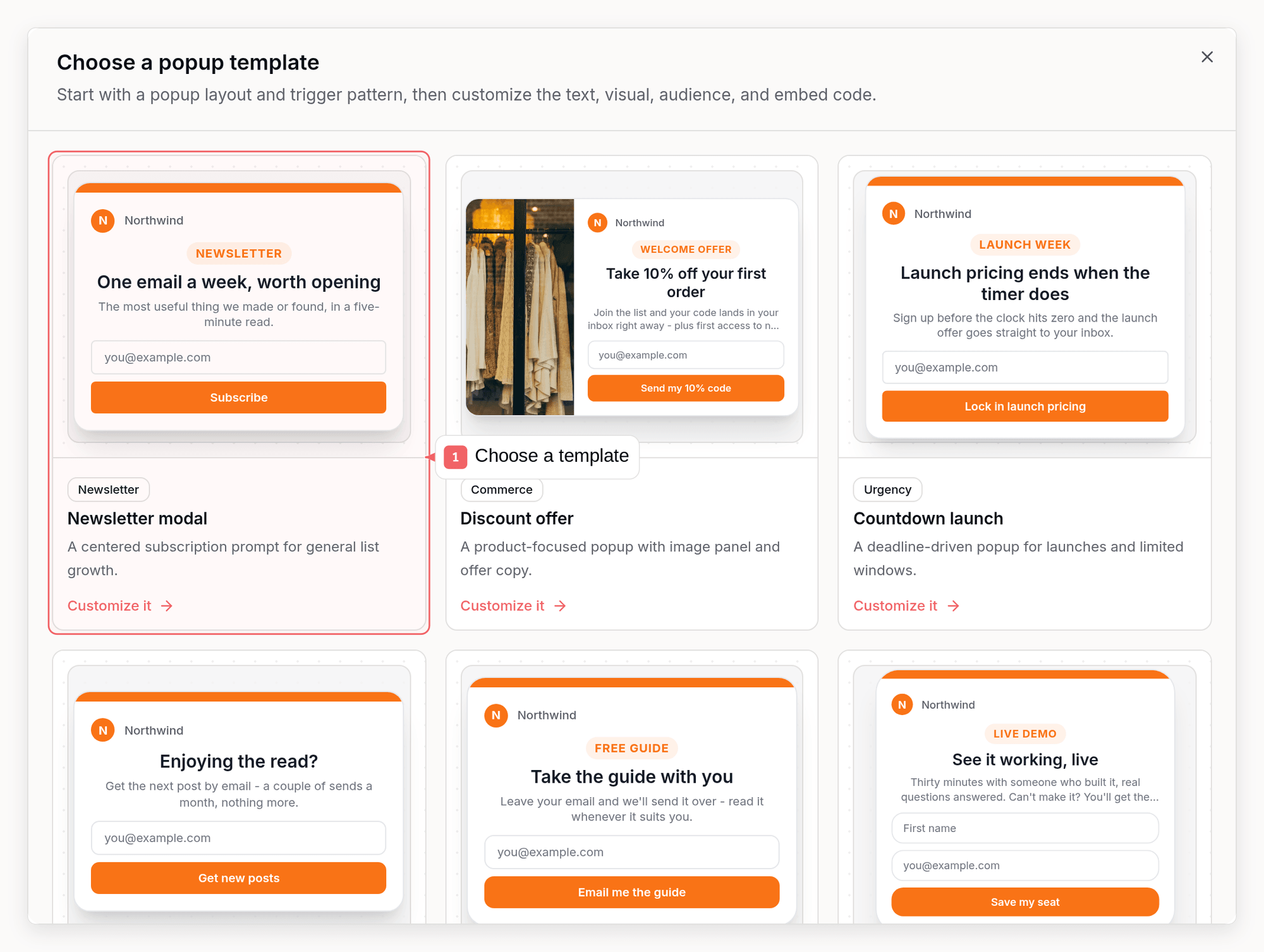
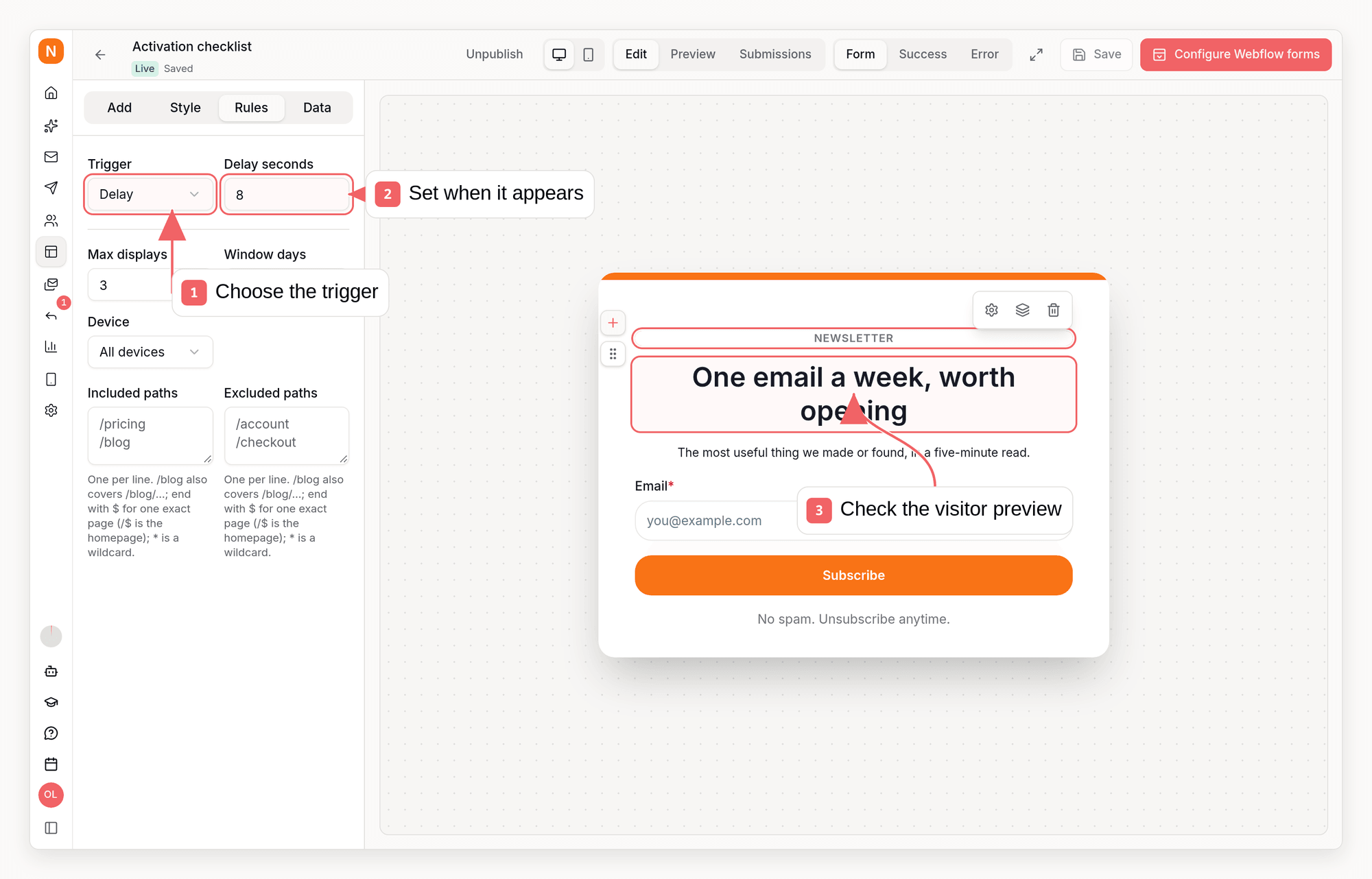
- Pick a template, trigger, fields, lists, tags, and success message.
- Copy the generated HTML snippet.
- Paste it into a site template that permits third-party hosted scripts.
Install Code
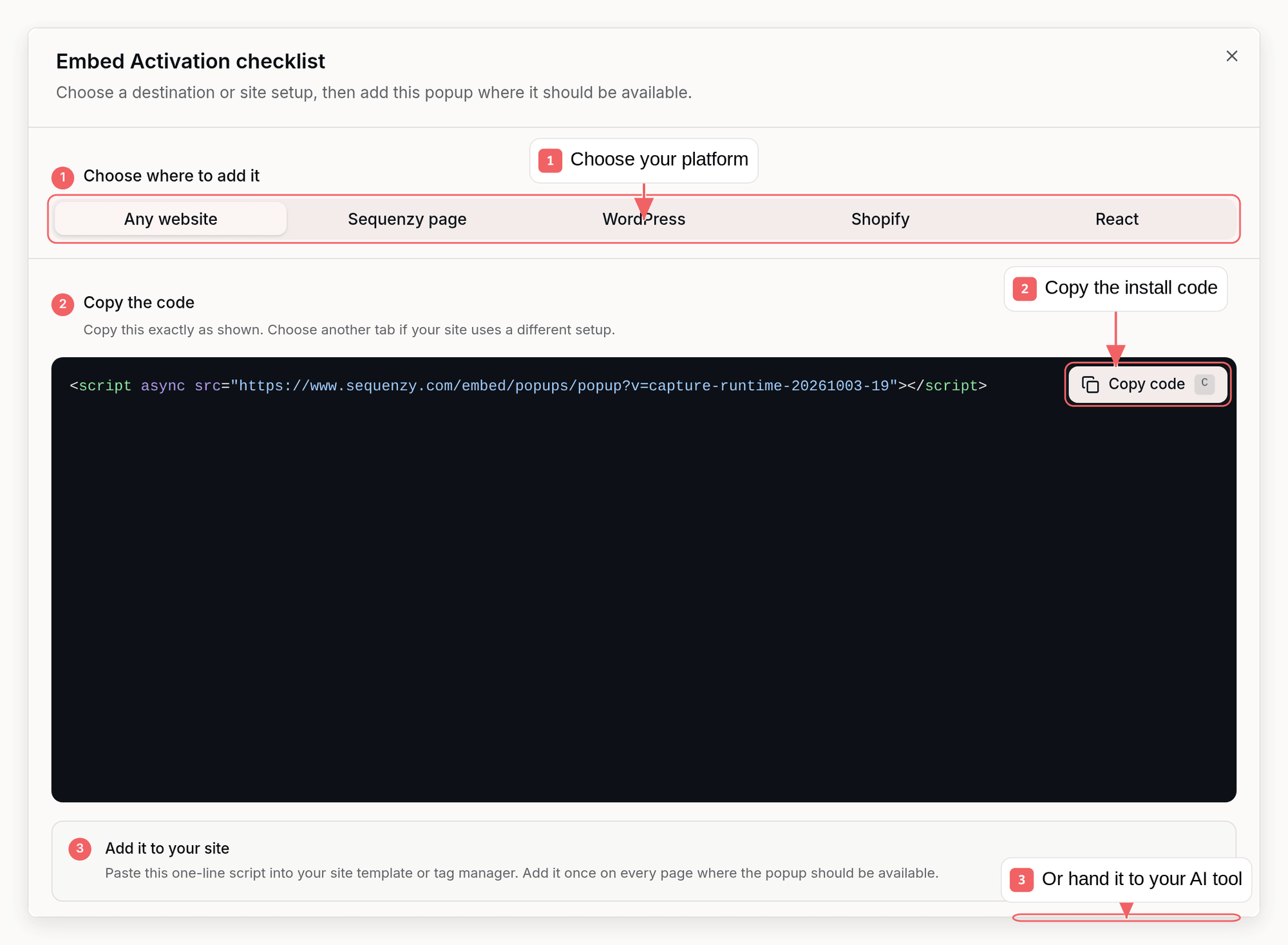
popup_123 with the saved popup ID. The code panel in the popup
builder supplies the complete versioned snippet automatically.
Triggers
Submissions
Saved popup submissions post to the saved popup endpoint:resubscribeBehavior
to double_opt_in, to send them your double opt-in confirmation email first.
See Returning unsubscribed contacts.
Turn on Bot protection under Data in the popup builder, or set
botProtection to true, to run a Cloudflare Turnstile check before each
signup. Most visitors never see it. Signups that fail it must confirm by email
before they are subscribed. See Bot protection.
Scratch to reveal rewards
Turn a popup into a scratch card to make your signup offer feel like a win. Start from the Scratch to reveal template, or open the Reward tab in the popup builder and switch on Scratch to reveal.- The popup opens on a scratch card with your heading and cover label.
- Visitors scratch it with a mouse or finger. Once about half of the card is cleared, it reveals your public teaser (for example “You’ve got a mystery discount”) and a Claim button. A Tap to reveal link does the same for keyboard and screen reader users, and for anyone who would rather not scratch.
- Claim shows your signup form with the teaser above it.
- After a successful signup, the popup shows the reward and your discount code with a Copy code button.
Use the reward in your welcome email
Each signup saves the reward on the subscriber as thediscount custom
attribute, before any welcome sequence starts, so your welcome email shows what
the visitor revealed:
{{discount.value}}, for example “10% off your first order”{{discount.code}}, for exampleWELCOME10
{{discount.code}} by default, so it
works without changes. If the same sequence also has a Create discount step,
the code that step creates replaces these values in later emails.
A discount attribute the contact already has from somewhere else, such as an
import, is never replaced. A newer popup reward replaces an older one.
Create the code in your store before you publish the popup, and leave the code
empty if you only want to describe the reward. If contacts confirm by email
first (double opt-in), the popup still shows the code right away; leave the
code empty if it should only arrive by email.
Style the scratch card
Click any text on the scratch card in the editor (heading, subheading, cover label, and, after Tap to reveal, the teaser and Claim button) to edit it in place. Click the card itself to jump to its style. In the Reward tab you can change:- Cover finish: gold, silver, rose gold, holographic, your accent color, or a custom color.
- Finish pattern: sheen, sparkle, or plain.
- Cover image: replaces the foil with your own image. The image host must allow cross-origin requests (CORS); otherwise visitors see the foil.
- Cover label, prize background, and prize text colors, and the card’s corner radius.