
Authorization header.
Choose the right API key
Sequenzy supports two key types:- Workspace API keys (
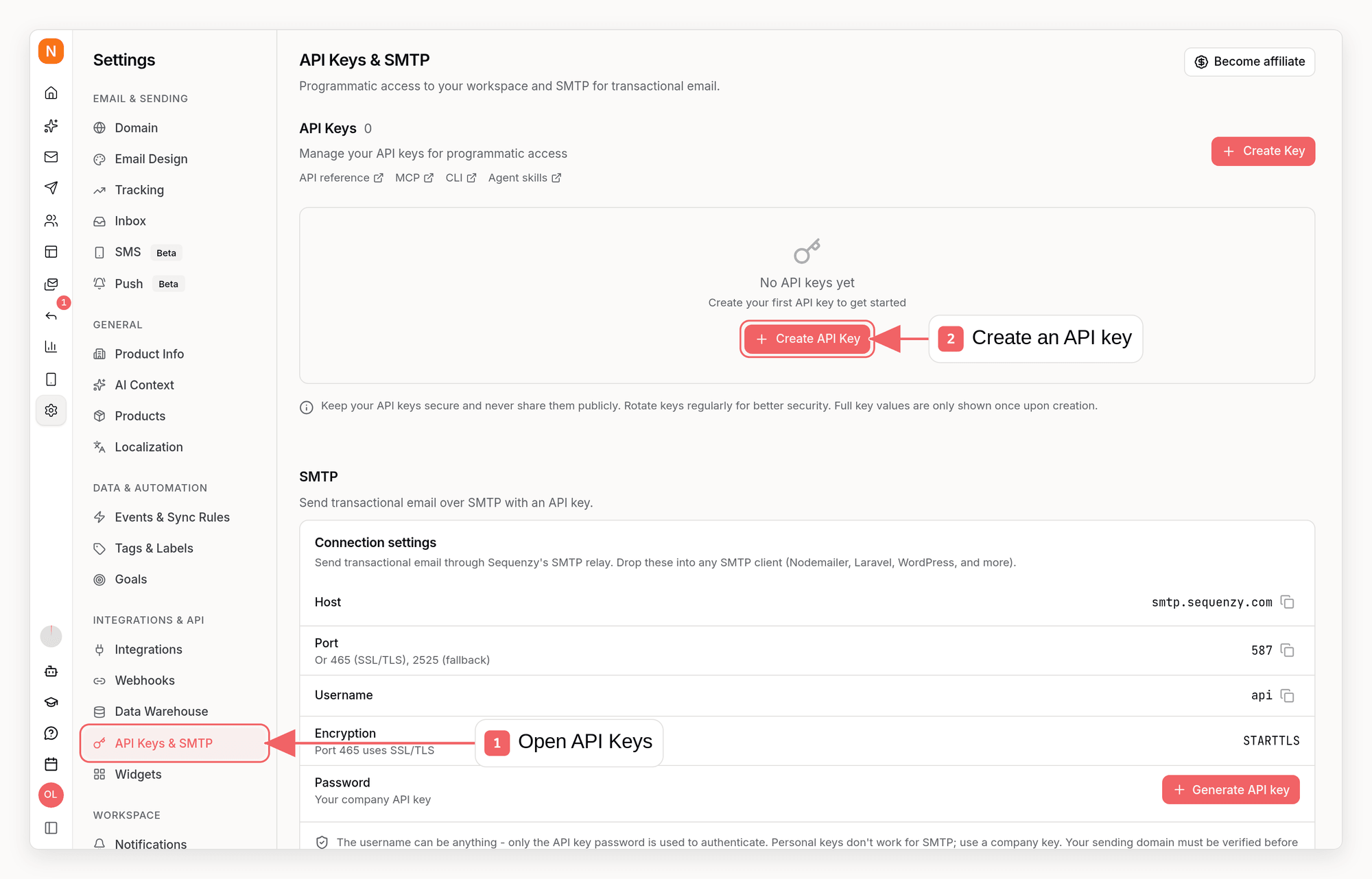
seq_live_) belong to one company. Create them in Settings → API Keys & SMTP for production services that should stay isolated to that workspace. - Account API keys (
seq_user_) follow your user account and can access every workspace you own or have non-restricted access to. Create and revoke them in Account Settings → API Keys. They are useful for administration, CLI/MCP clients, and multi-workspace automation.
emailType=transactional metrics
and email sends). Subscriber activity, recipient metrics, and audience drilldowns
include only campaign and sequence email data for marketers. Transactional email
templates cannot be reused to create campaigns. These restrictions apply equally
to the dashboard, REST API, CLI, and MCP.
The same source restrictions apply when creating or restarting A/B tests from
existing emails. Campaigns backed by transactional templates are also protected
when reading their audience, changing labels, deleting them, or managing share
links, metrics, recipient drilldowns, and revenue attribution. Existing A/B tests
with transactional-backed variants are protected when reading, editing, copying,
selecting a winner, or rendering previews. Sequences that reference a transactional
template, including alternate email styles or A/B variants, are also hidden from
marketers and cannot be edited, copied, activated, or test-sent by them. Protected
campaign, sequence, and A/B sources remain hidden in sent-email history and event
details. Sequence restrictions also cover analytics leaderboards, recipient drilldowns,
revenue reports, and subscriber enrollment summaries. These rules also apply to incoming email links when editing a sequence.
Marketers can still test marketing emails, unschedule campaigns, and read existing
sending domains to choose a sender. Workspace API key creation requires an owner
or admin; marketers can use an account key through their own account settings.
Account keys use the same permission presets as workspace keys. Their selected
permissions apply in every accessible workspace, so prefer the narrowest preset
that fits the automation.
Getting Your API Key
- Log in to your Sequenzy dashboard
- Open Settings → API Keys & SMTP for a workspace key, or Account Settings → API Keys for an account key
- Click Create API Key
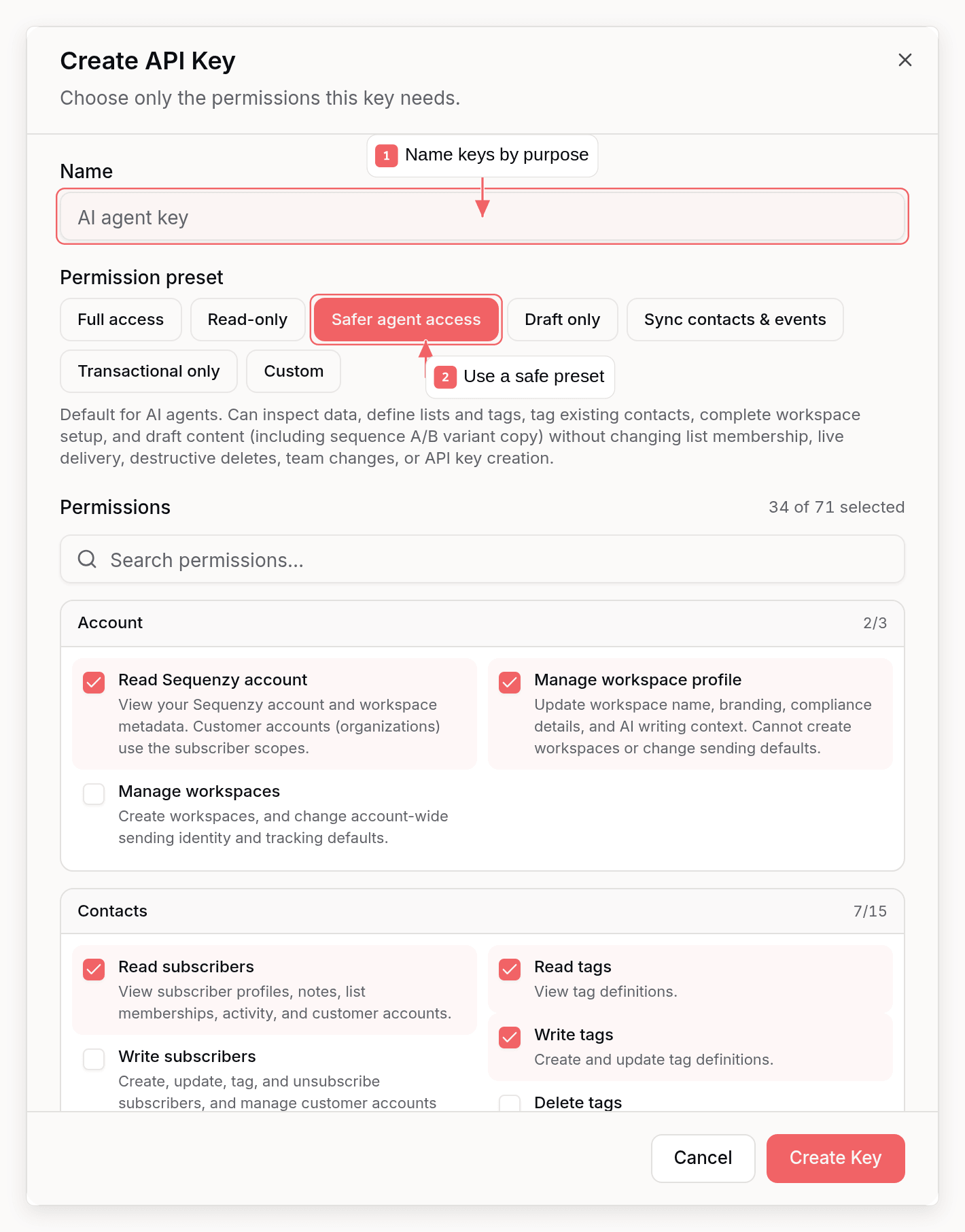
- Give your key a descriptive name (e.g., “Production Backend”, “AI Drafting Agent”)
- Choose a permission preset or custom permissions
- Copy and securely store your key. It won’t be shown again
Using Your API Key
Include your API key in theAuthorization header with every request:
Example Request
Select a workspace with an account key
Pass the target workspace inx-company-id whenever you use a seq_user_
account key:
x-company-id, Sequenzy selects the first
accessible workspace; multi-workspace integrations should always send the
header explicitly.
Example in Code
API Key Best Practices
1. Use Environment Variables
Never hardcode API keys in your source code:2. Create Separate Keys for Each Environment
- Production key: Used only on production servers
- Development key: Used for local development and testing
- CI/CD key: Used for automated testing (if needed)
3. Rotate Keys Periodically
If you suspect a key has been compromised:- Create a new API key
- Update your application to use the new key
- Delete the old key
sequenzy api-keys update),
the API, or MCP’s update_api_key. The key
value stays the same, so nothing holding it needs to be re-wired, and widened
permissions apply on the next retry. Removed permissions may remain usable for
up to five minutes while API caches expire.
4. Use the Smallest Permission Set
When creating a key, choose the narrowest preset that fits the integration:- Read-only for reporting, dashboards, and audits
- Safer agent access for AI agents that should inspect data, define lists and tags, tag existing contacts, set up the workspace, draft content, and edit sequence A/B variant copy without changing list membership, sending live emails, or deleting records
- AI drafting for agents that can inspect data, set up the workspace, and draft content but must not send real emails
- Data ingest, no automations for syncing contacts and events without starting automations
- Transactional sender only for backend services that need to send transactional emails
campaigns:send, sequences:activate, sequences:enroll, transactional:send, automations:trigger, or conversations:write. Destructive deletes require explicit *:delete permissions.
Some permissions are deliberately narrow so a read-mostly key does not have to
be widened to do one job. subscribers:tag adds and removes tags on contacts
that already exist without granting the ability to create, update, or
unsubscribe them; subscribers:write includes it. lists:write and
tags:write define lists and tags but do not change who belongs to them -
adding contacts to a list or removing them from it requires subscribers:write
as well, and deleting the list or tag requires lists:delete or tags:delete.
5. Never Commit Keys to Git
Add your environment file to.gitignore:
6. Use Secrets Management in Production
For production deployments, use your platform’s secrets management:- Vercel: Environment Variables in dashboard
- AWS: AWS Secrets Manager or Parameter Store
- Heroku: Config Vars
- Docker: Docker Secrets or environment variables
Authentication Errors
401 Unauthorized
- The API key is missing from the request
- The API key is invalid or has been deleted
- The API key format is incorrect
Authorization: Bearer YOUR_KEY header with a valid key.
Common Mistakes
Sequenzy also accepts the key in an
X-API-Key header, but prefer
Authorization: Bearer so examples and tooling stay consistent. There are no
separate test keys: workspace keys start with seq_live_, account keys with
seq_user_, and older workspace keys with ek_ still work.
Managing API Keys
View Active Keys
In Settings → API Keys & SMTP or Account Settings → API Keys, you can see:- Key name
- Created date
- Last used timestamp
Delete a Key
To revoke access:- Go to the API Keys page where the key was created
- Find the key you want to delete
- Click Delete
- Confirm the deletion
Security Recommendations
Server-Side Only
Only use API keys in server-side code. Never expose them to browsers:Use HTTPS Only
Always usehttps:// when making API requests. The API does not accept unencrypted HTTP connections.
Monitor Usage
Regularly check the “Last used” timestamp for your API keys. If you see unexpected activity, rotate the key immediately.Next Steps
API Reference
Explore all available endpoints
Quick Start
Send your first email in 5 minutes