
Goals & Attribution
Why Track Goals?
When running email automations, you need to know:- Which email in a sequence convinced the subscriber to convert?
- How much revenue is each email generating?
- Are certain emails underperforming and need optimization?
How Attribution Works
Sequenzy uses last-touch attribution to connect conversions to emails:- A subscriber receives your email
- The subscriber triggers a conversion event (e.g.,
saas.purchase) - Sequenzy looks back within the attribution window
- The most recent qualifying touch gets credit for the conversion
Attribution Priority
When multiple interactions exist within the attribution window:- Clicks beat opens: A click is a stronger signal of intent
- Most recent wins: Among the same interaction type, the newest wins
- Opened Email A (8 hours ago)
- Clicked Email B (2 hours ago)
- Made a purchase (now)
Setting Up Goals
Company-Wide Goals
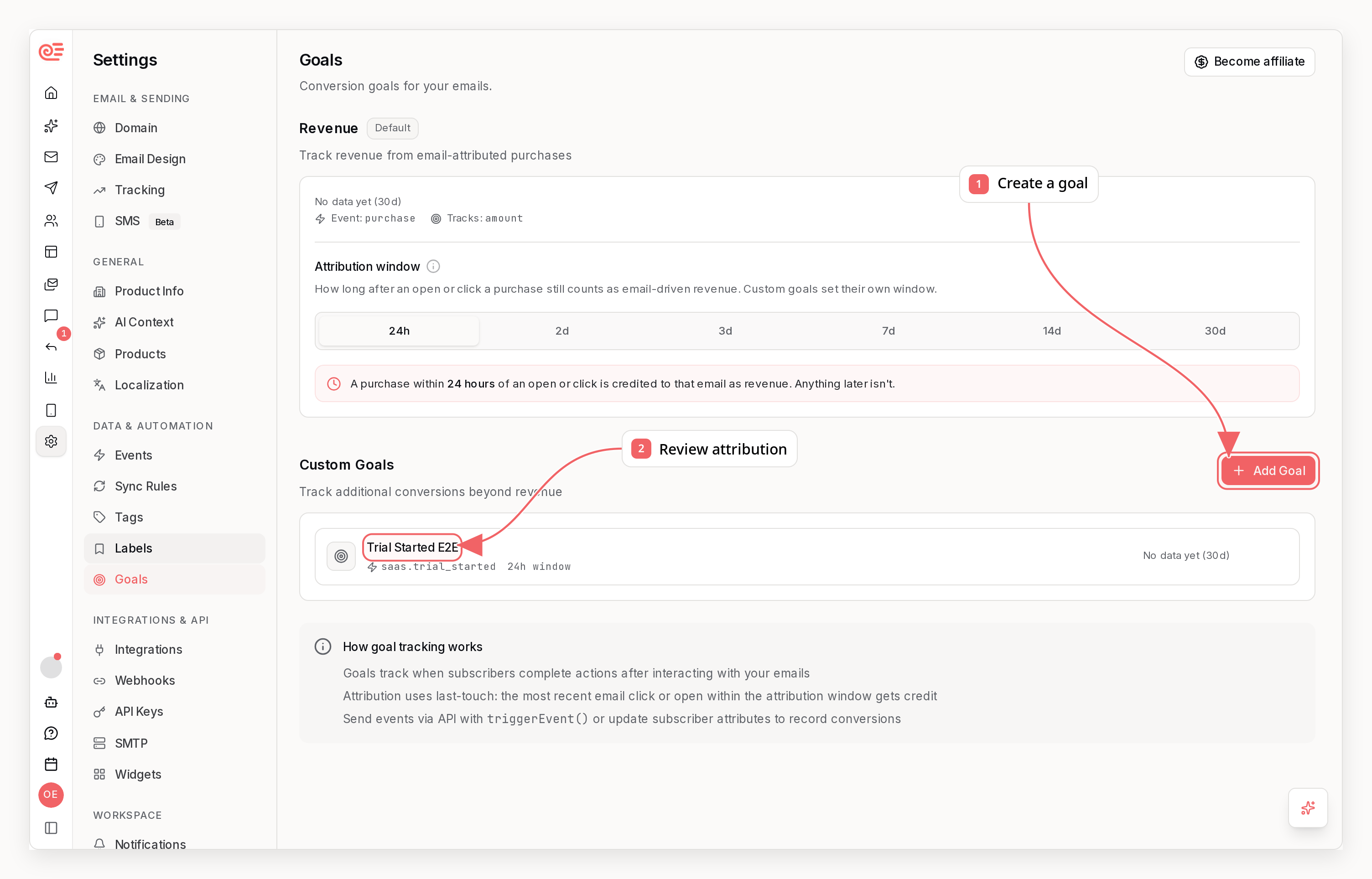
Track overall revenue or conversions across all your emails:- Go to Goals in your dashboard
- Click Create Goal
- Choose Company-wide scope
- Set the trigger event (e.g.,
saas.purchase) - Optionally specify a revenue property (e.g.,
amount)
Company-wide goals track conversions from all emails—campaigns, transactional,
and sequences.
Default Revenue Tracking
Revenue is tracked automatically without any goal setup. Sequenzy maintains a built-in revenue goal that attributes purchase events within your configured attribution window:saas.purchaseevents with anamountproperty (Stripe and other payment integrations)ecommerce.order_placedevents with the order total (Shopify, WooCommerce, and Commerce API orders)
sequenzy stats --campaign), and the get_campaign_stats /
get_sequence_stats MCP tools.
Automation-Specific Goals
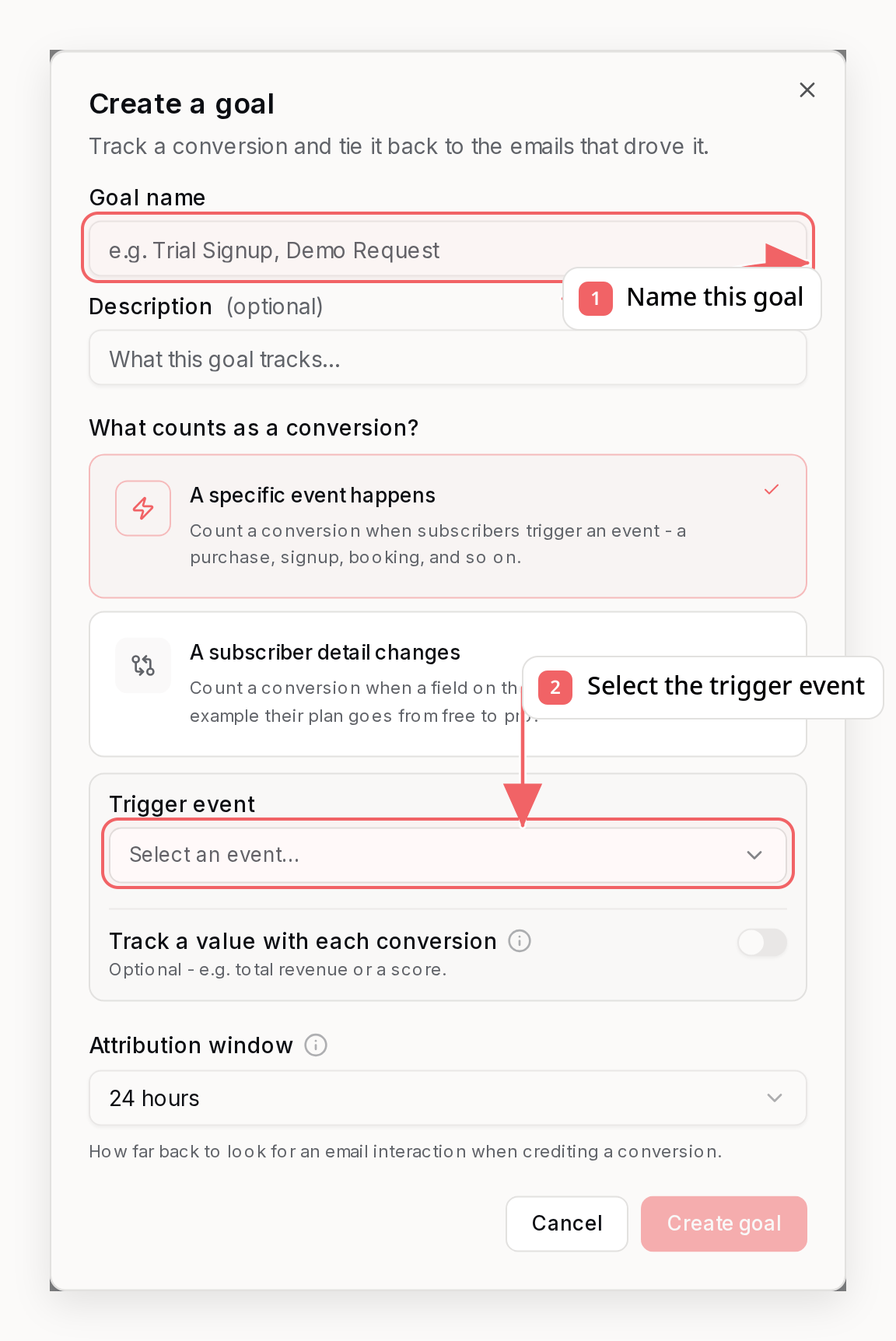
- Go to Goals in your dashboard
- Click Create Goal
- Choose Automation-specific scope
- Select the automation to track
- Set the trigger event and attribution window
Campaign-Specific Goals
Track conversions from a specific one-off campaign:- Open the campaign and use the ⋯ menu in the header
- Choose Goals
- Add a conversion goal (event, subscriber attribute change, or tag applied)
/api/v1/campaigns/{campaignId}/goals), CLI (sequenzy campaigns goals), or MCP (create_campaign_goal). Campaign reports then show those goals as named conversion steps after sent, opened, and clicked. Campaign goal names are unique within each campaign; the same name may be reused in another campaign.
This is useful for batch invites, launches, and other one-shot sends where you want per-campaign conversion counts.
Goal Configuration
Tracking Values
When you specify an event property, Sequenzy extracts the value from your event data:Viewing Goal Metrics
Goal Dashboard
The Goals page shows all your goals with key metrics:- Total Conversions: Number of times the goal was triggered
- Total Revenue: Sum of all revenue from conversions
- Attributed Conversions: Conversions credited to an email
- Attribution Rate: % of conversions attributed to emails
Per-Email Breakdown
Click into a goal to see which emails are driving conversions:
This helps you identify your highest-performing emails and optimize underperformers.
Attribution Windows
The attribution window determines how far back Sequenzy looks for email interactions:
Choose based on your typical customer journey. If most conversions happen within a day of an email, use 24 hours. For longer sales cycles, extend the window.
Common Goal Types
Revenue Goals
Track purchases and subscription conversions:Signup Goals
Track trial starts or account activations:Custom Goals
Track any conversion meaningful to your business:Best Practices
1. Start with Revenue
If you’re tracking payments, start with a revenue goal. It directly ties email performance to business outcomes.2. Use Consistent Event Names
Standardize your event naming across your application. This makes it easier to create and maintain goals.3. Set Realistic Windows
Don’t make attribution windows too long—you’ll attribute conversions that weren’t influenced by email. Start with 24 hours and extend only if your data shows longer consideration periods.4. Track Both Types
Create both company-wide goals (overall revenue) and automation-specific or campaign-specific goals for complete visibility.5. Monitor Attribution Rate
A low attribution rate (many unattributed conversions) might mean:- Your attribution window is too short
- Conversions happen through other channels
- Subscribers aren’t engaging with emails before converting
Events That Trigger Goals
Goals are triggered when you call the Events API or when integrated payment providers (Stripe, Polar, Paddle, Dodo) send webhook events:Events
Learn how to trigger custom events
Limitations
- Last-touch only: Multi-touch attribution is not currently supported
- Email interactions only: Goals only attribute to email opens/clicks, not other touchpoints
- Minimum window: 1 hour (shorter windows may miss conversions)
- Maximum window: 30 days (longer windows reduce attribution accuracy)
Related
Events
Trigger conversion events from your app
Metrics
View your email analytics
Sequences
Create automated email workflows
Stripe Integration
Automatically track payment events