
noreply@mail.app.supabase.io address, and lands in spam often enough that real users never finish signing up.
Why You Need Custom SMTP in Supabase
The default Supabase email sender exists so you can verify your auth flow works. The moment you have real users, the default sender becomes a liability:- Strict rate limits - 2 emails per hour on free, 30/hour on Pro. A signup spike will start dropping confirmations.
- Generic sender domain -
noreply@mail.app.supabase.iolooks like a phishing attempt to most inbox providers and to your users. - Bad deliverability - the shared Supabase IP pool is reused by thousands of projects. One bad actor’s reputation hits everyone.
- No template control beyond the basics - Supabase’s built-in editor handles substitution and that’s it. No design system, no preview tooling, no versioning.
Before You Start
You’ll need:- A Supabase project with an Auth instance
- An SMTP provider account (this guide uses Sequenzy)
- A verified sending domain (your provider will walk you through SPF/DKIM/DMARC setup)
Step 1: Get Your SMTP Credentials
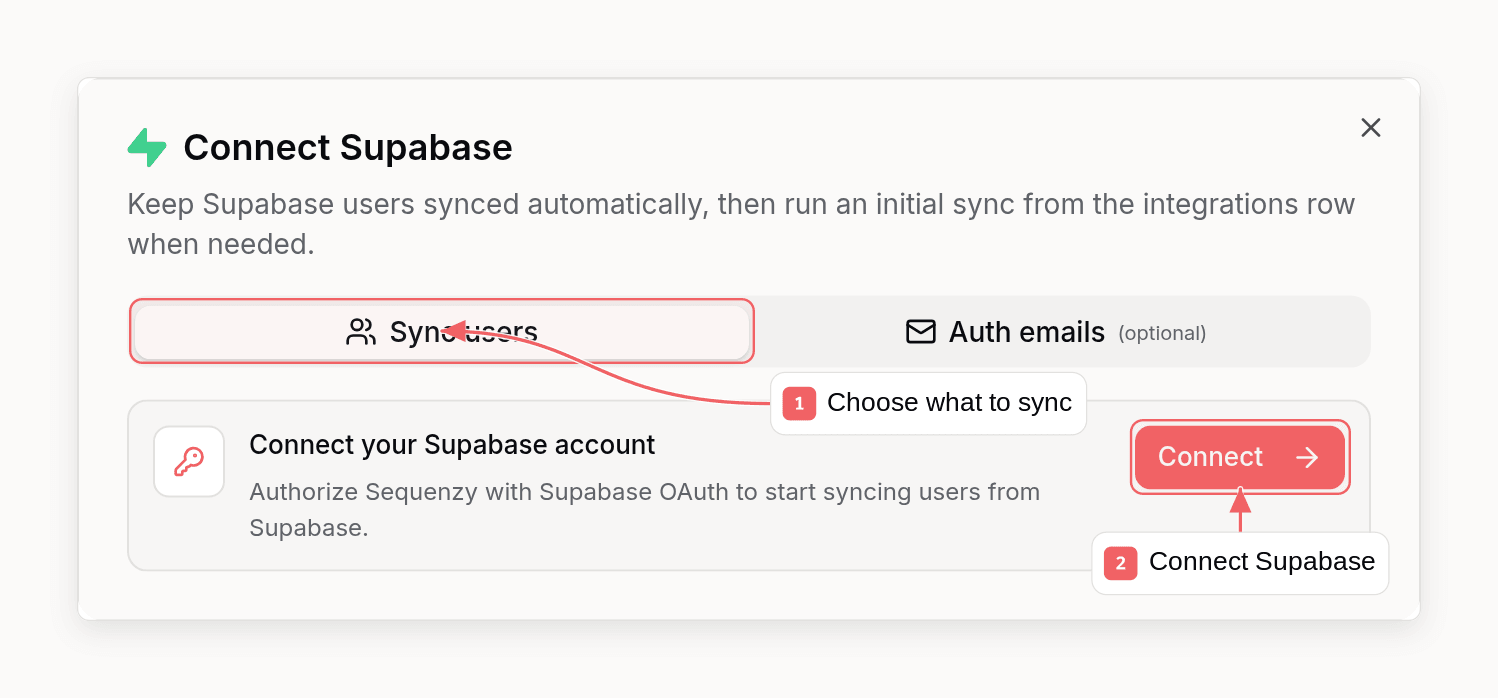
In Sequenzy:- Open Settings → Integrations and click Connect next to Supabase
- Switch to the Auth emails tab
- Click Generate key to create an API key for the Supabase SMTP user
Copy the API key now - it’s only shown once.
Step 2: Enable Custom SMTP in Supabase
- Open your project at supabase.com/dashboard
- In the left sidebar, go to Authentication
- Under Notifications, click Emails
- Scroll to SMTP Settings and toggle Enable Custom SMTP
The exact path is Authentication → Emails (under Notifications) → SMTP
Settings. Earlier Supabase versions called this section “SMTP Configuration”
and placed it under Project Settings - it’s now lives inside the Auth section.
Step 3: Paste the Credentials
Fill in the SMTP form with the values from Step 1:- Host:
smtp.sequenzy.com - Port:
587 - Minimum interval:
60(seconds between emails - keep low for auth flows) - Username:
api - Password: paste your Sequenzy API key
- Sender email: an address on your verified sending domain
- Sender name: your product name (shown in users’ inboxes)
Step 4: Send a Test Email
In the Supabase dashboard, trigger any auth email - the easiest test is Authentication → Users → Add user → Send invite. Use a real inbox you control. If the invite arrives within a few seconds, you’re done. If it doesn’t:- Check Sequenzy → Activity to see if the email was received and delivered
- Verify the sender email matches a verified Sequenzy domain
- Confirm the API key was pasted without surrounding whitespace
Step 5 (Recommended): Use Sequenzy Templates Instead of Supabase’s
Supabase’s built-in template editor is fine for plain emails. For branded auth flows - product onboarding, magic links that match your design system, multi-language support - point Supabase’s templates at Sequenzy transactional emails instead. Sequenzy ships pre-built default templates for every Supabase auth flow. In the Connect Supabase modal, click Create default templates and you’ll get drafts for:- Confirm signup
- Invite user
- Magic link
- Password reset
- Email change
- Password changed
- Phone changed
- Identity linked / unlinked
- MFA enrolled / removed
Common Issues
”Error sending magic link email” / “Error sending confirmation email”
Almost always one of:- SMTP credentials are wrong - re-paste the password
- The Sender email doesn’t belong to a verified domain on your SMTP provider
- Your provider rejected the mail - check the provider’s activity log for the real error
Emails go to spam
- Set up SPF, DKIM, and DMARC for your sending domain
- Don’t send from
noreply@- use a real reply-to address - Warm up new domains gradually before sending high volume
Rate limits still hitting after switching
Supabase has its own per-hour rate limit on auth emails, separate from your SMTP provider. Bump it under Authentication → Rate Limits → Email sent.FAQ
Does Supabase support custom SMTP on the free tier?
Yes. Custom SMTP is available on every Supabase plan, including free.What port should I use for Supabase SMTP?
Use 587 with STARTTLS. Port 465 (SMTPS) also works with most providers but is less universally supported.Can I use Gmail or my personal email account as SMTP?
Technically yes, practically no. Gmail’s SMTP is rate-limited to ~500 emails per day, blocks anything that looks like marketing or bulk auth flows, and breaks the moment you enable 2FA. Use a transactional email provider designed for app email - like Sequenzy.Why are my Supabase auth emails slow?
Supabase calls SMTP synchronously inside the auth request. Slow SMTP = slow signups. Pick a provider with sub-second send times - Sequenzy averages under 300ms from API to inbox handoff.Does this work for password reset emails too?
Yes - once custom SMTP is enabled, all Supabase auth emails (signup confirmation, magic links, invites, password reset, email change, MFA, security notifications) route through your SMTP provider.Next Steps
- Connect Supabase to Sequenzy for full auth email + user sync
- Verify your sending domain for the best deliverability
- Set up DMARC to prevent spoofing of your auth emails