
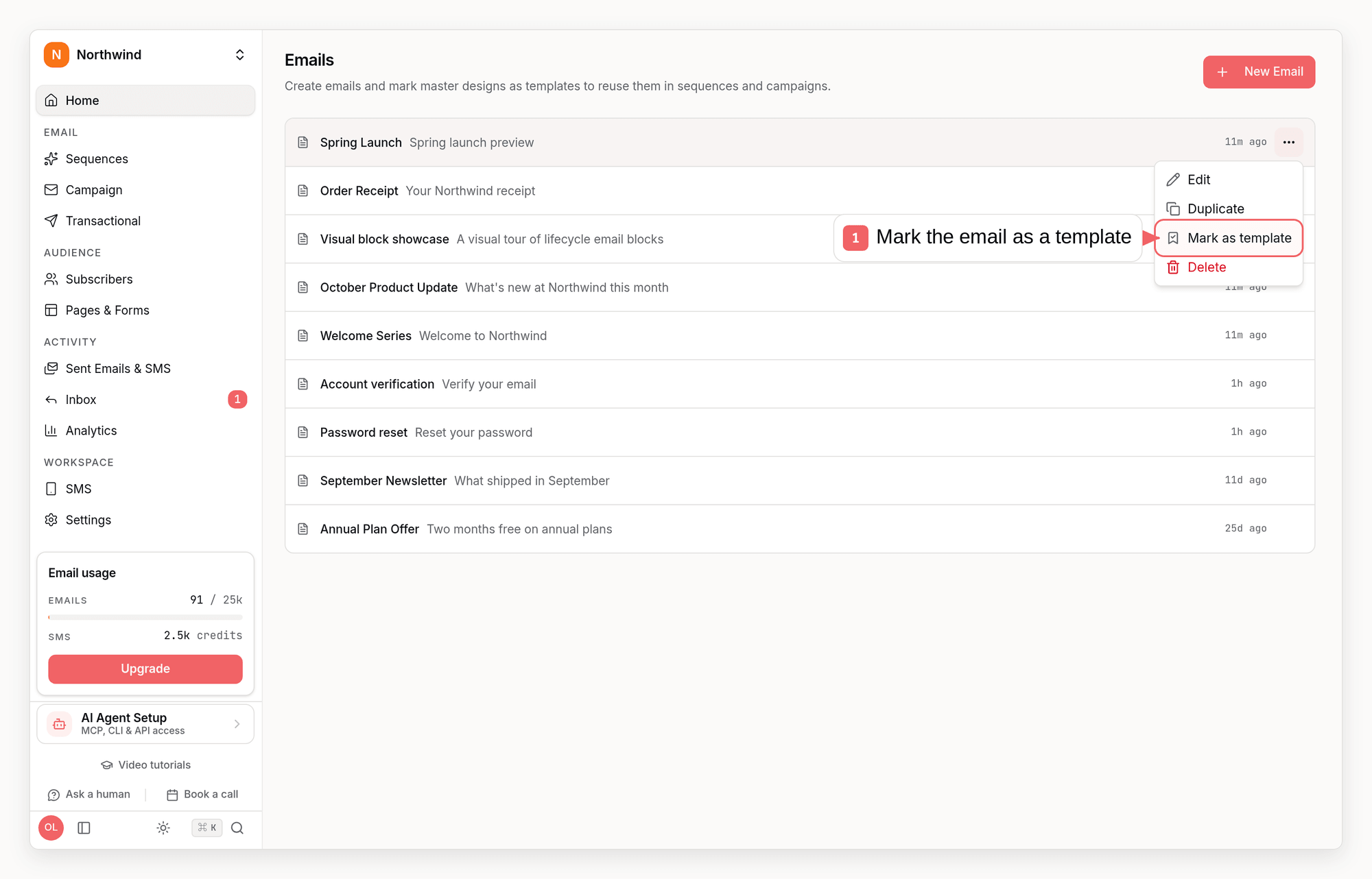
Mark An Email As A Template
- On the Emails page, open the row menu and choose Mark as template. Templates move into their own Templates section at the top of the page.
- In the standalone email editor, use Save as template in the header.
- In the campaign editor, open Campaign settings beside Send Test and choose Save as template.
- Campaigns using a marked email show a Template badge beside their name in the campaign list.
- Over the API, CLI, or MCP, set
isTemplateon Create Template or Update Template, or pass--templatetosequenzy templates createandsequenzy templates update.
Use A Template In A Sequence
When you add a Send Email step, the Start from row lists your templates. Pick one, describe what the step should say, and choose:- Generate in this design - AI rewrites only the text inside the template for your description. Layout, imagery, links, colors, and merge tags stay exactly as designed. If the rewrite cannot be validated, the step still gets a clean copy of the template and you edit the text yourself.
- Use a copy - duplicate the template as is and edit it in the editor.
Use A Template In A Campaign
Open Use one of your emails in the campaign template picker. Templates are copied into the new campaign the same way.Sharing Versus Copying
Steps can also link an existing email instead of copying it. A linked email is the same record everywhere it is used, so an edit in one step shows up in every other step and campaign that uses it. The sequence canvas marks these steps with a Shared chip, and the step panel offers Make an independent copy when you would rather detach.Availability Across Interfaces
These standalone/sequence copy and rewrite flows are an intentional dashboard-only
exception in this release. They are scoped to interactive authoring, where
you can inspect the source design, translations, and any unchanged fallback copy
before saving the sequence step. Public template creation accepts supplied content
or generates new content; it does not expose the source-design and fallback
guarantees of the dashboard workflow.
For an integration, use the public create operation with your finished
blocks
or html, or use prompt for new AI-generated content. Reading an existing email
and submitting its content as a new template does not automatically copy its
localized variants; those must be supplied through the localization operations.
Campaign creation already supports copying an existing company template through
POST /api/v1/campaigns or MCP
create_campaign with templateId. That existing workflow is separate from this
exception; templateId cannot be combined with prompt for an AI rewrite.
Related
- Reusable Email Components for saving parts of an email rather than whole designs.
- Sequences for the full Send Email step reference.