
/cart, /order, or /shipping in the editor.
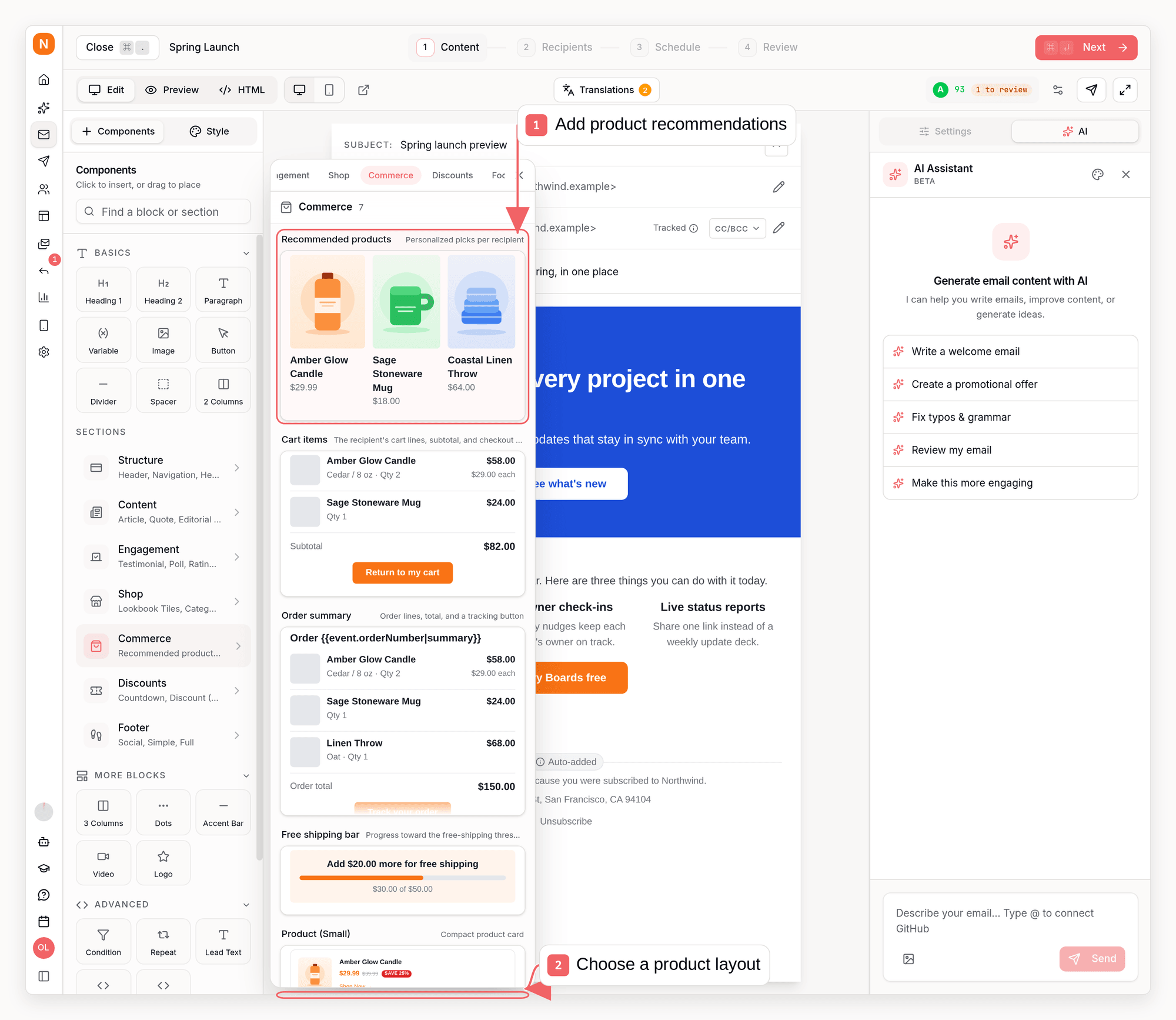
Cart items and order summary
The Cart items block renders the recipient’s line items with a thumbnail, title, variant, quantity, and line price, followed by a subtotal row and a Return to my cart button. The Order summary block is the same block in itsorder style: it adds a heading such as Order #{{event.orderNumber}}, labels the total Order total, and points the button at the tracking link.
Both read the trigger event of the sequence. Use them in sequences triggered by:
ecommerce.cart_abandoned,ecommerce.cart_started, orecommerce.checkout_startedfor cart emailsecommerce.order_placedfor order emails (ecommerce.order_shippedcarries the tracking link but no order number or total, so give the heading and button fallbacks as the Order Confirmation template does)
What happens when data is missing
- No line items in the event (for example a campaign, or a cart that emptied before the send): the sent email omits the whole block, including the button.
- Line items without images (WooCommerce carts and all order webhooks): Sequenzy fills in the product image and link from your synced catalog when the product IDs match. Unmatched products show a neutral placeholder tile.
- No checkout URL: Shopify only emits
event.checkoutUrlwhen it can build a cart permalink, so give the button a fallback, for example{{event.checkoutUrl|https://store.example/cart}}. The button is hidden when its URL resolves empty. - No tracking URL yet: new order buttons fall back to your store’s account page (
/account). If your store uses a different account route, pick Custom URL in the button settings.
Settings
Choose your data and item fields
Settings open on Design, with a compact event-data summary and links to manage data or preview scenarios. The preview status tells you whether the canvas has a real item list, an empty list, or sample products. Samples are only for designing and are never sent. Select Edit preview data to open the email’s Preview panel. Its Commerce data section accepts an item array as JSON, a total in cents, and currency; change your event payload or subscriber data to change what recipients receive. Items list is the path to the array, such asevent.lineItems, event.cart.items, or basket.items in subscriber data. Fields for each item maps the values inside one entry. For example, if an item is {"product":{"name":"Ceramic cup"},"count":3,"cost":1200}, set Product name to product.name, Quantity to count, and Unit price in cents to cost. Do not include the items list prefix or merge tag braces.
When preview items are available, use Choose next to a field to select a path with an example value. You can still type a path manually. Each mapping shows the first item’s value and flags missing values, invalid quantities, and nonnumeric prices. Decimal prices prompt you to check whether your source uses major units instead of cents; choose Numeric price units explicitly: cents (2999 = 29.99) or major units (29.99 = 29.99). Checks examine up to the first 50 items and offer up to 100 fields, nested up to six levels deep.
New cart and order blocks in an event-triggered sequence select event.items when that array exists, otherwise event.lineItems when available, or the only list of item objects in your event sample. Without an unambiguous sample, store events keep event.lineItems and custom events start with event.items. Existing saved blocks keep their source. In Items from your event, choose a list by its path, item count, and example product. Expand Custom items path to enter another path.
Real event rows load automatically into previews, including repeat blocks. Empty arrays stay empty and missing event fields stay missing. Use latest event data in Commerce data or Use latest event items in Repeat Data replaces your preview overrides with the latest sample, which may belong to another subscriber. It does not change recipient data or fire an event. Recipients use the event that enrolled them; waiting for a later event does not replace that payload.
The Data tab shows the sequence’s triggering event when available. Inspect items payload expands the current preview value at your items path (up to 20,000 characters). An event name alone does not identify which connected store supplied it.
Blank mappings use the standard keys: title, imageUrl, url, quantity, variantTitle, and priceCents. Additional item fields lets you map the formatted price fallback and per-item currency. If a custom path is missing, it does not silently fall back to a different field. Use Reset to store event fields to restore the default list, total, and item mappings.
Total value is a separate path in cents, not a sum of the displayed rows. Currency override overrides the currency next to the items list; an item’s currency still takes precedence for that row. Without a currency, amounts appear without a symbol. Use Design to toggle thumbnails, quantities, variants, the total, or the button.
Line totals multiply each item’s priceCents by its quantity. When an event carries only a formatted price, the block shows that value as the unit price.
Free shipping bar
The Free shipping bar block compares the cart total with your threshold and renders one of two messages: “Add $12.00 more for free shipping” with a proportional bar, or “You’ve unlocked free shipping!” once the total is at or above the threshold. Set the threshold in your store currency; the bar formats amounts in the currency the event carries, or the one you pick in settings. Place it above the cart items or the checkout button in cart-abandonment and checkout sequences. Like the cart block, it needs an event total, so campaigns omit it. On the canvas the bar previews a total you choose in settings (60% of the threshold by default). Two styles are available: Banner wraps the bar in a tinted band, Bar is the plain track.{amount} in the below-threshold copy is replaced with the remaining amount; keep it in single braces, it is not a merge tag.
Product card extras
Every product card (small, medium, and large) now supports:- Sale badge: “Save 20%” or “Save $10”, computed from the price and compare-at price. Off for previously saved cards; the product picker turns it on when the catalog product has a compare-at price.
- Stock note: a short urgency line under the price, such as “Only 3 left”. The product picker fills it from Shopify variant inventory when there are five or fewer units; you can type anything, including merge tags.
- Rating: 0 to 5 stars in half steps, with an optional caption such as “128 reviews”. There is no review sync yet, so this is copy you enter.
{{product.saleBadge}}, {{product.lowStockNote}}, and {{product.inventoryQuantity}}.
Templates
Eight store campaign templates join the gallery, all filled from your synced catalog with the automatic sale badge on product cards: It’s Back (restock), Price Drop, New This Week, Build the Set (bundle code), Early Access (VIP preview with countdown), Free Shipping Weekend, Shipping Cutoff (holiday deadline), and Reordered Most (social proof). Lifecycle templates:- Cart Recovery now opens with the free shipping bar and renders the cart with the cart items block.
- Order Confirmation is a new automation-only design for
ecommerce.order_placed: the order summary, tracking button, three next steps, and a pairs-well-with grid. - Gift Guide by Price splits your catalog into three bands (under 25, under 50, and 50 and up, in your catalog currency), each filled with your own products, cheapest first, and padded with stock tiles when a band has fewer than three.
API, CLI, and MCP
The blocks areline-items and shipping-progress in the block schema. GET /api/v1/email-blocks/line-items, sequenzy blocks line-items, and the MCP get_email_block_schema tool return every field with its accepted values; the same holds for shipping-progress. Product cards accept saleBadge (none, percent, or amount), stockNote, rating, and ratingCaption.
The AI email writer can create both blocks. They only render when the send carries event data, so ask for them in sequence emails rather than campaigns.
To use the same workflow through the API, CLI, or MCP, read the latest event with GET /api/v1/events/sample?eventName=checkout, sequenzy events sample checkout --company <companyId> --json, or get_event_sample. Choose an array from sample.properties, save its event. path in the block’s source and map any nonstandard item keys with itemFields. For example, a custom items array uses "source": "event.items". Updates through the sequence email endpoints, CLI, and MCP preserve these fields. Omitting source keeps the shipped event.lineItems default; pass a source explicitly to match the editor’s sample-based choice. Render with variables.event set to the sample properties; replace it with a fresh sample to reset preview values. See Sequences for the sample and render workflows.
Design and preview scenarios
Choose Compact, Classic or Showcase in Design, then adjust image size (32–120px), fit (cover or contain), row spacing (0–32px), type size (12–24px) and price visibility. Defaults preserve existing blocks: 64px images, 12px spacing, theme body type size, cover fit and visible prices. Click a selected cart’s image or product name to open its matching control. Heading, total label and button copy remain editable on the canvas; Edit button settings opens button controls. In Data, apply suggested recognizable field mappings explicitly. Numeric prices with unknown units require you to choose cents or major units. Existing mappings are preserved. Preview scenarios shows current event data, one or many products, an empty cart, missing images and long names at desktop or mobile width. Scenarios use cloned data and never alter saved blocks, event samples or recipients. An empty cart hides the whole block, including its total and button. At widths up to 480px, images, product details and prices stack so larger designs stay readable. Email clients without media-query support keep the desktop table. The Preview Cart Items endpoint,sequenzy blocks preview-cart command and preview_cart_items MCP tool return the same suggestions, presets and scenario data. Save imageSize, imageFit, rowSpacing, fontSize, showPrices, priceUnit and itemFields through existing block update workflows. Retrieve saved blocks through their existing detail workflows. To reset optional settings, remove those properties from the replacement block rather than setting them to null. Use the existing render workflow for HTML previews, supplying scenario items at the block’s source; desktop/mobile are viewing widths, not saved block settings.