
Signup Form Widget
The Signup Form Widget is a customizable form that you can embed on any website to collect email subscribers. Use a one-line JavaScript embed, copy the full HTML, or post a native form directly from a static site. Forms are saved in your dashboard. Each form has its own submission endpoint, and the audience (lists, tags) and success behavior (message or redirect) are stored server-side. When you edit those settings later, deployed embeds pick up the changes automatically - no re-embedding needed. Only visual changes (colors, placeholders, layout) require copying the code again. For popup capture, use the Popup Widget. It uses the same Forms API for submissions but loads a hosted JavaScript runtime.Template Gallery
Start from a saved form template, then customize the fields, layout, and styling in the form editor: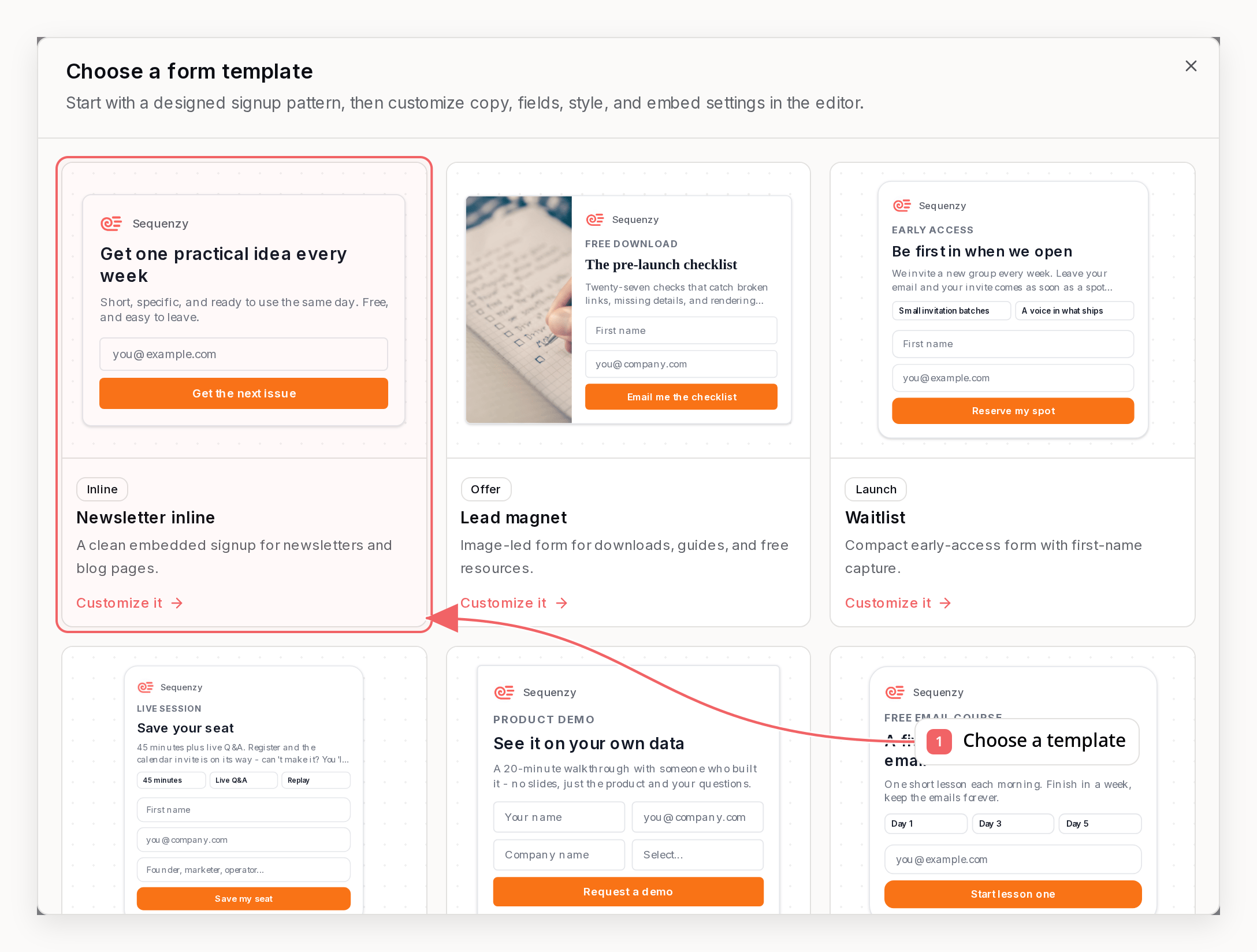
Features
Flexible Embed Options
JavaScript, HTML, native form action, and fetch options
Customizable Styling
Configure colors, button text, and layout
Spam Protection
Built-in honeypot field to prevent bot submissions
List Targeting
Add subscribers to specific lists or all lists
Tag Assignment
Apply existing tags when someone subscribes
Double Opt-In
Require email confirmation before subscribers become active
Quick Start
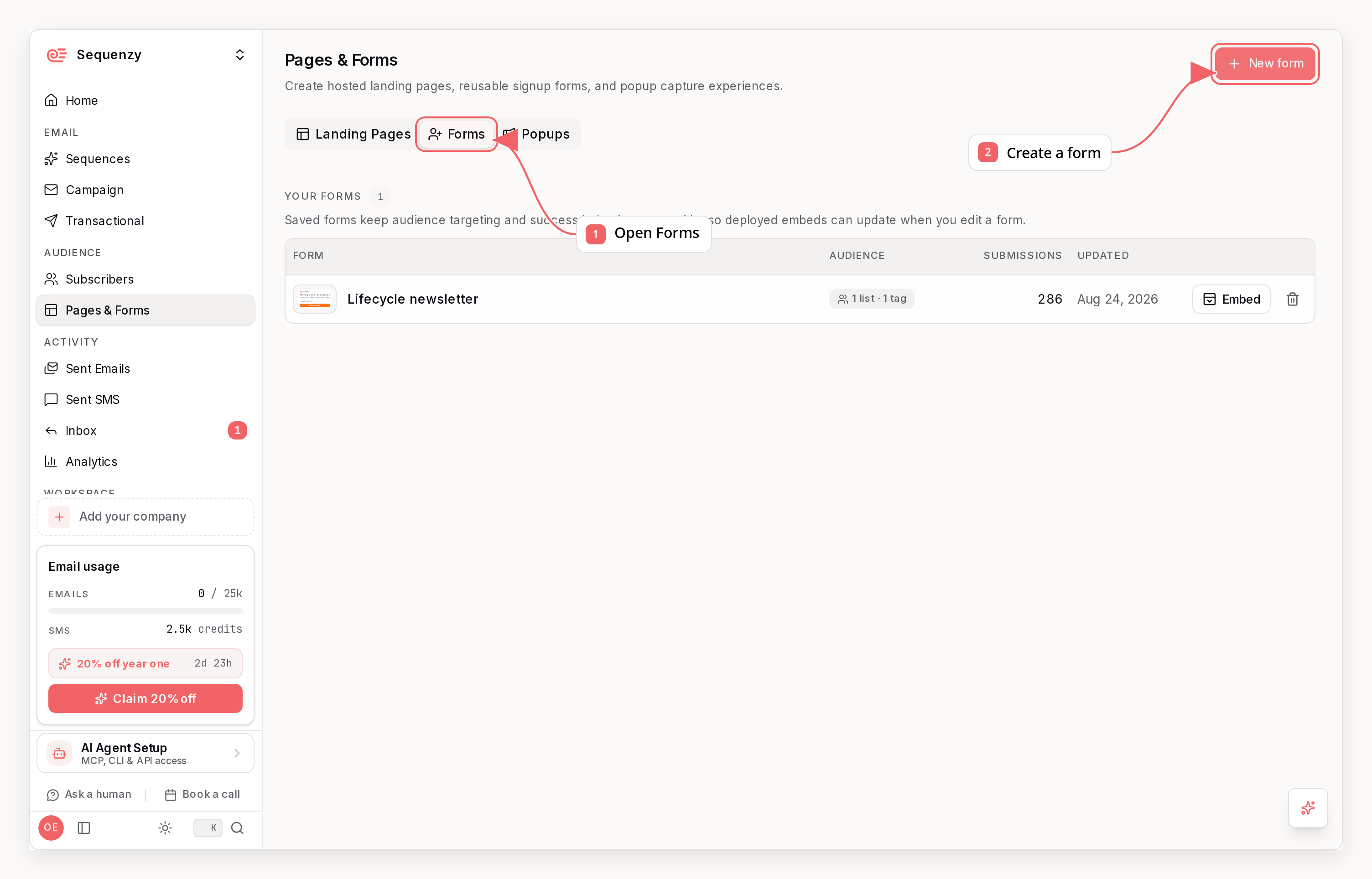
Step 1: Open Forms
Step 2: Customize Your Form
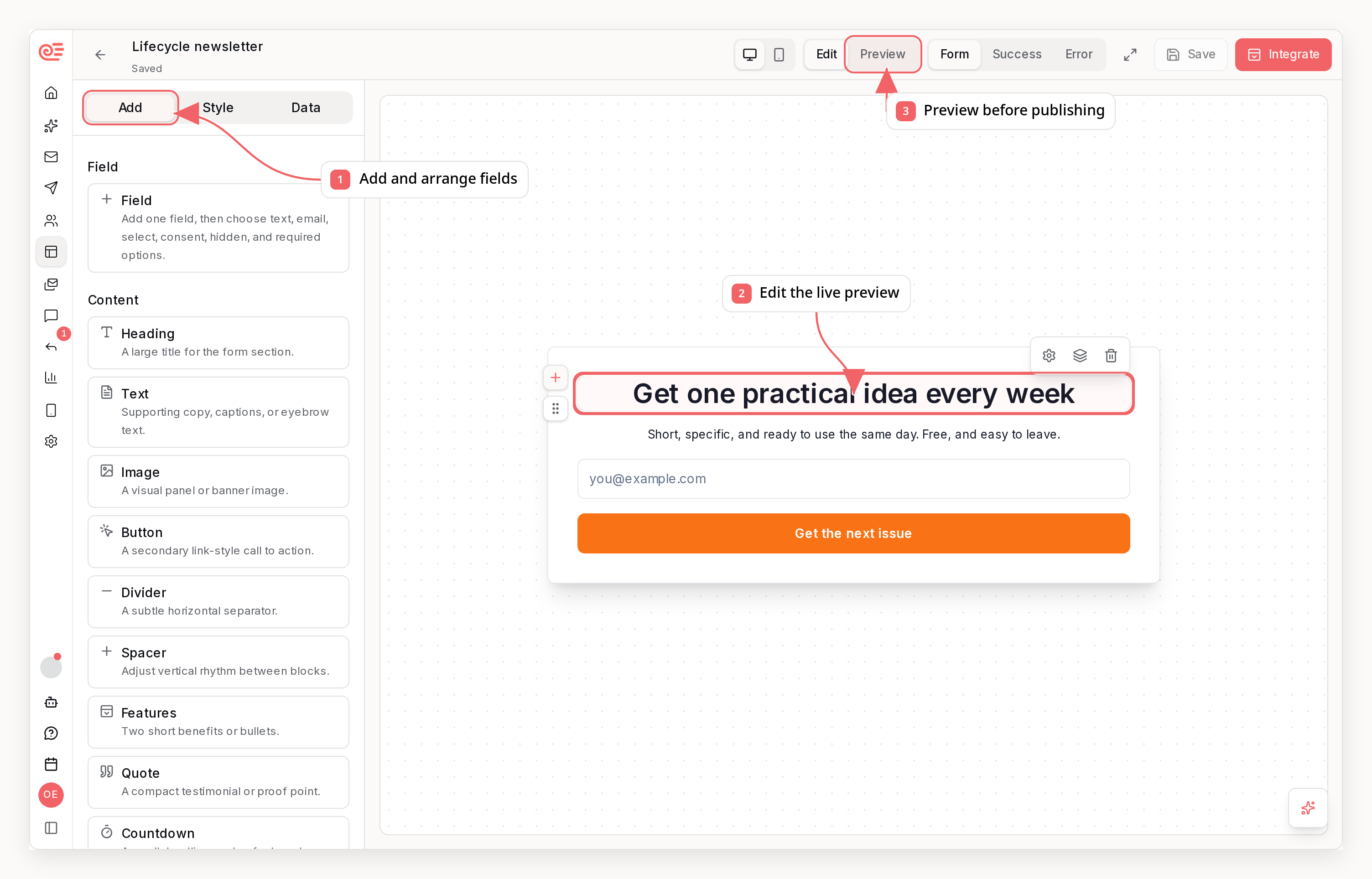
- Form name: Name the form so you can tell your signup forms apart
- Form Style: Choose between “Button below” (stacked) or “Button inline” (side-by-side)
- Placeholder Text: Customize the email input placeholder
- Custom Fields: Add text fields such as nickname, zipcode, shipping address, or favorite fruit
- Font Color: Set the input text color
- Button Text: Customize the submit button label
- Button Color: Set the button background color
- After submission: Show a success message or redirect visitors to a URL
- Success Message: Customize the confirmation message shown after submission
- Subscribe to: Choose which list(s) new subscribers should be added to
- Apply Tags: Choose which existing tags new subscribers should receive
- Double Opt-In: Forms follow the workspace setting in Settings → Email Tracking
Step 3: Save and Embed
Click Save & Embed to choose where the form should be installed.Choose A Destination
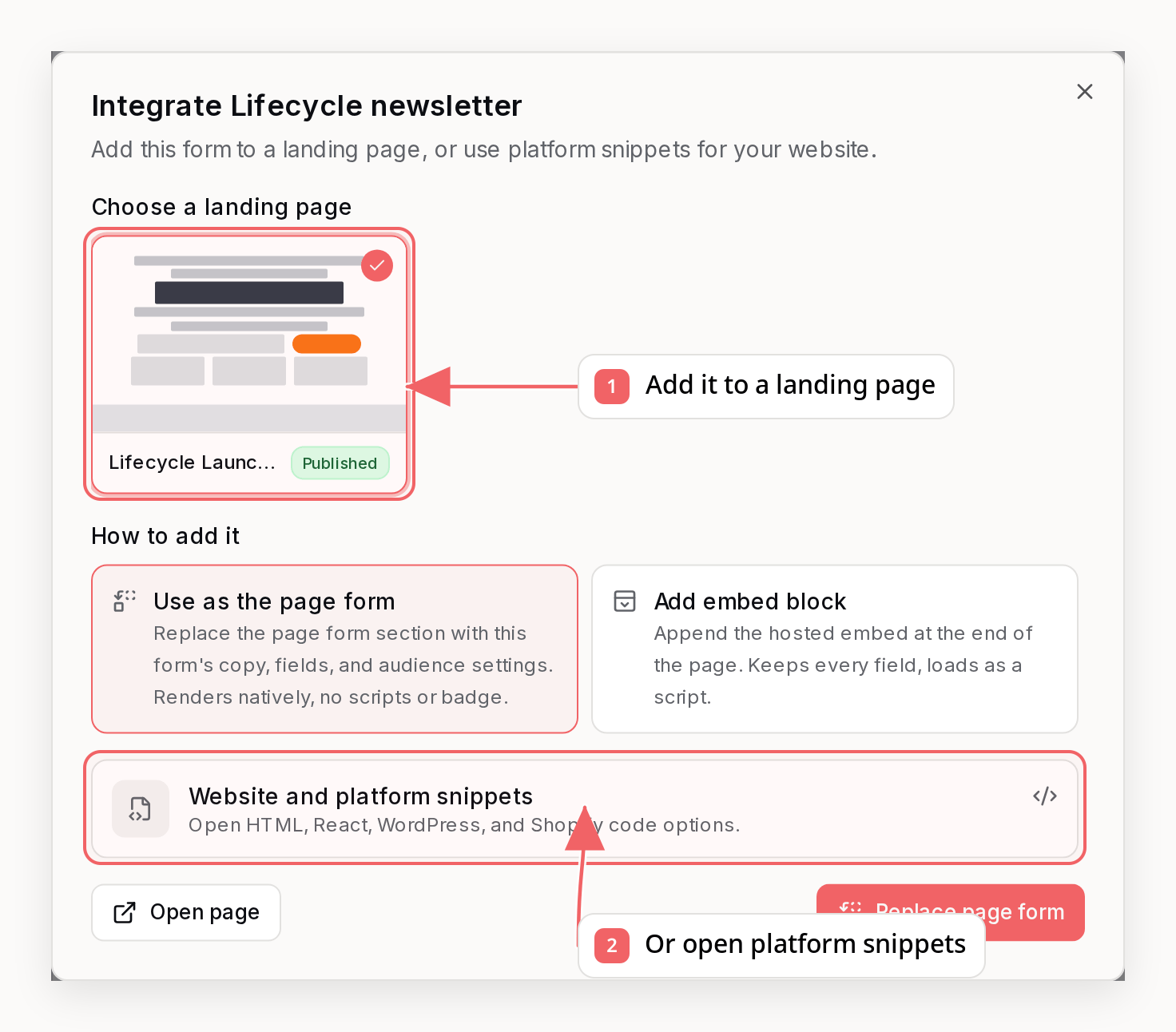
Copy The Installation Snippet
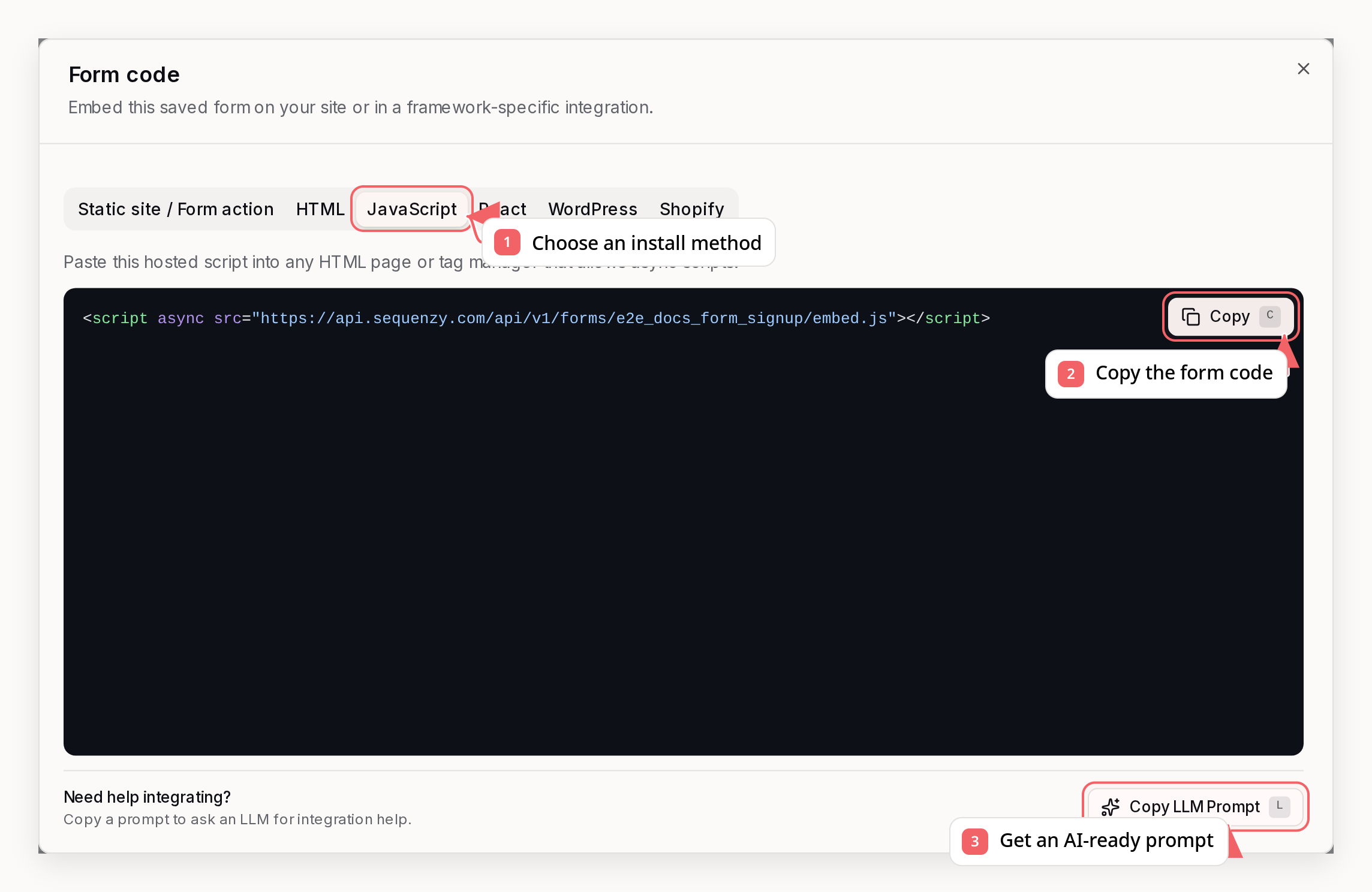
- JavaScript: one script tag that renders the latest saved form settings
- HTML: the complete copy-paste form markup
- Static site / Form action: a public action URL, minimal native form, and optional fetch enhancement for Astro, Hugo, Jekyll, Cloudflare Pages, Netlify, and GitHub Pages
Static Sites and Form Actions
Saved forms are client-safe by design. The opaqueformId is the public
capability, while lists, tags, duplicate handling, and success behavior remain
stored in Sequenzy. Your Astro, Hugo, Jekyll, or plain HTML page never needs a
Bearer token, server function, or secret environment variable.
Open a saved form, choose Embed → Static site / Form action, and copy the
native form:
FormData directly to the
public action and still contains no API key.
Managing Saved Forms
Saved forms appear on Audience → Forms, with their submission counts. From there you can:- Edit a form’s design, audience, and success behavior
- Embed an existing form without changing it
- Delete a form. Deployed embeds of a deleted form stop accepting submissions.
Webflow
Do not paste a Sequenzy HTML, React, JavaScript, or form-action snippet into Webflow. The Marketplace integration supports native Webflow forms only. Use the Webflow integration to select forms, fields, consent, lists, and sequence behavior through official Webflow APIs. While a workspace is connected to Webflow, Sequenzy does not return custom form embed code and rejects submissions to that workspace’s existing Sequenzy form embed endpoints.Generated HTML
The form builder generates clean, self-contained HTML like this:Form Layouts
Button Below (Default)
The input and button are stacked vertically:Button Inline
The input and button are side-by-side:Targeting Specific Lists
When you create a form, all current lists are selected by default. You can keep that selection, choose a smaller set of lists, or clear the selection to create subscribers without adding them to any list.- In the form builder, use the Subscribe to picker to select or clear lists
- Click Save & Embed
Applying Tags
You can also apply existing tags when someone submits the form:- In the form builder, select tags from Apply tags
- Click Save & Embed
Handling Existing Contacts
Saved forms can choose how submitted name fields affect an existing contact:skippreserves the existing contact fieldsmergefills only fields that are currently emptyoverwritereplaces submitted fields
Double Opt-In
Signup forms follow the workspace double opt-in setting. When double opt-in is enabled, a form submission creates a pending subscriber and sends your confirmation email. The subscriber becomes active only after clicking the confirmation link. Selected lists and tags are applied after confirmation, not before. This keeps list-triggered and tag-triggered automations from starting until the subscriber has confirmed.Double Opt-In
Learn how to enable and customize confirmation emails.
Spam Protection
The form includes a honeypot field that’s hidden from real users but visible to bots:After Submission
After successful submission, users can see a success message or be redirected to a custom page. For success messages, you can customize:- Success Message: The text shown after submission (e.g., “Thanks for subscribing!”)
- Font Color: The color of the success message
- Font Size: The size of the success message text
http or https URL,
such as https://example.com/thank-you. You can also enter a domain like
google.com; Sequenzy will treat it as https://google.com. Redirects only
run after the submission succeeds.
The success behavior is stored with the form, so switching between message and
redirect (or changing the redirect URL) applies to deployed embeds immediately.
When a plain HTML embed is set to show a message, visitors see a hosted
confirmation page with your success message and a link back to your site.
Free Plan Branding
On the free plan, generated embed code includes a small “Powered by Sequenzy” pill below the form, and the hosted confirmation page shows the same pill. Paid workspaces get unbranded forms. The embed code is a snapshot: after upgrading, regenerate and re-paste the code to remove the pill from forms already deployed on your site. The hosted confirmation page updates automatically.Custom Styling
The generated HTML uses inline styles for maximum compatibility. You can override these styles with CSS:Integration Examples
WordPress
Paste the HTML embed into a Custom HTML block in the WordPress block editor.Squarespace
Use a Code Block to add the HTML.Static HTML Sites
Use Static site / Form action and paste the native form directly into your HTML file. The same option works in Astro, Hugo, Jekyll, Cloudflare Pages, Netlify, and GitHub Pages without a backend proxy.API Endpoint
JavaScript embeds load the saved form runtime from:
Generated saved-form HTML renders built-in name fields first, then the email
field, then configured custom fields before the submit button. Custom fields
cannot currently be interleaved with built-in fields.
Lists, tags, and the redirect URL come from the form’s saved settings, so they
are not part of the request. See the Submit Saved
Form and Saved Form Embed
Script API references for
details.
Embeds generated before saved forms existed post to
POST /api/v1/forms/{companyId} with lists, tags, and the redirect URL encoded in
the embed itself. Company-scoped saved form URLs also continue to work
unchanged. See Submit Signup Form.
Best Practices
- Test before deploying: Use the preview in the form builder to test your form
- Keep the honeypot: Don’t remove the hidden honeypot field
- Match your brand: Customize colors to match your website design
- Clear call-to-action: Use descriptive button text like “Subscribe” or “Get Updates”
- Set expectations: Use placeholder text to indicate what you’re offering
Troubleshooting
Form not submitting
- Ensure the form action URL is correct
- Check that required fields are filled
- Verify your domain is properly configured in Sequenzy
Subscribers not appearing
- Check if the subscriber already exists (duplicates are ignored)
- Verify the honeypot field is empty (bots trigger this)
- Check your Sequenzy dashboard for any API errors
Styling issues
- Inline styles have high specificity - use
!importantto override - Some email clients strip certain CSS properties
- Test on multiple browsers and devices