
What You Can Build
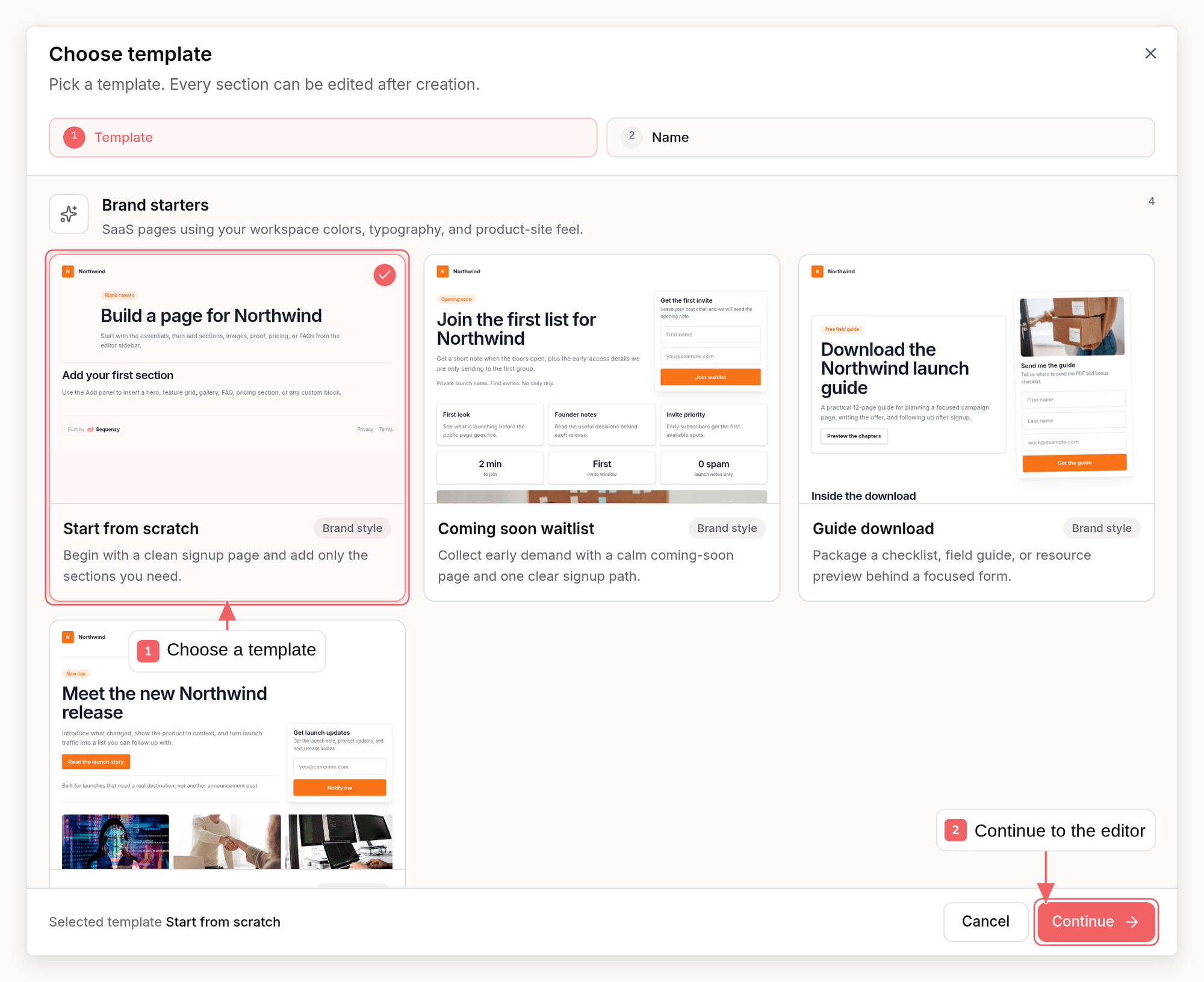
Start from a blank page or one of the built-in templates. Use the value column for thetemplate field in the API, CLI (--template), and MCP:
Templates use your workspace brand colors and email theme as a starting point,
then you can adjust the page theme directly in the builder.
Create a Page
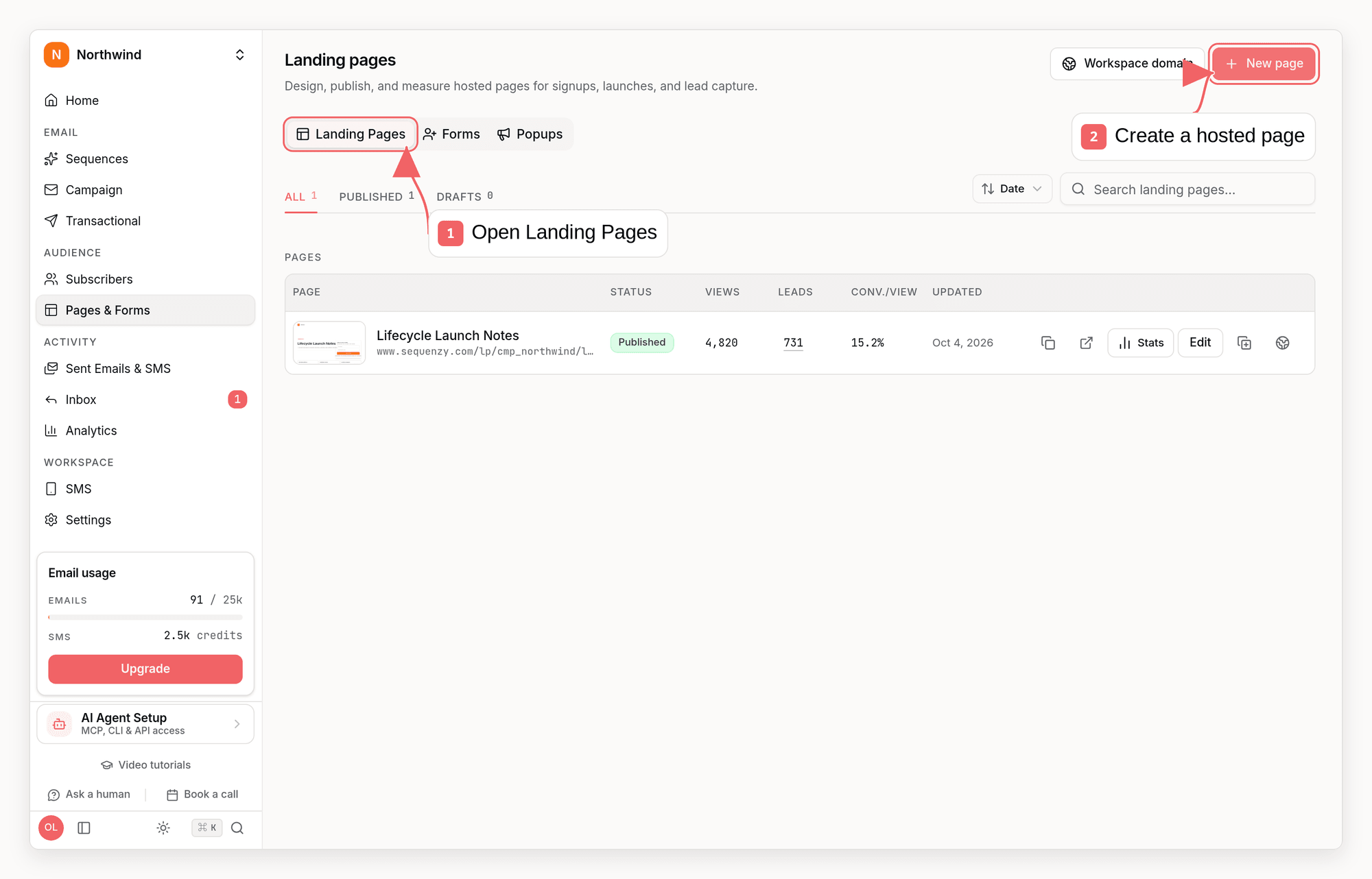
- Open Pages & Forms from the dashboard sidebar, then Landing Pages.
- Click New page.
- Choose a template and enter a page name.
- Edit copy, sections, images, theme, form settings, and SEO metadata.
- Click Publish when the page is ready.
previewUrl you can open to review the visitor-facing layout without
publishing. Published pages receive a public URL and can be copied or opened
from the page list or editor toolbar. The API render endpoint and the
render_landing_page MCP tool return that preview URL.
Editor
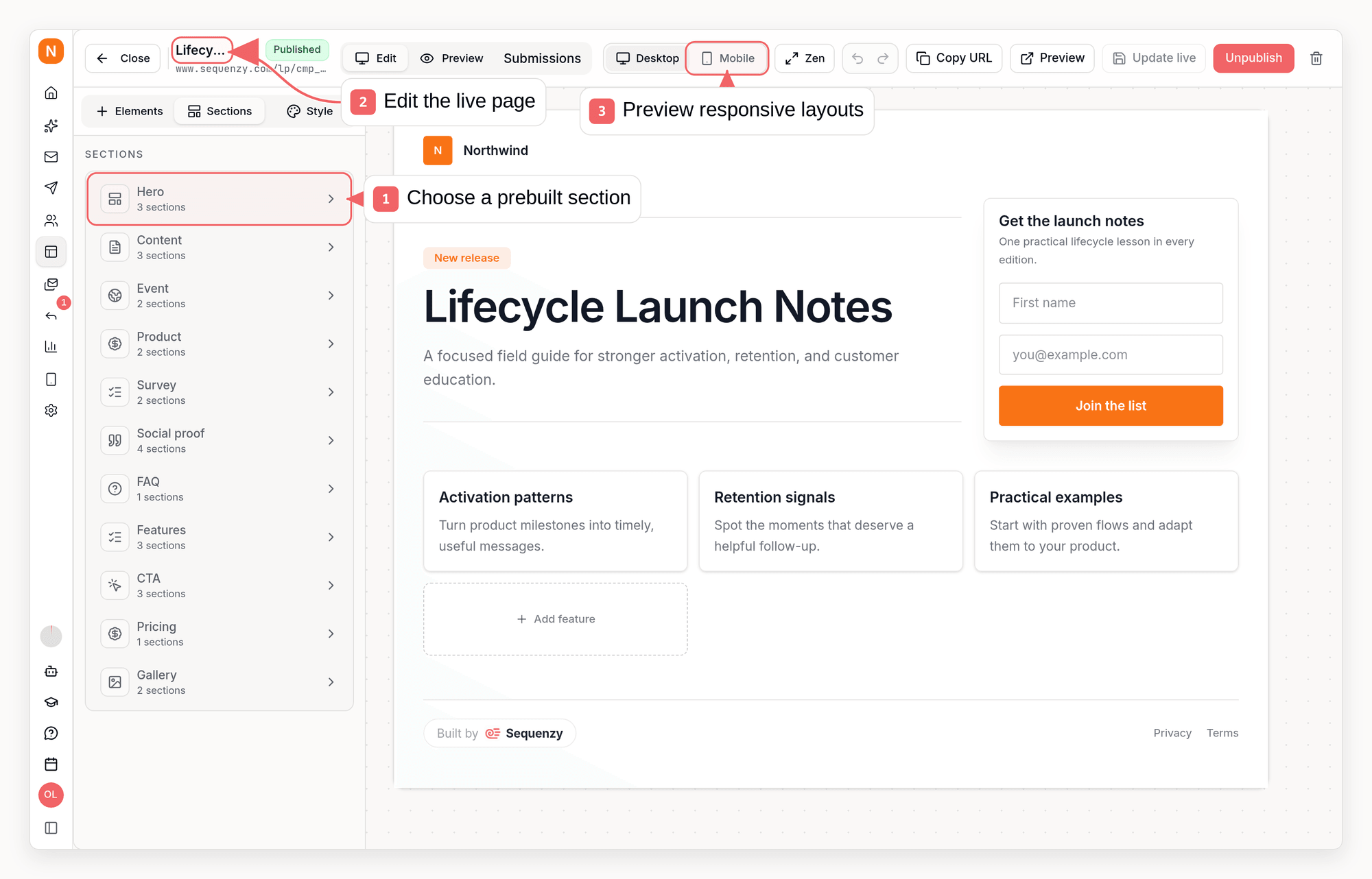
- Elements: add individual blocks such as headings, text, images, videos, buttons, feature grids, stats, testimonials, logo clouds, FAQs, pricing, forms, spacers, and dividers.
- Sections: add larger prebuilt sections such as heroes, resource previews, product offers, agendas, testimonials, logo clouds, FAQs, CTAs, pricing sections, and galleries.
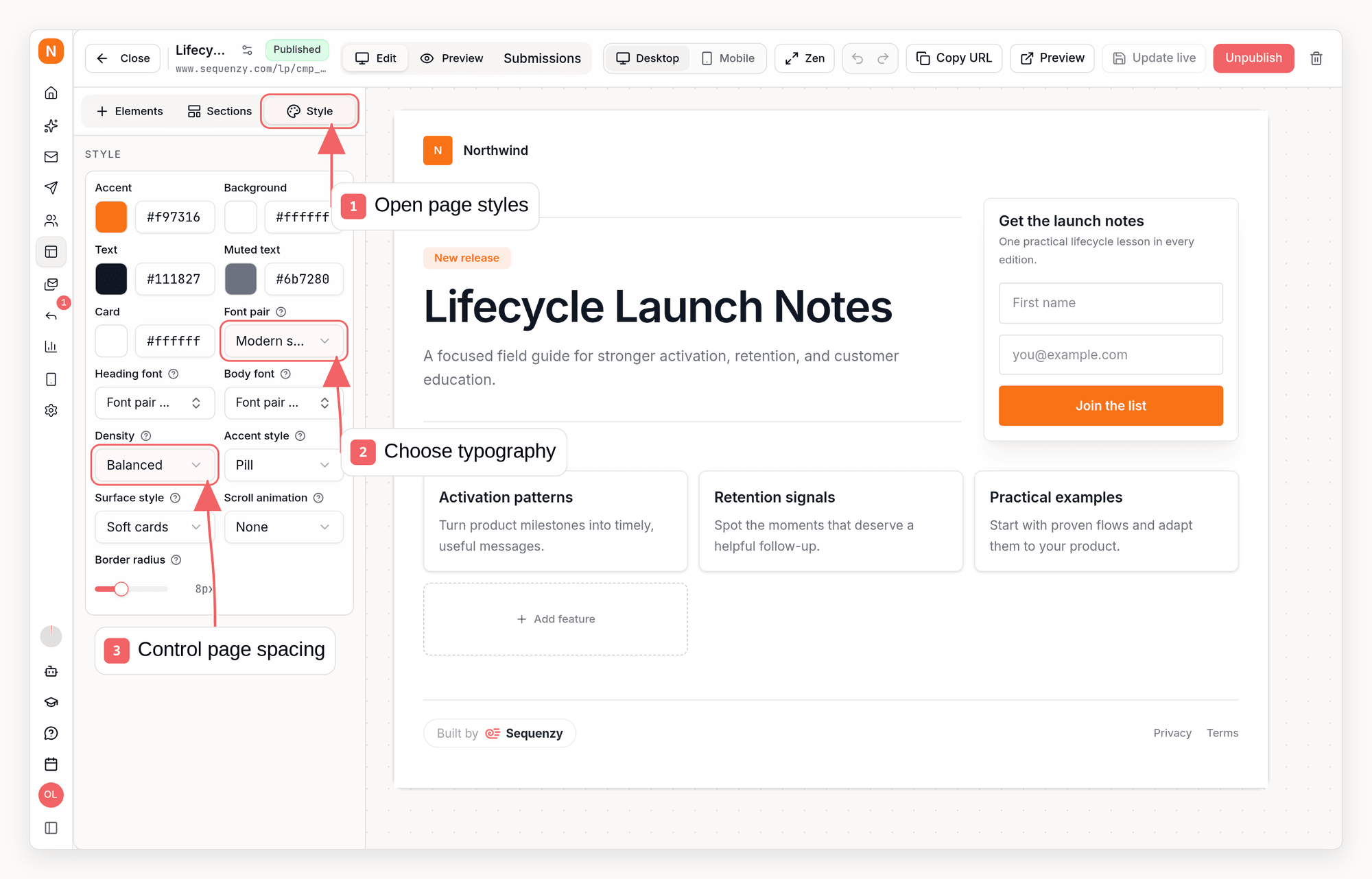
- Style: adjust colors, font pairing, density, accent style, surface style, border radius, and workspace design defaults.
Add A Video
Add a Video element and paste a YouTube link straight from the address bar, includingyoutu.be short links, Shorts, and live URLs. Other providers and
direct video files are not supported.
Sequenzy turns the link into the right embed for you, so you never need to paste
embed code into a Custom HTML block. YouTube videos load from
youtube-nocookie.com, so no tracking cookies are set until a visitor presses
play. Pick a shape (16:9, 4:3, 1:1, or 9:16 for Shorts and phone recordings) and
a width, and use the block’s alignment to position a narrower player.
Put Content Above The Hero
Pages can carry a full-width band above the hero for an announcement bar, banner image, or logo strip. There are two ways to fill it:- Drag a section from the Sections panel onto the top half of the hero. It lands above the hero instead of below it.
- Select any section below the hero and use its move up control until it passes the hero.
top slot, which renders before hero, form, body,
and footer.
Style The Page
Use the Style panel to keep colors, typography, spacing, accents, and card treatment consistent across every section. Scroll animation adds motion as each section enters the viewport on the published page:None, Fade in, Slide up, or Zoom in, with a slow,
normal, or fast speed. The reveal plays on the published page only, so the
editor keeps showing every section in place while you work. Visitors who ask
their device for reduced motion always see the page without animation.
Link CTAs Back To The Form
Button and pricing CTAs accept an in-page anchor instead of an external URL, so a long page can repeat its call to action and scroll back to its single signup form:#formscrolls to the page’s form block#section-<sectionId>and#block-<blockId>scroll to any section or block, using the ids you see in the page content#topreturns to the top of the page
Group Components
Use a Group as a layout container when several components belong together. Select a component directly on the canvas and choose Group with… from its floating toolbar. Then select one or more sibling components and click Group. The selected container gets a labeled outline and inline controls for vertical stack, horizontal row, responsive grid, or image overlay layout. Overlay is available only when exactly one image is directly inside that group; images inside a subgroup only enable Overlay for the subgroup, and two or more images disable it. The image becomes the background while the remaining components stay individually editable above it. Group settings control content position, overlay color and intensity, gap, and padding. Click inside a selected group to edit an individual child. Drag components onto a group to move them inside, drag them among its children to reorder them, or use Move out of group from the child toolbar to return it to the parent level. Selecting a group before adding from Elements or Sections places the new component or complete section inside that group; section templates are kept together as a nested container. Use Ungroup on the group toolbar to remove only the container. Groups can be nested, duplicated, deleted, and undone or redone with the rest of the page. Signup forms and footers remain at the page root.Forms
A landing page can include one signup form. Form submissions create or update a subscriber in the same workspace as the page. Select the form on the canvas and open its settings to configure duplicate contacts, the success experience, and audience routing. A contact who unsubscribed from all email and submits the page again is resubscribed and rejoins the page’s lists. With workspace double opt-in on, they confirm by email first.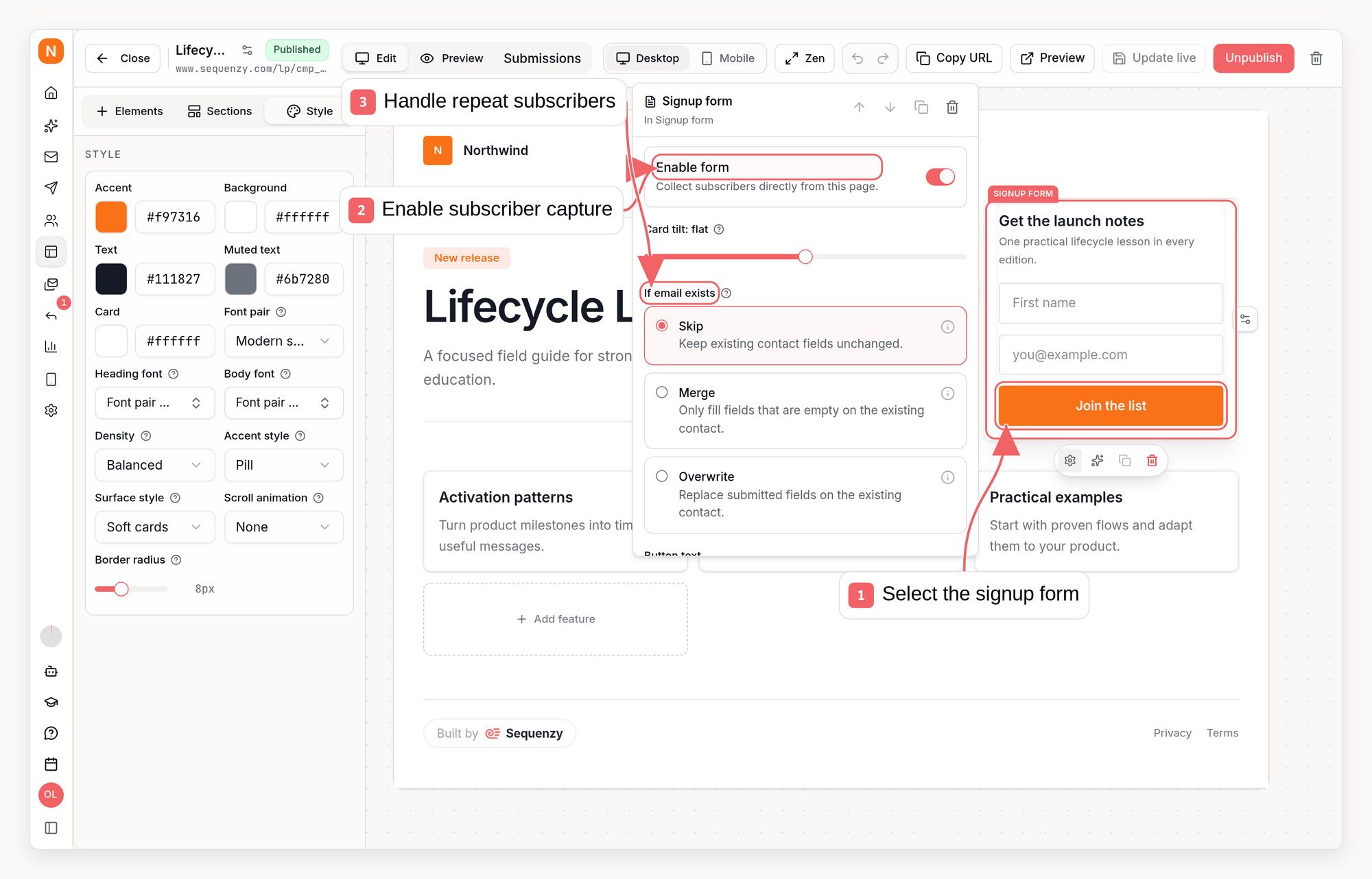
- Email, first name, last name, and phone fields
- Required first name, last name, or phone fields
- Custom fields stored as subscriber attributes: text, phone, number, textarea, select, radio, checkbox, consent, and hidden inputs
- Field placeholders and button text
- Form card width (narrow, medium, or wide) for content-heavy forms
- Success message
- Optional redirect URL after successful submission
- List routing: default lists, no lists, or specific lists
- Signup tags to apply after subscription
Double Opt-In
Form Endpoint
Published pages post to a page-specific endpoint:application/x-www-form-urlencoded data, and the endpoint
also accepts JSON.
website honeypot field for spam
protection and rate-limits repeated submissions.
Publishing URLs
Published pages are available at a Sequenzy-hosted URL:https://pages.example.com/{slug}) and Sequenzy URL remain
available as fallbacks, so connecting one does not change other pages.
Custom Domains
Use a custom landing-page domain when you want pages and their native forms to live under your brand.- Open Pages & Forms → Landing Pages.
- Use Workspace domain for a shared hostname, or open Connect page domain from a page action for a hostname dedicated to one page.
- Enter a subdomain such as
pages.example.com, or a root domain such asexample.com. - Add the DNS record shown in the dashboard: subdomains use a CNAME record
pointing to
pages.sequenzydns.com; root domains use an A record pointing to76.76.21.21(DNS does not allow a CNAME at the root of a domain). - Click Verify.
www.example.com to
example.com automatically - point a CNAME for www at
pages.sequenzydns.com (or keep an existing one) and no extra setup is needed.
Root domains work best as a dedicated page domain, which serves the page at
the domain root.
If your workspace has a compatible Cloudflare DNS provider connected for the
same root domain, Sequenzy can add the CNAME record automatically with Add
DNS. Automatic setup applies to subdomains only - for a root domain, add the
A record yourself so an existing record at the root of your zone is never
changed.
Published pages keep using Sequenzy URLs until the custom domain is verified.
After verification, page URLs use the applicable custom domain automatically.
Replacing a dedicated page domain requires removing it first so an active URL
cannot be changed silently.
API, CLI, And MCP
Landing pages can be managed from the dashboard, public API, CLI, and MCP tools. Use these when an AI agent, script, or backend needs to create and manage pages without clicking through the dashboard.API
CLI
MCP
When an agent, script, or REST client sends full pagecontent, CTA URLs accept
the same in-page anchors as the editor, and theme.sectionAnimation (none,
fade, slide-up, zoom-in) plus theme.sectionAnimationSpeed (slow,
normal, fast) control the scroll reveal.
Use MCP tools such as create_landing_page, update_landing_page,
duplicate_landing_page, publish_landing_page, unpublish_landing_page,
get_landing_page_stats, connect_landing_page_domain,
update_landing_page_domain_settings, and remove_landing_page_domain when
Claude, Codex, Cursor, or another agent should manage landing pages for you.
Landing Pages API
CLI
MCP
SEO And Social Metadata
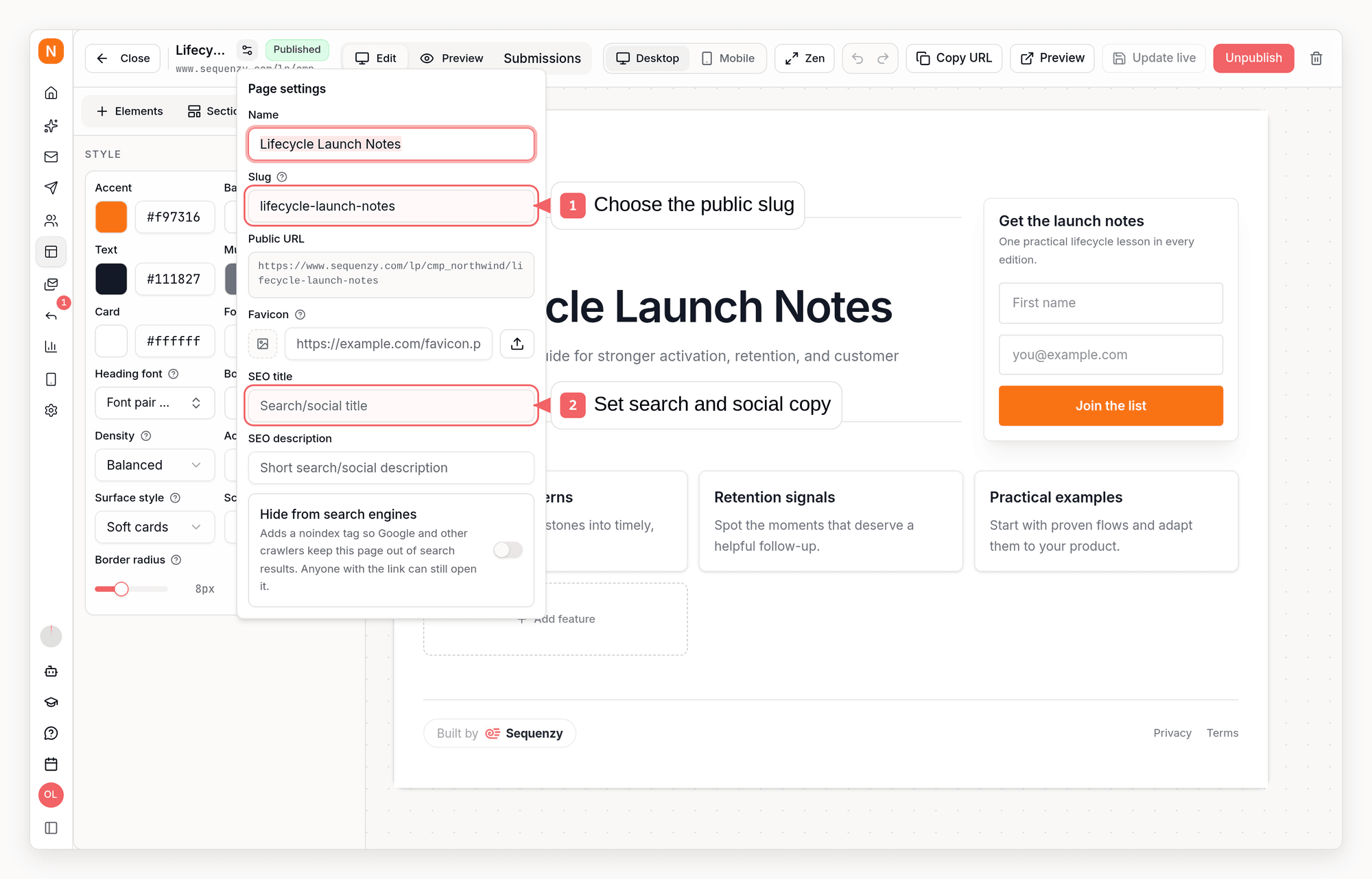
- Page name
- Public slug
- Favicon
- SEO title
- Search and social description
- Hide from search engines
Favicon
The favicon is the small icon browsers show in the tab and in bookmarks. Upload one or paste an image URL in Page settings. When no page favicon is set, Sequenzy uses your workspace logo. If your workspace has no logo either, the tab stays blank rather than falling back to Sequenzy’s icon, so your pages never show Sequenzy branding. Square images of at least 96x96 pixels work best. PNG, SVG, and ICO files are all supported.Hide From Search Engines
Pages published on a verified custom domain are indexable by default. Turn on Hide from search engines in Page settings for pages meant only for people you share the link with, such as private client previews or internal launches. The page then serves anoindex, nofollow tag, so Google and other crawlers
keep it out of search results. The page stays reachable by direct link - this is
a search-visibility setting, not access control. The change takes effect as soon
as you save - a published page does not need to be republished. If a page has
already been indexed, save it with the setting on and then request removal in
Google Search Console to speed up the de-index.
Pages served from Sequenzy URLs (/lp/...) are never indexable, with or without
this setting.
Duplicate A Page
Reuse a page you already like instead of rebuilding it. Click the duplicate action on any page in the list, or call the API, CLI, or MCP equivalent. The copy:- is always created as a draft, so nothing goes live by accident
- gets its own unique slug, named after the original with a
(copy)suffix - starts with zero views and conversions
Metrics
The landing-pages list shows:- Status: draft or published
- Views
- Leads
- Conversion rate
- Last updated date
- Visits and unique visits
- Clicks
- Subscribes (new leads)
- Conversion rate (subscribes / unique visits)
- A daily visit chart
- Referrers and UTM sources
- Crawler hits, reported separately so you can tell bot traffic from people
get_landing_page_stats /
sequenzy landing-pages stats. Lifetime viewCount on the page itself stays
as a running total of human visits for list views and API compatibility.
Time-windowed visits, unique visits, referrers, and crawler hits come from
ClickHouse and are kept until the page or workspace is deleted. Reports return dataAvailableFrom
because events from before analytics collection began are not backfilled and
lifetime page counters may cover an earlier period. Deleting a page or company
queues event cleanup asynchronously; reports do not wait for physical removal.
Good To Know
- A landing page can contain at most one form block.
- Every landing page must keep one footer block.
- CTA, pricing, footer, and redirect URLs must be safe
httporhttpsURLs. - Draft pages do not return public content.
- Custom domains serve pages by slug, so
https://pages.example.com/waitlistworks after the domain is verified.