
What is Clerk?
Clerk is a modern authentication platform that provides drop-in user management for web applications. It handles sign-up, sign-in, user profiles, and security.Connecting Clerk
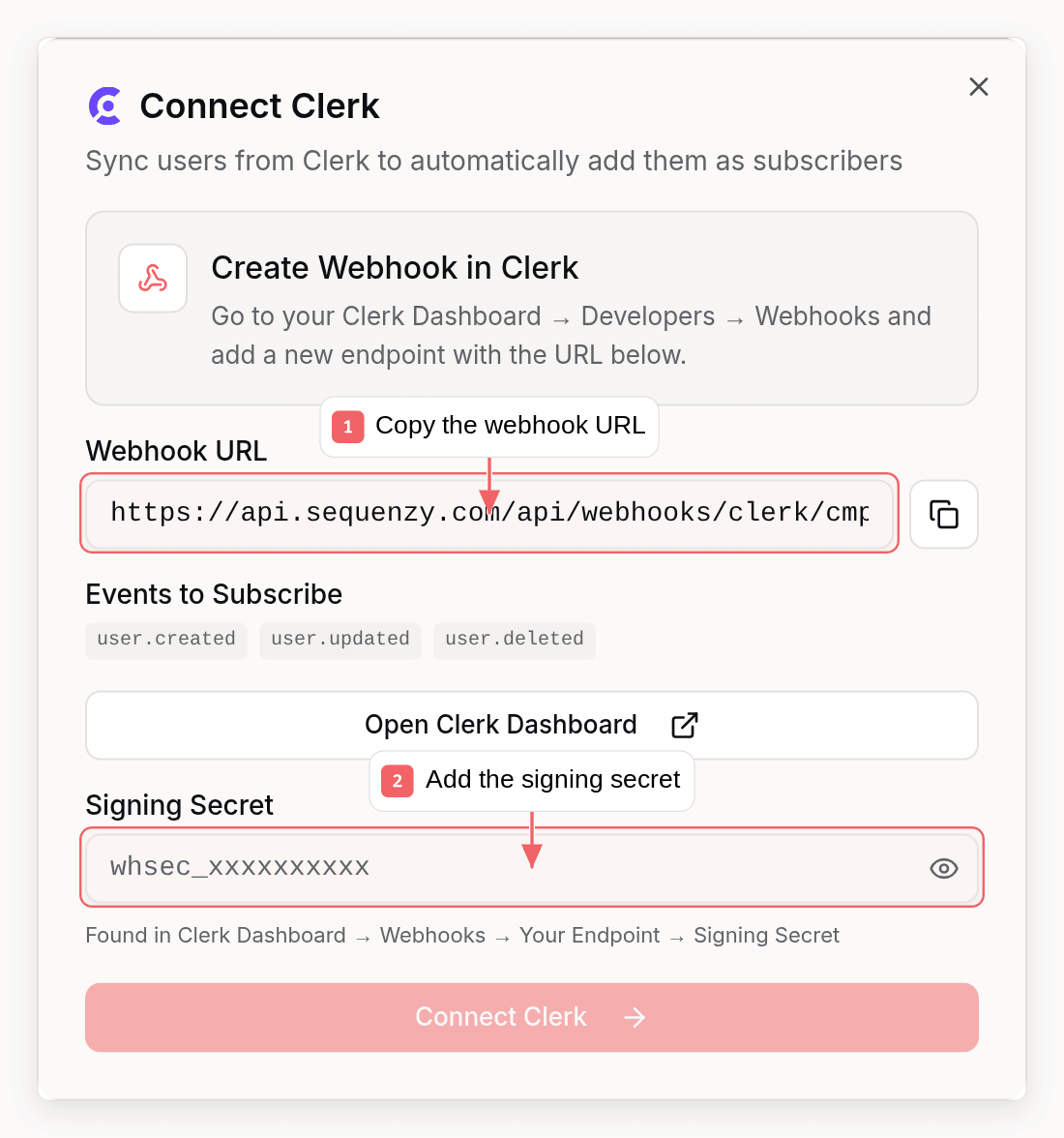
Step 1: Get Your Webhook URL
- Go to Settings → Integrations in Sequenzy
- Click Connect next to Clerk
- Copy the webhook URL shown (format:
https://api.sequenzy.com/api/webhooks/clerk/{your-company-id})
Step 2: Create Webhook in Clerk
- Go to your Clerk Dashboard
- Navigate to Developers in the left sidebar. Click on Webhooks
- Click Add Endpoint
- Paste your Sequenzy webhook URL
- Select these events:
user.createduser.updateduser.deleted
- Click Create
- Copy the Signing Secret (format:
whsec_xxxxxxxxx)
Step 3: Complete Connection in Sequenzy
- Return to Sequenzy’s Clerk connection modal
- Paste the Signing Secret from Clerk
- Click Connect Clerk
What Gets Synced
When a user signs up through Clerk, Sequenzy automatically:- Creates a new subscriber with their email
- Syncs first and last name
- Triggers the
contact.subscribedinternal event
Synced Attributes
Tracked Events
Using with Automations
Welcome Sequence
Create an automation triggered bycontact.subscribed to send a welcome sequence to every new user:
- Go to Automations → Create New
- Set trigger to Event Received →
contact.subscribed - Add your welcome email sequence
- Activate the automation
Personalization
Use the synced attributes in your emails:User Lifecycle
When a user is deleted in Clerk, they’re automatically unsubscribed in Sequenzy. No manual cleanup needed.
If the same user is later re-created in Clerk (a new
user.created event for the same email), Sequenzy reactivates the contact automatically. Explicit opt-outs (unsubscribe link, dashboard, API) are never undone by re-creation.
Troubleshooting
Users Not Syncing
- Verify the webhook URL is correct in Clerk
- Check that all required events are selected (
user.created,user.updated,user.deleted) - Test by creating a new user in Clerk and checking if they appear in Sequenzy subscribers
Invalid Signature Errors
Sequenzy accepts each delivery before verifying its signature, so Clerk’s dashboard shows deliveries as successful even when the signing secret is wrong. Rejected deliveries appear as “Invalid webhook signature” in Settings → Integrations → Activity. If you see them:- Verify you copied the complete signing secret from Clerk
- Ensure the secret starts with
whsec_ - Try recreating the webhook in Clerk with a new secret
Missing Profile Data
Clerk only syncs data that exists in the user profile. IffirstName is empty in Clerk, it won’t appear in Sequenzy. Ensure your Clerk sign-up flow collects the data you need.
FAQ
Does this sync existing Clerk users?
Does this sync existing Clerk users?
No. Only users created after you connect sync automatically. Import existing Clerk users with a CSV or the API;
user.updated only updates people who are already subscribers.Can I sync users to specific lists?
Can I sync users to specific lists?
Currently, Clerk users are added to your general subscriber list. You can use
tags or automations to organize them after creation.
What if a user doesn't have an email?
What if a user doesn't have an email?
Users without an email address are skipped. Sequenzy requires an email to
create a subscriber.
Is this included in my plan?
Is this included in my plan?
Yes, Clerk integration is included at no extra cost.