> ## Documentation Index
> Fetch the complete documentation index at: https://docs.sequenzy.com/llms.txt
> Use this file to discover all available pages before exploring further.

# Subscription Preferences Widget

> Let users manage their email subscriptions directly from your website

# Subscription Preferences Widget

The Subscription Preferences Widget is an embeddable component that allows your users to manage their email subscription preferences without leaving your website. Users can subscribe/unsubscribe from email lists, cancel active sequences, and globally opt-out of all communications.

## Preview

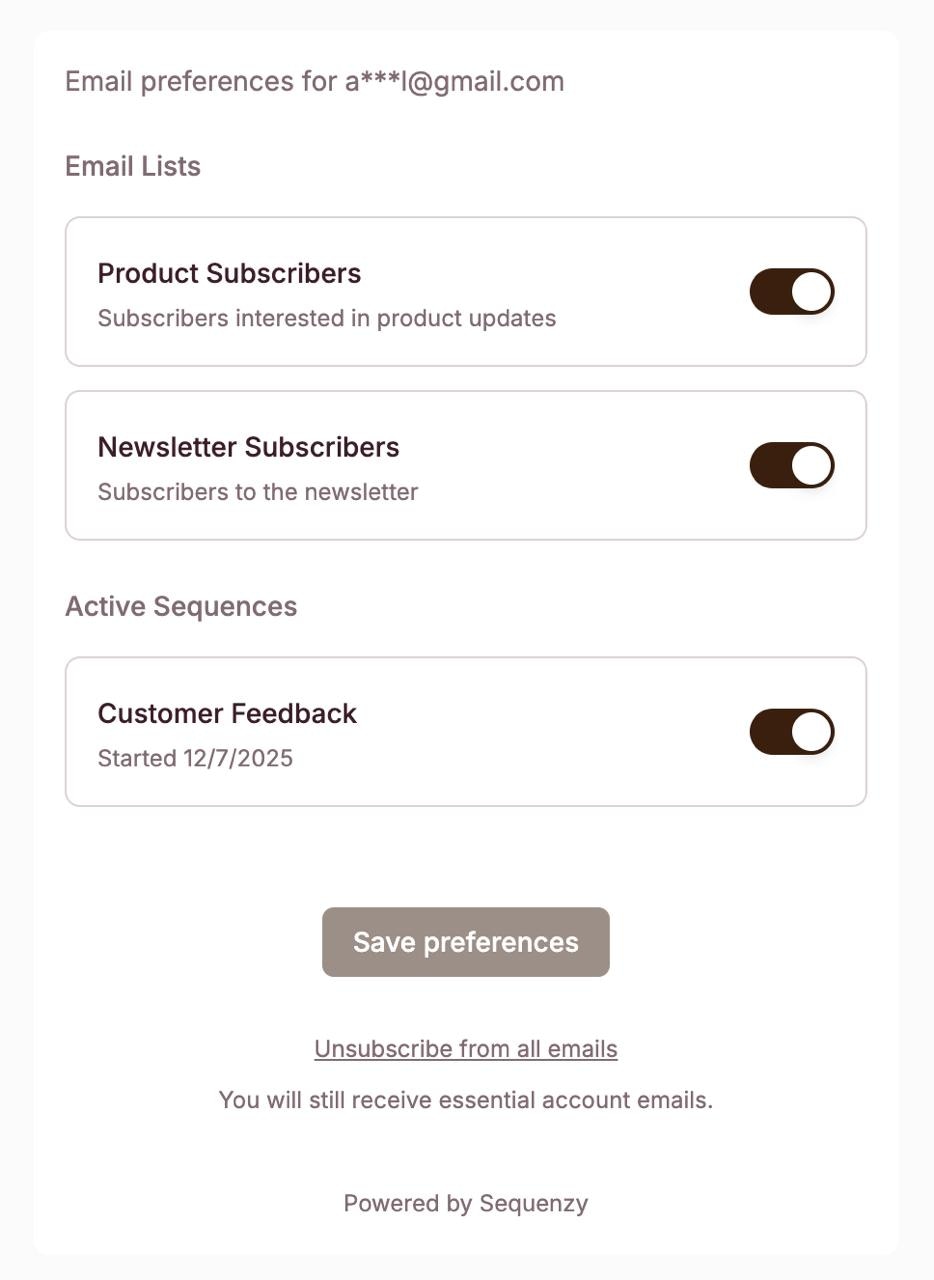
Here's what the widget looks like when embedded in your application:

<Frame>
  <img src="https://mintcdn.com/sequenzy/YCZjU5OuJD5g0yff/images/widgets/preferences-widget.jpg?fit=max&auto=format&n=YCZjU5OuJD5g0yff&q=85&s=196e552b27545b7d13cbfe68fbdf3eed" alt="Subscription Preferences Widget" width="934" height="1280" data-path="images/widgets/preferences-widget.jpg" />
</Frame>

The widget displays:

* **Email preferences header** with the subscriber's masked email address
* **Email Lists** section with toggles for each list the subscriber belongs to
* **Active Sequences** section showing any running automations with start dates
* **Save preferences** button to submit changes
* **Global unsubscribe** link to opt-out of all communications

## Features

<CardGroup cols={2}>
  <Card title="List Management" icon="list-check">
    Users can toggle subscriptions to individual email lists
  </Card>

  <Card title="Sequence Control" icon="diagram-project">
    Cancel active email sequences (automations) at any time
  </Card>

  <Card title="Global Unsubscribe" icon="ban">
    One-click option to opt-out of all communications
  </Card>

  <Card title="Auto-Resize" icon="arrows-up-down">
    Widget automatically adjusts height based on content
  </Card>
</CardGroup>

## How It Works

The widget integration consists of two parts:

```
┌─────────────────────────────────────────────────────────────┐
│                     Your Application                         │
│                                                              │
│  ┌─────────────────┐      ┌────────────────────────────┐    │
│  │   Your Backend  │      │       Your Frontend        │    │
│  │                 │      │                            │    │
│  │  1. Get Token   │─────>│  2. Render iframe with     │    │
│  │     from API    │      │     token parameter        │    │
│  └────────┬────────┘      └────────────────────────────┘    │
│           │                                                  │
└───────────┼──────────────────────────────────────────────────┘
            │
            ▼
┌─────────────────────────────────────────────────────────────┐
│                       Sequenzy API                           │
│                                                              │
│    POST /api/v1/widgets/preferences/token                   │
│    Returns: { success: true, token: "eyJ..." }              │
│                                                              │
└─────────────────────────────────────────────────────────────┘
```

1. **Backend**: Call the Sequenzy API to get a signed token for the logged-in user
2. **Frontend**: Embed an iframe with the token to display the preferences UI

## Quick Start

### Step 1: Get an API Key

Navigate to **Settings → API Keys** in your [Sequenzy dashboard](https://www.sequenzy.com/dashboard) to create an API key.

### Step 2: Backend - Get Token

Create a server-side endpoint that fetches an embed token from Sequenzy:

<CodeGroup>
  ```typescript Node.js SDK (Recommended) theme={null}
  import Sequenzy from "sequenzy";

  const client = new Sequenzy(process.env.SEQUENZY_API_KEY);

  app.post("/api/preferences-token", async (req, res) => {
    const userEmail = req.user.email;

    const { data, error } = await client.widgets.preferences.generateToken({
      email: userEmail,
    });

    if (error) {
      return res.status(400).json({ error: error.message });
    }

    res.json({ token: data.token });
  });
  ```

  ```typescript Next.js (App Router) theme={null}
  // app/api/preferences-token/route.ts
  import { NextRequest, NextResponse } from "next/server";
  import { getServerSession } from "your-auth-library";
  import Sequenzy from "sequenzy";

  const client = new Sequenzy(process.env.SEQUENZY_API_KEY!);

  export async function POST(request: NextRequest) {
    const session = await getServerSession();
    if (!session?.user?.email) {
      return NextResponse.json({ error: "Unauthorized" }, { status: 401 });
    }

    const { data, error } = await client.widgets.preferences.generateToken({
      email: session.user.email,
    });

    if (error) {
      return NextResponse.json({ error: error.message }, { status: 400 });
    }

    return NextResponse.json({ token: data.token });
  }
  ```

  ```python Python / Flask theme={null}
  @app.route('/api/preferences-token', methods=['POST'])
  def get_preferences_token():
      user_email = current_user.email  # Get from your auth system

      response = requests.post(
          'https://api.sequenzy.com/api/v1/widgets/preferences/token',
          headers={
              'Content-Type': 'application/json',
              'X-API-Key': os.environ['SEQUENZY_API_KEY']
          },
          json={'email': user_email}
      )

      data = response.json()
      return jsonify({'token': data['token']})
  ```
</CodeGroup>

<Warning>
  **Security**: Always call the Sequenzy API from your backend. Never expose
  your API key to the frontend.
</Warning>

### Step 3: Frontend - Embed the Widget

Fetch the token from your backend and render the iframe:

<CodeGroup>
  ```tsx React theme={null}
  "use client";

  import { useState, useEffect } from "react";

  export function EmailPreferences() {
    const [token, setToken] = useState<string | null>(null);
    const [loading, setLoading] = useState(true);

    useEffect(() => {
      async function fetchToken() {
        const res = await fetch("/api/preferences-token", { method: "POST" });
        const data = await res.json();
        setToken(data.token);
        setLoading(false);
      }
      fetchToken();
    }, []);

    useEffect(() => {
      // Handle iframe resize messages
      const handleMessage = (e: MessageEvent) => {
        if (e.data.type === "sequenzy-preferences-resize") {
          const iframe = document.getElementById(
            "sequenzy-preferences"
          ) as HTMLIFrameElement;
          if (iframe) iframe.style.height = e.data.height + "px";
        }
      };
      window.addEventListener("message", handleMessage);
      return () => window.removeEventListener("message", handleMessage);
    }, []);

    if (loading) return <div>Loading preferences...</div>;
    if (!token) return <div>Unable to load preferences</div>;

    return (
      <iframe
        id="sequenzy-preferences"
        src={`https://sequenzy.com/embed/preferences?token=${token}`}
        width="100%"
        height="400"
        frameBorder="0"
        style={{ border: "none", maxWidth: "500px" }}
      />
    );
  }
  ```

  ```html Vanilla JavaScript theme={null}
  <div id="preferences-container">
    <div id="preferences-loading">Loading preferences...</div>
  </div>

  <script>
    async function loadPreferences() {
      const container = document.getElementById("preferences-container");
      const loading = document.getElementById("preferences-loading");

      try {
        const res = await fetch("/api/preferences-token", { method: "POST" });
        const data = await res.json();

        loading.remove();

        const iframe = document.createElement("iframe");
        iframe.id = "sequenzy-preferences";
        iframe.src = `https://sequenzy.com/embed/preferences?token=${data.token}`;
        iframe.width = "100%";
        iframe.height = "400";
        iframe.frameBorder = "0";
        iframe.style.border = "none";
        iframe.style.maxWidth = "500px";

        container.appendChild(iframe);
      } catch (error) {
        loading.textContent = "Unable to load preferences";
      }
    }

    // Handle auto-resize
    window.addEventListener("message", function (e) {
      if (e.data.type === "sequenzy-preferences-resize") {
        const iframe = document.getElementById("sequenzy-preferences");
        if (iframe) iframe.style.height = e.data.height + "px";
      }
    });

    loadPreferences();
  </script>
  ```

  ```vue Vue.js theme={null}
  <template>
    <div v-if="loading">Loading preferences...</div>
    <div v-else-if="error">Unable to load preferences</div>
    <iframe
      v-else
      id="sequenzy-preferences"
      :src="`https://sequenzy.com/embed/preferences?token=${token}`"
      width="100%"
      :style="{ height: iframeHeight + 'px', border: 'none', maxWidth: '500px' }"
      frameborder="0"
    />
  </template>

  <script setup>
  import { ref, onMounted, onUnmounted } from "vue";

  const token = ref(null);
  const loading = ref(true);
  const error = ref(false);
  const iframeHeight = ref(400);

  onMounted(async () => {
    try {
      const res = await fetch("/api/preferences-token", { method: "POST" });
      const data = await res.json();
      token.value = data.token;
    } catch (e) {
      error.value = true;
    } finally {
      loading.value = false;
    }

    window.addEventListener("message", handleResize);
  });

  onUnmounted(() => {
    window.removeEventListener("message", handleResize);
  });

  function handleResize(e) {
    if (e.data.type === "sequenzy-preferences-resize") {
      iframeHeight.value = e.data.height;
    }
  }
  </script>
  ```
</CodeGroup>

## Auto-Resize

The widget automatically sends resize messages when its content height changes. Add this listener to your page to automatically adjust the iframe height:

```javascript theme={null}
window.addEventListener("message", function (e) {
  if (e.data.type === "sequenzy-preferences-resize") {
    var iframe = document.getElementById("sequenzy-preferences");
    if (iframe) iframe.style.height = e.data.height + "px";
  }
});
```

## Widget Sections

The widget displays the following sections based on the subscriber's data:

### Email Lists

Shows all email lists the subscriber is associated with. Each list has a toggle to subscribe or unsubscribe.

### Active Sequences

If the subscriber is currently in any automated email sequences, they'll see a list of active sequences with the option to cancel each one.

### Global Unsubscribe

A prominent button at the bottom allows users to opt-out of all communications at once.

## Styling

The widget uses a clean, minimal design that works well in most applications. The "Powered by Sequenzy" footer is shown for free tier accounts and can be removed by upgrading to a paid plan.

## Error Handling

The token endpoint returns specific error codes to help you handle edge cases:

| Status | Error Code         | Description                      |
| ------ | ------------------ | -------------------------------- |
| 400    | `VALIDATION_ERROR` | Invalid email format             |
| 401    | `UNAUTHORIZED`     | Invalid or missing API key       |
| 404    | `NOT_FOUND`        | Subscriber not found in Sequenzy |
| 500    | `SERVER_ERROR`     | Server configuration error       |

<Tip>
  If you get a 404 error, ensure the subscriber exists in Sequenzy before
  requesting a token. Use the [Create
  Subscriber](/api-reference/subscribers/create) endpoint to add them first.
</Tip>

## Best Practices

1. **Add to account settings**: Place the widget in your user's account or settings page
2. **Handle loading states**: Show a spinner while fetching the token
3. **Handle errors gracefully**: Display a friendly message if the widget fails to load
4. **Use auto-resize**: Implement the resize handler to prevent scrollbars
5. **Secure your endpoint**: Ensure only authenticated users can request tokens

## API Reference

For detailed API documentation, see:

<CardGroup cols={2}>
  <Card title="Get Preferences Token" icon="key" href="/api-reference/widgets/preferences-token">
    API endpoint for generating widget tokens
  </Card>

  <Card title="Subscribers" icon="users" href="/concepts/subscribers">
    Learn about subscriber management
  </Card>
</CardGroup>