> ## Documentation Index
> Fetch the complete documentation index at: https://docs.sequenzy.com/llms.txt
> Use this file to discover all available pages before exploring further.
# Supabase Integration
> Sync users from your Supabase database with automatic webhooks and manual backfills
Connect your Supabase database to Sequenzy so users can become subscribers. Webhooks keep new database changes in sync automatically, and manual sync lets you backfill or refresh users from a selected table when needed.
## What is Supabase?
[Supabase](https://supabase.com) is an open-source Firebase alternative that provides a PostgreSQL database, authentication, real-time subscriptions, and more. Many SaaS applications use Supabase as their backend.
## Connecting Supabase
### Step 1: Authorize Supabase
1. Go to **Settings → Integrations** in Sequenzy
2. Click **Connect** next to Supabase
3. Click **Connect** in the Supabase account access panel
4. Approve access in Supabase
Sequenzy uses Supabase OAuth with PKCE and stores encrypted access tokens so the integration can use the Supabase Management API.
The OAuth app needs these Supabase scopes:
* `organizations:read`
* `projects:read`
* `database:read`
* `database:write`
* `auth:write`
### Step 2: Configure User Sync
1. Go to **Settings → Integrations** in Sequenzy
2. Open the Supabase integration
3. Choose the Supabase project
4. Enter the schema and table to sync, usually `public.profiles`
5. Choose whether synced users should use your workspace default lists, selected lists, or no lists
6. If you want a Supabase column to become the subscriber's external ID, enter the column name in **External ID column**. For example, use `id` if your row ID is also your application user ID.
7. If your table has a marketing consent flag, enter it in **Subscribed column**. For example, `is_subscribed`.
8. If some subscribed rows require confirmation before marketing email, enter your boolean confirmation column in **Double opt-in column**. For example, `requires_double_opt_in`.
9. Click **Save**
Saving stores the sync settings and configures the Supabase trigger used for automatic webhooks.
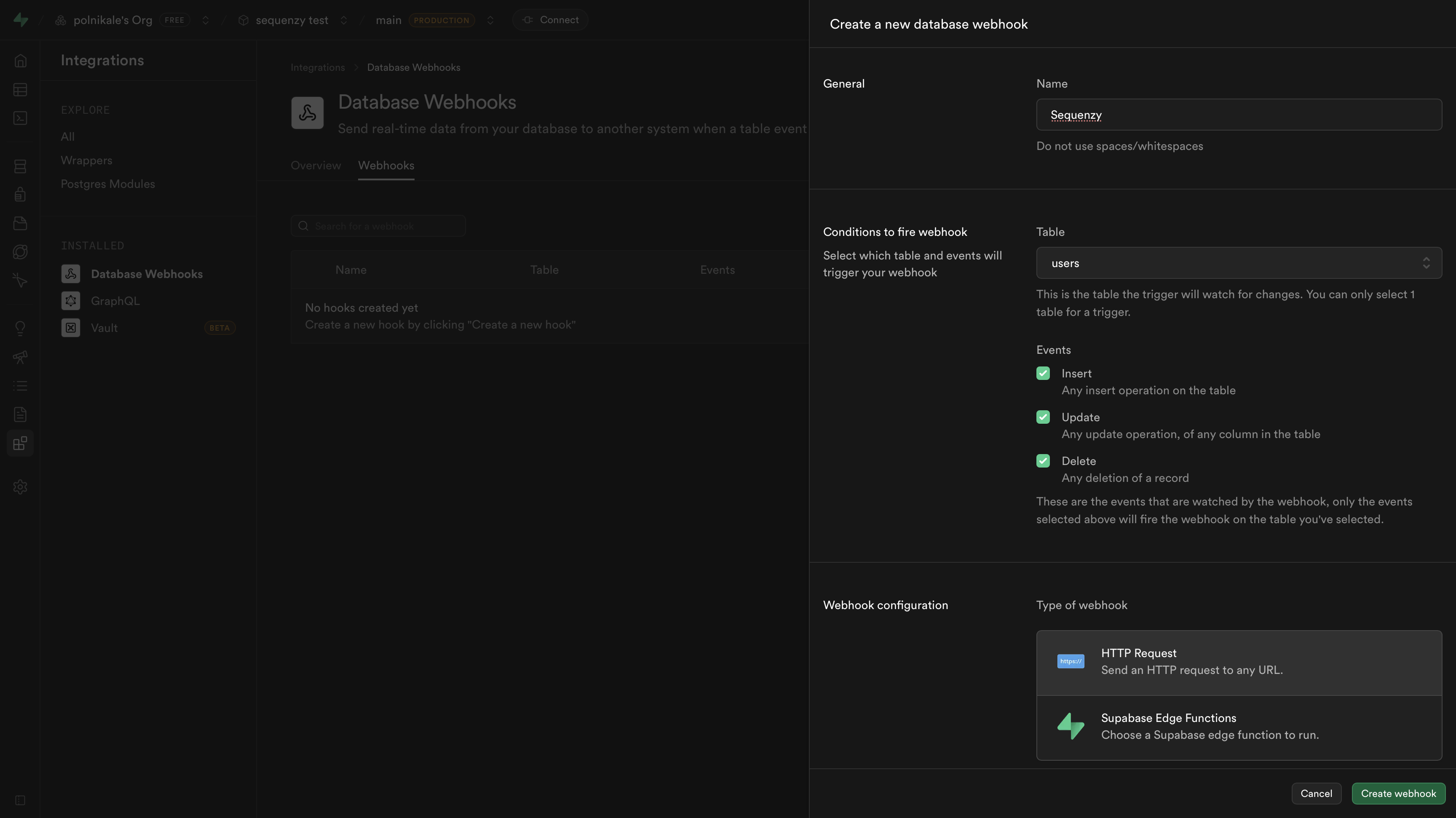 ### Step 3: Enable Automatic Webhooks
Automatic webhooks keep future inserts, updates, and deletes in sync without pressing **Sync users**.
1. Confirm the project, schema, table, lists, and external ID column
2. Click **Save**
3. If a webhook already exists, saving refreshes the trigger for the selected table
Sequenzy creates a `pg_net` trigger through Supabase OAuth, generates a webhook secret, and stores the encrypted secret in your workspace. Supabase Database Webhooks use this same trigger mechanism under the hood.
### Step 3: Enable Automatic Webhooks
Automatic webhooks keep future inserts, updates, and deletes in sync without pressing **Sync users**.
1. Confirm the project, schema, table, lists, and external ID column
2. Click **Save**
3. If a webhook already exists, saving refreshes the trigger for the selected table
Sequenzy creates a `pg_net` trigger through Supabase OAuth, generates a webhook secret, and stores the encrypted secret in your workspace. Supabase Database Webhooks use this same trigger mechanism under the hood.
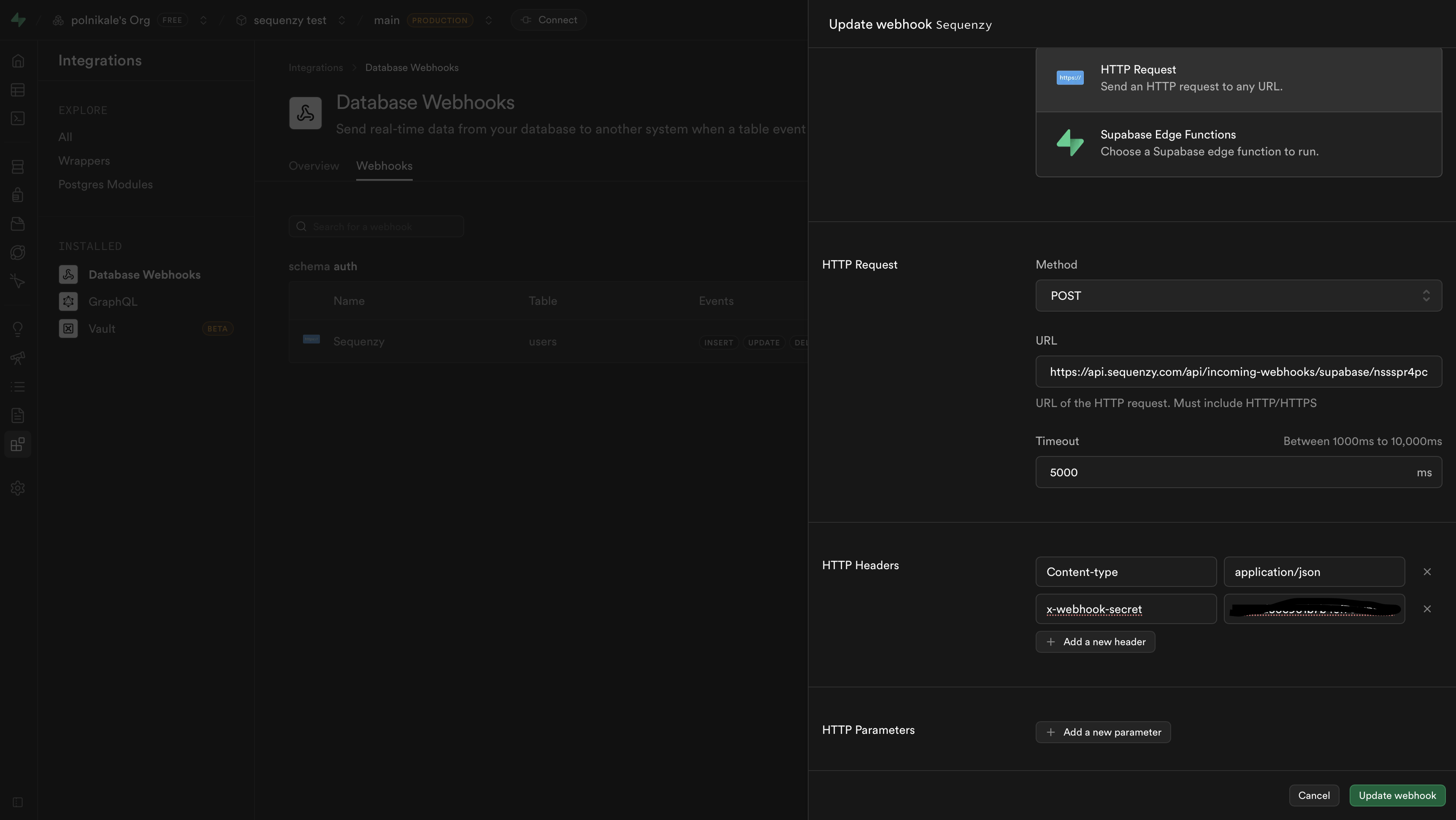 If Supabase denies webhook creation, reconnect Supabase after confirming the
OAuth app has `database:write` access.
### Step 4: Run Manual Sync
Manual sync is separate from webhooks. Use it to import existing rows, backfill users after changing list settings, or refresh subscribers from the selected table.
1. Open the Supabase integration modal
2. Confirm the project, schema, table, lists, and external ID column
3. Click **Save** if you changed the settings
4. Close the modal and click **Sync users** on the Supabase integration row
5. Confirm the sync
After this, webhooks still handle future changes automatically when they are configured.
## Route Supabase Auth and Security Emails Through Sequenzy SMTP
The database webhook above handles subscriber sync. Supabase Auth emails are a separate path.
If you want Supabase invites, magic links, password resets, and security notifications to send through Sequenzy too, Sequenzy can configure Supabase SMTP and the Supabase Auth email templates through OAuth.
### Step 5: Configure Auth Emails Automatically
1. Open the Supabase integration modal
2. Go to **Auth emails**
3. Choose the Supabase project
4. Click **Configure Auth emails**
Sequenzy creates the default Supabase transactional templates, provisions a sender if needed, generates a dedicated SMTP API key, and updates Supabase Auth with Sequenzy SMTP settings and template payloads.
If Supabase denies the update, reconnect Supabase after adding `auth:write` to
the OAuth app scopes.
### Manual Fallback: Configure Supabase SMTP
If automatic Auth setup is unavailable, create a Sequenzy API key in **Settings → API Keys** and configure custom SMTP in Supabase under **Authentication → Emails → SMTP Settings**:
| Setting | Value |
| -------- | --------------------- |
| Host | `smtp.sequenzy.com` |
| Port | `587` |
| Username | `api` |
| Password | Your Sequenzy API key |
Use a sender address that belongs to a verified Sequenzy sending domain. Supabase still needs a sender configured, even when Sequenzy renders the final template.
### Manual Fallback: Point Supabase Email Templates at Sequenzy Transactionals
If your workspace does not have a verified sender profile yet, Sequenzy automatically provisions a shared-domain sender and assigns it to the default Supabase templates.
In Sequenzy, open the Supabase integration modal and click **Create default Supabase auth templates**. This provisions the standard transactional emails for:
* `supabase-confirm-signup`
* `supabase-invite`
* `supabase-magic-link`
* `supabase-password-reset`
* `supabase-email-change-confirmation`
* `supabase-email-change`
* `supabase-reauthentication`
* `supabase-password-changed`
* `supabase-phone-changed`
* `supabase-identity-linked`
* `supabase-identity-unlinked`
* `supabase-mfa-enrolled`
* `supabase-mfa-removed`
Then replace the Supabase message body with a JSON payload that references the matching Sequenzy slug.
You can reference the Sequenzy email by `slug` or `transactionalId`. `variables` and `dataVariables` are both supported.
Example for a Magic Link template:
```json theme={null}
{
"slug": "supabase-magic-link",
"dataVariables": {
"confirmation_url": "{{ .ConfirmationURL }}",
"token": "{{ .Token }}",
"token_hash": "{{ .TokenHash }}",
"redirect_to": "{{ .RedirectTo }}",
"site_url": "{{ .SiteURL }}",
"email": "{{ .Email }}"
}
}
```
Example for an Email Changed notification:
```json theme={null}
{
"slug": "supabase-email-change",
"dataVariables": {
"email": "{{ .OldEmail }}",
"old_email": "{{ .OldEmail }}",
"new_email": "{{ .Email }}"
}
}
```
### Suggested Variable Mapping
| Supabase template variable | Suggested Sequenzy merge tag |
| -------------------------- | ---------------------------- |
| `{{ .ConfirmationURL }}` | `{{confirmation_url}}` |
| `{{ .Token }}` | `{{token}}` |
| `{{ .TokenHash }}` | `{{token_hash}}` |
| `{{ .RedirectTo }}` | `{{redirect_to}}` |
| `{{ .SiteURL }}` | `{{site_url}}` |
| `{{ .Email }}` | `{{email}}` |
| `{{ .NewEmail }}` | `{{new_email}}` |
| `{{ .OldEmail }}` | `{{old_email}}` |
| `{{ .Phone }}` | `{{phone}}` |
| `{{ .OldPhone }}` | `{{old_phone}}` |
| `{{ .Provider }}` | `{{provider}}` |
| `{{ .FactorType }}` | `{{factor_type}}` |
### Recommended Setup
* Keep the database webhook integration enabled for subscriber sync
* Use Sequenzy SMTP for Supabase Auth email delivery
* Create one Sequenzy transactional email per Supabase template type
* Use clear slugs like `supabase-invite`, `supabase-magic-link`, and `supabase-password-reset`
## What Gets Synced
Sequenzy automatically maps common database columns to subscriber attributes:
### Email Detection
Sequenzy looks for email in these columns (in order):
* `email`
* `email_address`
* `user_email`
* `contact_email`
### User ID Detection
User ID is extracted from:
* `id`
* `user_id`
* `uid`
* `uuid`
The detected user ID is stored as the `supabaseUserId` subscriber attribute. If you set **External ID column** in the Supabase integration settings, that column is also written to the subscriber's external ID and used to merge future webhook updates into the same subscriber.
### Synced Attributes
| Database Column | Subscriber Attribute |
| ---------------- | -------------------------- |
| `first_name` | `firstName` |
| `last_name` | `lastName` |
| `full_name` | `fullName` |
| `avatar_url` | `avatarUrl` |
| `phone` | `phone` |
| Any other column | Stored as custom attribute |
Sensitive columns like `password`, `password_hash`, and `encrypted_password`
are automatically excluded.
### Consent Mapping
Supabase sync can use a top-level row column to decide whether someone is currently subscribed. Configure it in **Settings → Integrations → Supabase → Advanced options → Subscribed column**.
When the configured subscribed column is truthy (`true`, `1`, `yes`, or `subscribed`), Sequenzy syncs the row through the normal subscribed path. When it is falsey (`false`, `0`, `no`, or `unsubscribed`), Sequenzy keeps the subscriber unsubscribed and out of lists. If the column is missing or empty, Sequenzy falls back to the normal sync behavior.
If your table uses custom status values, add **Truthy values** for the exact values that should count as subscribed. For example, if your source column is named `status` and the value `unsubscribed` means "sync this row", add `unsubscribed` as the subscribed truthy value.
### Double Opt-In Mapping
Supabase sync can use a top-level row column to decide consent per subscriber. Configure the column in **Settings → Integrations → Supabase → Advanced options → Double opt-in column**.
When the configured column is truthy (`true`, `1`, `yes`, or `required`), Sequenzy creates or updates the subscriber as unconfirmed, sends your workspace double opt-in email, and waits to add the subscriber to lists until they click the confirmation link.
When the configured column is falsey (`false`, `0`, `no`, or `confirmed`), Sequenzy treats the row as already confirmed consent and syncs it as an active subscriber. If the column is missing or empty, Sequenzy falls back to your normal workspace double opt-in setting.
If your table uses custom values, add **Truthy values** for the exact values that should require confirmation. Any other non-empty value is treated as already confirmed.
Before using a double opt-in column, configure your workspace confirmation
email in **Settings → Email tracking → Double opt-in**.
## Tracked Events
| Database Event | Sequenzy Event |
| -------------- | ----------------------------- |
| `INSERT` | `contact.subscribed` |
| `UPDATE` | Attributes updated (no event) |
| `DELETE` | `contact.unsubscribed` |
## Using with Automations
### Welcome Sequence for New Users
1. Go to **Automations** → **Create New**
2. Set trigger to **Event Received** → `contact.subscribed`
3. Add your welcome email sequence
4. Activate the automation
Every new row in your users table will trigger the welcome sequence.
### Custom Attributes
Any column in your users table becomes available for segmentation and personalization:
```sql theme={null}
-- Your users table might have:
CREATE TABLE users (
id UUID PRIMARY KEY,
email TEXT,
first_name TEXT,
plan TEXT, -- becomes {{ plan }}
company_name TEXT, -- becomes {{ company_name }}
created_at TIMESTAMP
);
```
Use these in emails:
```
Hi {{firstName}},
Thanks for signing up for the {{plan}} plan!
```
## Database Schema Recommendations
For best results, include these columns in your users table:
```sql theme={null}
-- Recommended columns
email TEXT NOT NULL, -- Required for subscriber creation
first_name TEXT, -- Maps to firstName
last_name TEXT, -- Maps to lastName
-- Optional but useful
avatar_url TEXT, -- Profile picture
phone TEXT, -- Phone number
plan TEXT, -- Subscription plan
created_at TIMESTAMP -- For tracking
```
## User Lifecycle
| Supabase Event | Sequenzy Action |
| -------------- | -------------------------------------------------- |
| Row inserted | Subscriber created, `contact.subscribed` triggered |
| Row updated | Subscriber attributes updated |
| Row deleted | Subscriber unsubscribed |
When you delete a user from your database, they're automatically unsubscribed in Sequenzy.
### Deleting and Re-creating Users
A deletion-driven unsubscribe is reversible by the same integration: if the user signs up again (a new `INSERT` for the same email, or a row that reappears in a manual sync), Sequenzy reactivates the contact automatically. This keeps test loops working - deleting a test user and re-inviting them does not leave the contact permanently unsubscribed.
Explicit opt-outs are never undone this way. If the contact unsubscribed through an email link, the dashboard, or the API, re-creating their user in Supabase does not resubscribe them.
While a contact is unsubscribed, events they trigger still appear in Recent Activity, but matching sequences show "Would trigger if subscribed" instead of enrolling them, and the sequence's trigger step shows a skipped count.
## Troubleshooting
### Users Not Syncing
1. Verify the webhook URL is correct in Supabase
2. Check that the `x-webhook-secret` header matches the secret in Sequenzy
3. Ensure all events (INSERT, UPDATE, DELETE) are selected
4. Check Supabase's webhook logs for failed deliveries
### Missing Email
If users are inserted without an email column value, Sequenzy cannot create a subscriber. Ensure your users table has a valid email.
### Wrong Columns Mapping
Sequenzy looks for standard column names. If your schema uses different names:
* `email_address` → works (detected automatically)
* `customer_email` → works (detected automatically)
* `e_mail` → won't be detected as email
Consider using standard column names or storing data in the expected format.
### Signature Verification Failed
1. Verify the `x-webhook-secret` header value in Supabase matches exactly what you entered in Sequenzy
2. Secrets are case-sensitive
3. Try generating a new secret and updating both Supabase and Sequenzy
## FAQ
Use whichever table contains your user data. This is typically `users`, `profiles`, or `auth.users`. If you're using Supabase Auth, you might want to create a trigger to sync to a `profiles` table with the columns you need.
Yes. Click **Sync users** in the Supabase integration modal to manually import
existing rows from the selected table. Webhooks handle future changes after
they are configured.
You can configure webhooks for additional tables in Supabase. Manual sync uses
the table currently saved in the integration modal.
Yes, Supabase integration is included at no extra cost.
If Supabase denies webhook creation, reconnect Supabase after confirming the
OAuth app has `database:write` access.
### Step 4: Run Manual Sync
Manual sync is separate from webhooks. Use it to import existing rows, backfill users after changing list settings, or refresh subscribers from the selected table.
1. Open the Supabase integration modal
2. Confirm the project, schema, table, lists, and external ID column
3. Click **Save** if you changed the settings
4. Close the modal and click **Sync users** on the Supabase integration row
5. Confirm the sync
After this, webhooks still handle future changes automatically when they are configured.
## Route Supabase Auth and Security Emails Through Sequenzy SMTP
The database webhook above handles subscriber sync. Supabase Auth emails are a separate path.
If you want Supabase invites, magic links, password resets, and security notifications to send through Sequenzy too, Sequenzy can configure Supabase SMTP and the Supabase Auth email templates through OAuth.
### Step 5: Configure Auth Emails Automatically
1. Open the Supabase integration modal
2. Go to **Auth emails**
3. Choose the Supabase project
4. Click **Configure Auth emails**
Sequenzy creates the default Supabase transactional templates, provisions a sender if needed, generates a dedicated SMTP API key, and updates Supabase Auth with Sequenzy SMTP settings and template payloads.
If Supabase denies the update, reconnect Supabase after adding `auth:write` to
the OAuth app scopes.
### Manual Fallback: Configure Supabase SMTP
If automatic Auth setup is unavailable, create a Sequenzy API key in **Settings → API Keys** and configure custom SMTP in Supabase under **Authentication → Emails → SMTP Settings**:
| Setting | Value |
| -------- | --------------------- |
| Host | `smtp.sequenzy.com` |
| Port | `587` |
| Username | `api` |
| Password | Your Sequenzy API key |
Use a sender address that belongs to a verified Sequenzy sending domain. Supabase still needs a sender configured, even when Sequenzy renders the final template.
### Manual Fallback: Point Supabase Email Templates at Sequenzy Transactionals
If your workspace does not have a verified sender profile yet, Sequenzy automatically provisions a shared-domain sender and assigns it to the default Supabase templates.
In Sequenzy, open the Supabase integration modal and click **Create default Supabase auth templates**. This provisions the standard transactional emails for:
* `supabase-confirm-signup`
* `supabase-invite`
* `supabase-magic-link`
* `supabase-password-reset`
* `supabase-email-change-confirmation`
* `supabase-email-change`
* `supabase-reauthentication`
* `supabase-password-changed`
* `supabase-phone-changed`
* `supabase-identity-linked`
* `supabase-identity-unlinked`
* `supabase-mfa-enrolled`
* `supabase-mfa-removed`
Then replace the Supabase message body with a JSON payload that references the matching Sequenzy slug.
You can reference the Sequenzy email by `slug` or `transactionalId`. `variables` and `dataVariables` are both supported.
Example for a Magic Link template:
```json theme={null}
{
"slug": "supabase-magic-link",
"dataVariables": {
"confirmation_url": "{{ .ConfirmationURL }}",
"token": "{{ .Token }}",
"token_hash": "{{ .TokenHash }}",
"redirect_to": "{{ .RedirectTo }}",
"site_url": "{{ .SiteURL }}",
"email": "{{ .Email }}"
}
}
```
Example for an Email Changed notification:
```json theme={null}
{
"slug": "supabase-email-change",
"dataVariables": {
"email": "{{ .OldEmail }}",
"old_email": "{{ .OldEmail }}",
"new_email": "{{ .Email }}"
}
}
```
### Suggested Variable Mapping
| Supabase template variable | Suggested Sequenzy merge tag |
| -------------------------- | ---------------------------- |
| `{{ .ConfirmationURL }}` | `{{confirmation_url}}` |
| `{{ .Token }}` | `{{token}}` |
| `{{ .TokenHash }}` | `{{token_hash}}` |
| `{{ .RedirectTo }}` | `{{redirect_to}}` |
| `{{ .SiteURL }}` | `{{site_url}}` |
| `{{ .Email }}` | `{{email}}` |
| `{{ .NewEmail }}` | `{{new_email}}` |
| `{{ .OldEmail }}` | `{{old_email}}` |
| `{{ .Phone }}` | `{{phone}}` |
| `{{ .OldPhone }}` | `{{old_phone}}` |
| `{{ .Provider }}` | `{{provider}}` |
| `{{ .FactorType }}` | `{{factor_type}}` |
### Recommended Setup
* Keep the database webhook integration enabled for subscriber sync
* Use Sequenzy SMTP for Supabase Auth email delivery
* Create one Sequenzy transactional email per Supabase template type
* Use clear slugs like `supabase-invite`, `supabase-magic-link`, and `supabase-password-reset`
## What Gets Synced
Sequenzy automatically maps common database columns to subscriber attributes:
### Email Detection
Sequenzy looks for email in these columns (in order):
* `email`
* `email_address`
* `user_email`
* `contact_email`
### User ID Detection
User ID is extracted from:
* `id`
* `user_id`
* `uid`
* `uuid`
The detected user ID is stored as the `supabaseUserId` subscriber attribute. If you set **External ID column** in the Supabase integration settings, that column is also written to the subscriber's external ID and used to merge future webhook updates into the same subscriber.
### Synced Attributes
| Database Column | Subscriber Attribute |
| ---------------- | -------------------------- |
| `first_name` | `firstName` |
| `last_name` | `lastName` |
| `full_name` | `fullName` |
| `avatar_url` | `avatarUrl` |
| `phone` | `phone` |
| Any other column | Stored as custom attribute |
Sensitive columns like `password`, `password_hash`, and `encrypted_password`
are automatically excluded.
### Consent Mapping
Supabase sync can use a top-level row column to decide whether someone is currently subscribed. Configure it in **Settings → Integrations → Supabase → Advanced options → Subscribed column**.
When the configured subscribed column is truthy (`true`, `1`, `yes`, or `subscribed`), Sequenzy syncs the row through the normal subscribed path. When it is falsey (`false`, `0`, `no`, or `unsubscribed`), Sequenzy keeps the subscriber unsubscribed and out of lists. If the column is missing or empty, Sequenzy falls back to the normal sync behavior.
If your table uses custom status values, add **Truthy values** for the exact values that should count as subscribed. For example, if your source column is named `status` and the value `unsubscribed` means "sync this row", add `unsubscribed` as the subscribed truthy value.
### Double Opt-In Mapping
Supabase sync can use a top-level row column to decide consent per subscriber. Configure the column in **Settings → Integrations → Supabase → Advanced options → Double opt-in column**.
When the configured column is truthy (`true`, `1`, `yes`, or `required`), Sequenzy creates or updates the subscriber as unconfirmed, sends your workspace double opt-in email, and waits to add the subscriber to lists until they click the confirmation link.
When the configured column is falsey (`false`, `0`, `no`, or `confirmed`), Sequenzy treats the row as already confirmed consent and syncs it as an active subscriber. If the column is missing or empty, Sequenzy falls back to your normal workspace double opt-in setting.
If your table uses custom values, add **Truthy values** for the exact values that should require confirmation. Any other non-empty value is treated as already confirmed.
Before using a double opt-in column, configure your workspace confirmation
email in **Settings → Email tracking → Double opt-in**.
## Tracked Events
| Database Event | Sequenzy Event |
| -------------- | ----------------------------- |
| `INSERT` | `contact.subscribed` |
| `UPDATE` | Attributes updated (no event) |
| `DELETE` | `contact.unsubscribed` |
## Using with Automations
### Welcome Sequence for New Users
1. Go to **Automations** → **Create New**
2. Set trigger to **Event Received** → `contact.subscribed`
3. Add your welcome email sequence
4. Activate the automation
Every new row in your users table will trigger the welcome sequence.
### Custom Attributes
Any column in your users table becomes available for segmentation and personalization:
```sql theme={null}
-- Your users table might have:
CREATE TABLE users (
id UUID PRIMARY KEY,
email TEXT,
first_name TEXT,
plan TEXT, -- becomes {{ plan }}
company_name TEXT, -- becomes {{ company_name }}
created_at TIMESTAMP
);
```
Use these in emails:
```
Hi {{firstName}},
Thanks for signing up for the {{plan}} plan!
```
## Database Schema Recommendations
For best results, include these columns in your users table:
```sql theme={null}
-- Recommended columns
email TEXT NOT NULL, -- Required for subscriber creation
first_name TEXT, -- Maps to firstName
last_name TEXT, -- Maps to lastName
-- Optional but useful
avatar_url TEXT, -- Profile picture
phone TEXT, -- Phone number
plan TEXT, -- Subscription plan
created_at TIMESTAMP -- For tracking
```
## User Lifecycle
| Supabase Event | Sequenzy Action |
| -------------- | -------------------------------------------------- |
| Row inserted | Subscriber created, `contact.subscribed` triggered |
| Row updated | Subscriber attributes updated |
| Row deleted | Subscriber unsubscribed |
When you delete a user from your database, they're automatically unsubscribed in Sequenzy.
### Deleting and Re-creating Users
A deletion-driven unsubscribe is reversible by the same integration: if the user signs up again (a new `INSERT` for the same email, or a row that reappears in a manual sync), Sequenzy reactivates the contact automatically. This keeps test loops working - deleting a test user and re-inviting them does not leave the contact permanently unsubscribed.
Explicit opt-outs are never undone this way. If the contact unsubscribed through an email link, the dashboard, or the API, re-creating their user in Supabase does not resubscribe them.
While a contact is unsubscribed, events they trigger still appear in Recent Activity, but matching sequences show "Would trigger if subscribed" instead of enrolling them, and the sequence's trigger step shows a skipped count.
## Troubleshooting
### Users Not Syncing
1. Verify the webhook URL is correct in Supabase
2. Check that the `x-webhook-secret` header matches the secret in Sequenzy
3. Ensure all events (INSERT, UPDATE, DELETE) are selected
4. Check Supabase's webhook logs for failed deliveries
### Missing Email
If users are inserted without an email column value, Sequenzy cannot create a subscriber. Ensure your users table has a valid email.
### Wrong Columns Mapping
Sequenzy looks for standard column names. If your schema uses different names:
* `email_address` → works (detected automatically)
* `customer_email` → works (detected automatically)
* `e_mail` → won't be detected as email
Consider using standard column names or storing data in the expected format.
### Signature Verification Failed
1. Verify the `x-webhook-secret` header value in Supabase matches exactly what you entered in Sequenzy
2. Secrets are case-sensitive
3. Try generating a new secret and updating both Supabase and Sequenzy
## FAQ
Use whichever table contains your user data. This is typically `users`, `profiles`, or `auth.users`. If you're using Supabase Auth, you might want to create a trigger to sync to a `profiles` table with the columns you need.
Yes. Click **Sync users** in the Supabase integration modal to manually import
existing rows from the selected table. Webhooks handle future changes after
they are configured.
You can configure webhooks for additional tables in Supabase. Manual sync uses
the table currently saved in the integration modal.
Yes, Supabase integration is included at no extra cost.