> ## Documentation Index
> Fetch the complete documentation index at: https://docs.sequenzy.com/llms.txt
> Use this file to discover all available pages before exploring further.
# Creem Integration
> Sync revenue data from Creem to power segments and automations
Connect your Creem account to automatically sync revenue metrics for all your subscribers. This enables powerful segmentation based on MRR and LTV.
## What is Creem?
[Creem](https://creem.io) is an all-in-one payment platform that acts as a Merchant of Record. It handles global commerce complexity including payments, subscriptions, tax compliance (VAT, GST, sales tax), and regulatory requirements across 190+ countries, so you can focus on building your product.
## Connecting Creem
Creem requires manual API key and webhook setup. Here's how to connect:
### Step 1: Get Your Creem API Key
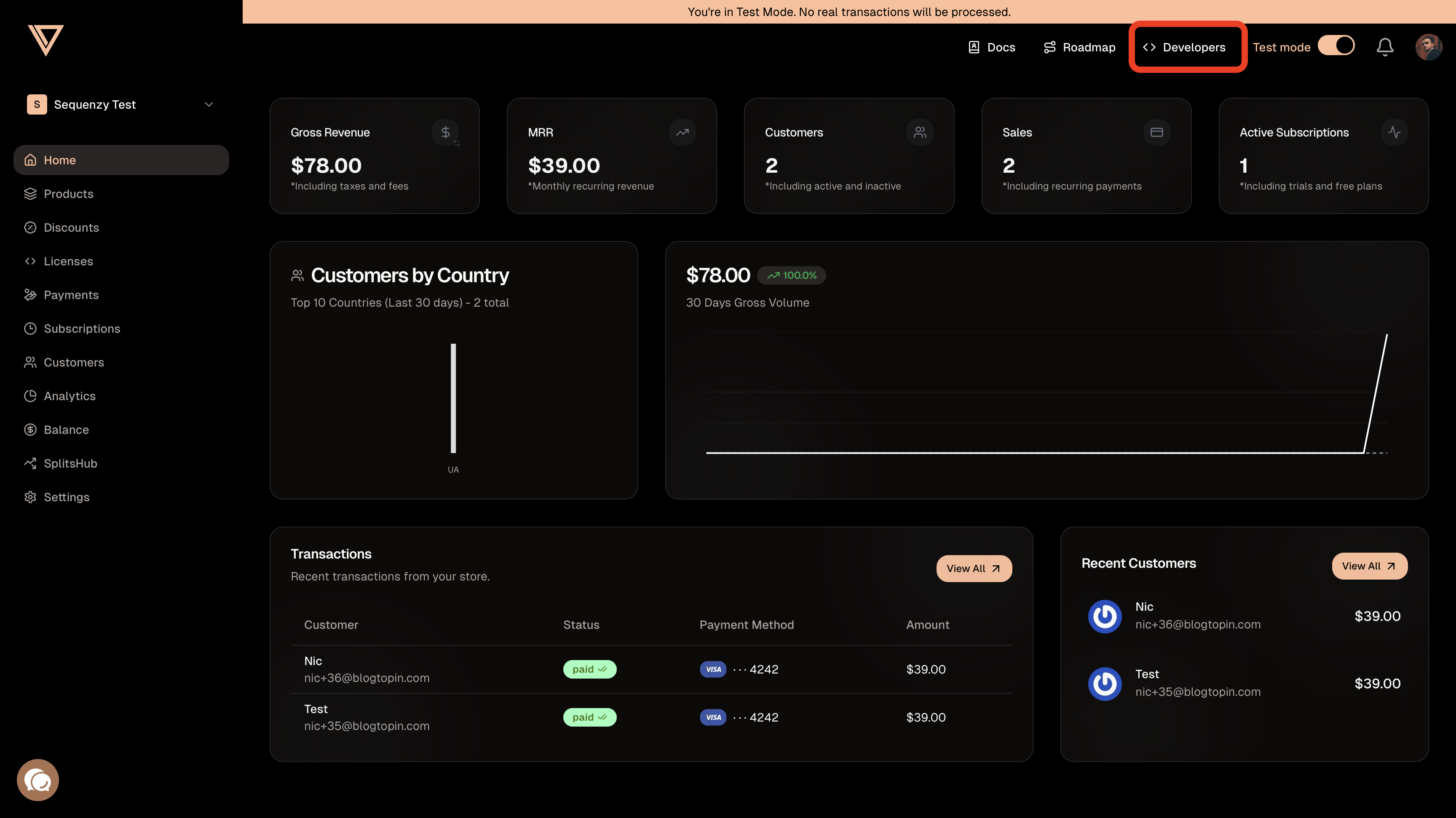 1. Go to your [Creem Dashboard](https://creem.io/dashboard)
2. Navigate to **Developers**
3. Copy the API key (format: `ck_xxxxxxxxxx`)
1. Go to your [Creem Dashboard](https://creem.io/dashboard)
2. Navigate to **Developers**
3. Copy the API key (format: `ck_xxxxxxxxxx`)
 ### Step 2: Find Your Store ID
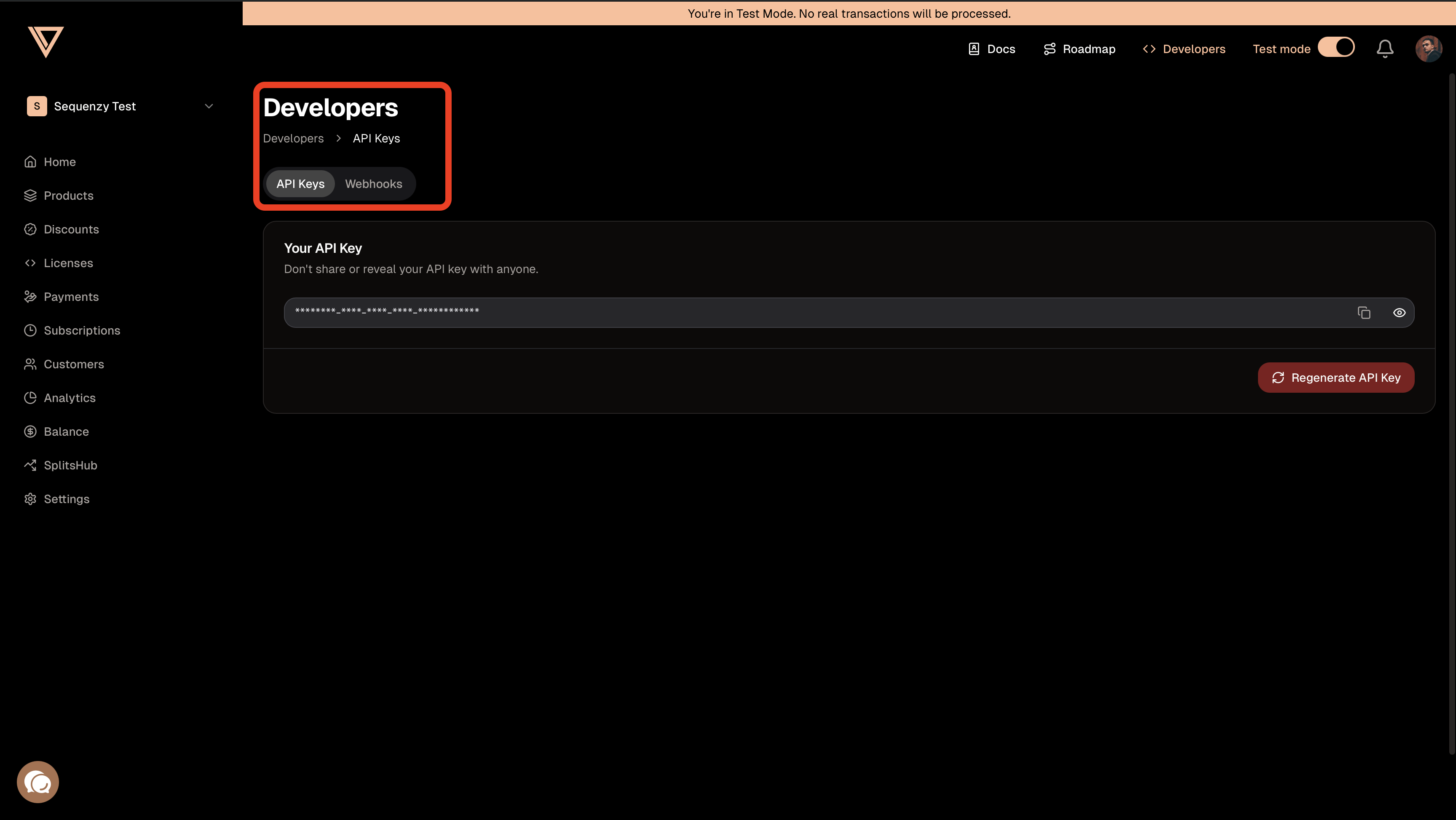
1. In the Creem Dashboard, go to **Settings**
2. Your **Store ID** is displayed in your account settings (format: `store_xxxxxxxxxx`)
3. Copy this ID for later
### Step 2: Find Your Store ID
1. In the Creem Dashboard, go to **Settings**
2. Your **Store ID** is displayed in your account settings (format: `store_xxxxxxxxxx`)
3. Copy this ID for later
 ### Step 3: Set Up Webhooks in Creem
1. In Creem, go to **Developers → Webhooks**
2. Click **Create Endpoint**
3. Enter your Sequenzy webhook URL:
```
https://api.sequenzy.com/webhooks/creem/{your-company-id}
```
You can find this URL in Sequenzy when connecting Creem—it's automatically
shown in the connection modal.
4. Select these events to listen for(or just leave all on default):
* `checkout.completed`
* `subscription.active`
* `subscription.paid`
* `subscription.canceled`
* `subscription.expired`
* `subscription.trialing`
* `subscription.paused`
* `refund.created`
5. Click **Create** to save the webhook endpoint
6. Copy the **Webhook Secret** (format: `whsec_xxxxxxxxxx`)
### Step 4: Connect in Sequenzy
1. Go to **Settings → Integrations** in Sequenzy
2. Click **Connect** next to Creem
3. Enter your:
* **Store ID** (from Step 2)
* **API Key** (from Step 1)
* **Webhook Secret** (from Step 3)
4. Click **Connect Creem**
Sequenzy will immediately begin receiving webhook events from Creem.
## Synced Attributes
When connected, Sequenzy adds these attributes to each subscriber matched by email:
| Attribute | Type | Description |
| --------- | ------ | --------------------------------------------------------------------------- |
| `mrr` | Number | Monthly Recurring Revenue in dollars (normalized from any billing interval) |
| `ltv` | Number | Lifetime Value - total payments minus refunds |
### MRR Calculation
MRR is normalized from any billing interval:
* **Monthly**: Used as-is
* **Yearly**: Divided by 12
* **Weekly**: Multiplied by 52, then divided by 12
* **Daily**: Multiplied by 365, then divided by 12
Only `active` subscriptions count toward MRR.
## Automatic Tags
Sequenzy automatically applies tags to subscribers based on their Creem subscription status:
| Tag | Applied When |
| -------------- | ---------------------------------- |
| `customer` | Has an active subscription |
| `cancelled` | Subscription has been cancelled |
| `churned` | Subscription has expired or paused |
| `saas.monthly` | On a monthly billing interval |
| `saas.yearly` | On a yearly billing interval |
These tags update automatically whenever subscription status changes via webhooks.
## Tracked Events
When you connect Creem, these events are automatically tracked for use in automations:
| Event | Triggered When |
| ----------------------- | ------------------------------------------------------------------- |
| `saas.purchase` | Checkout completed, subscription became active, or payment received |
| `saas.purchase_monthly` | Monthly subscription purchase |
| `saas.purchase_yearly` | Yearly subscription purchase |
| `saas.trial_started` | Subscription enters trial period |
| `saas.cancelled` | Subscription cancelled |
| `saas.churn` | Subscription expired or paused |
| `saas.refund` | Refund or dispute created |
## Using Revenue Data
### Building Segments
With MRR and LTV synced as numeric attributes, you can create sophisticated segments:
**Revenue-based segments:**
* `mrr >= 100` — High MRR customers
* `ltv > 1000` — Lifetime high-value customers
* `mrr >= 50 AND mrr < 200` — Mid-tier customers
**Combining with tags:**
* `tag = churned AND ltv > 500` — High-value churned customers (win-back targets)
* `tag = cancelled AND mrr >= 100` — At-risk high-value customers needing attention
* `tag = saas.yearly AND mrr >= 100` — Yearly enterprise customers
### Automations
Trigger automations when revenue attributes change:
* Send a thank-you email when `ltv` exceeds a threshold
* Trigger a win-back sequence when a subscriber gets the `churned` tag
* Notify your team when a high-value customer cancels
## How Matching Works
Subscribers are matched by email address (case-insensitive). A Creem customer with email `User@Example.com` will match a subscriber with email `user@example.com`.
If a Creem customer doesn't have an email in the webhook or doesn't match any subscriber, the event is acknowledged but no action is taken.
## Troubleshooting
### Webhooks Not Arriving
1. Verify your webhook URL is correct in Creem settings
2. Check that you've selected the correct events
3. Check Creem's webhook logs for failed delivery attempts
4. Ensure your Sequenzy webhook endpoint is accessible
### Invalid Webhook Signature
If webhooks are failing with signature errors:
1. Verify you copied the complete webhook secret from Creem
2. Re-create the webhook endpoint in Creem and update the secret in Sequenzy
3. Ensure you're using the correct secret format (`whsec_xxxxxxxxxx`)
### Customer Email Not Found
Creem webhooks include customer data with email addresses. If events are being acknowledged but subscribers aren't being updated:
1. Ensure the customer email in Creem matches a subscriber in Sequenzy
2. Check that customers have valid email addresses in Creem
### Step 3: Set Up Webhooks in Creem
1. In Creem, go to **Developers → Webhooks**
2. Click **Create Endpoint**
3. Enter your Sequenzy webhook URL:
```
https://api.sequenzy.com/webhooks/creem/{your-company-id}
```
You can find this URL in Sequenzy when connecting Creem—it's automatically
shown in the connection modal.
4. Select these events to listen for(or just leave all on default):
* `checkout.completed`
* `subscription.active`
* `subscription.paid`
* `subscription.canceled`
* `subscription.expired`
* `subscription.trialing`
* `subscription.paused`
* `refund.created`
5. Click **Create** to save the webhook endpoint
6. Copy the **Webhook Secret** (format: `whsec_xxxxxxxxxx`)
### Step 4: Connect in Sequenzy
1. Go to **Settings → Integrations** in Sequenzy
2. Click **Connect** next to Creem
3. Enter your:
* **Store ID** (from Step 2)
* **API Key** (from Step 1)
* **Webhook Secret** (from Step 3)
4. Click **Connect Creem**
Sequenzy will immediately begin receiving webhook events from Creem.
## Synced Attributes
When connected, Sequenzy adds these attributes to each subscriber matched by email:
| Attribute | Type | Description |
| --------- | ------ | --------------------------------------------------------------------------- |
| `mrr` | Number | Monthly Recurring Revenue in dollars (normalized from any billing interval) |
| `ltv` | Number | Lifetime Value - total payments minus refunds |
### MRR Calculation
MRR is normalized from any billing interval:
* **Monthly**: Used as-is
* **Yearly**: Divided by 12
* **Weekly**: Multiplied by 52, then divided by 12
* **Daily**: Multiplied by 365, then divided by 12
Only `active` subscriptions count toward MRR.
## Automatic Tags
Sequenzy automatically applies tags to subscribers based on their Creem subscription status:
| Tag | Applied When |
| -------------- | ---------------------------------- |
| `customer` | Has an active subscription |
| `cancelled` | Subscription has been cancelled |
| `churned` | Subscription has expired or paused |
| `saas.monthly` | On a monthly billing interval |
| `saas.yearly` | On a yearly billing interval |
These tags update automatically whenever subscription status changes via webhooks.
## Tracked Events
When you connect Creem, these events are automatically tracked for use in automations:
| Event | Triggered When |
| ----------------------- | ------------------------------------------------------------------- |
| `saas.purchase` | Checkout completed, subscription became active, or payment received |
| `saas.purchase_monthly` | Monthly subscription purchase |
| `saas.purchase_yearly` | Yearly subscription purchase |
| `saas.trial_started` | Subscription enters trial period |
| `saas.cancelled` | Subscription cancelled |
| `saas.churn` | Subscription expired or paused |
| `saas.refund` | Refund or dispute created |
## Using Revenue Data
### Building Segments
With MRR and LTV synced as numeric attributes, you can create sophisticated segments:
**Revenue-based segments:**
* `mrr >= 100` — High MRR customers
* `ltv > 1000` — Lifetime high-value customers
* `mrr >= 50 AND mrr < 200` — Mid-tier customers
**Combining with tags:**
* `tag = churned AND ltv > 500` — High-value churned customers (win-back targets)
* `tag = cancelled AND mrr >= 100` — At-risk high-value customers needing attention
* `tag = saas.yearly AND mrr >= 100` — Yearly enterprise customers
### Automations
Trigger automations when revenue attributes change:
* Send a thank-you email when `ltv` exceeds a threshold
* Trigger a win-back sequence when a subscriber gets the `churned` tag
* Notify your team when a high-value customer cancels
## How Matching Works
Subscribers are matched by email address (case-insensitive). A Creem customer with email `User@Example.com` will match a subscriber with email `user@example.com`.
If a Creem customer doesn't have an email in the webhook or doesn't match any subscriber, the event is acknowledged but no action is taken.
## Troubleshooting
### Webhooks Not Arriving
1. Verify your webhook URL is correct in Creem settings
2. Check that you've selected the correct events
3. Check Creem's webhook logs for failed delivery attempts
4. Ensure your Sequenzy webhook endpoint is accessible
### Invalid Webhook Signature
If webhooks are failing with signature errors:
1. Verify you copied the complete webhook secret from Creem
2. Re-create the webhook endpoint in Creem and update the secret in Sequenzy
3. Ensure you're using the correct secret format (`whsec_xxxxxxxxxx`)
### Customer Email Not Found
Creem webhooks include customer data with email addresses. If events are being acknowledged but subscribers aren't being updated:
1. Ensure the customer email in Creem matches a subscriber in Sequenzy
2. Check that customers have valid email addresses in Creem